
Apple Music can hide songs with explicit lyrics, or let them play normally, depending on your settings. If you want to control explicit content for yourself or for a child’s device, the setting may be in Apple Music, Screen Time, or Family Sharing rather than inside the Music app alone.
What Apple Music Uses to Control Explicit Content
Whether explicit songs are allowed usually depends on two things: the Music app’s content settings and any parental restrictions on the device or account. If a child account is managed through Family Sharing, Screen Time restrictions can override the Apple Music setting.
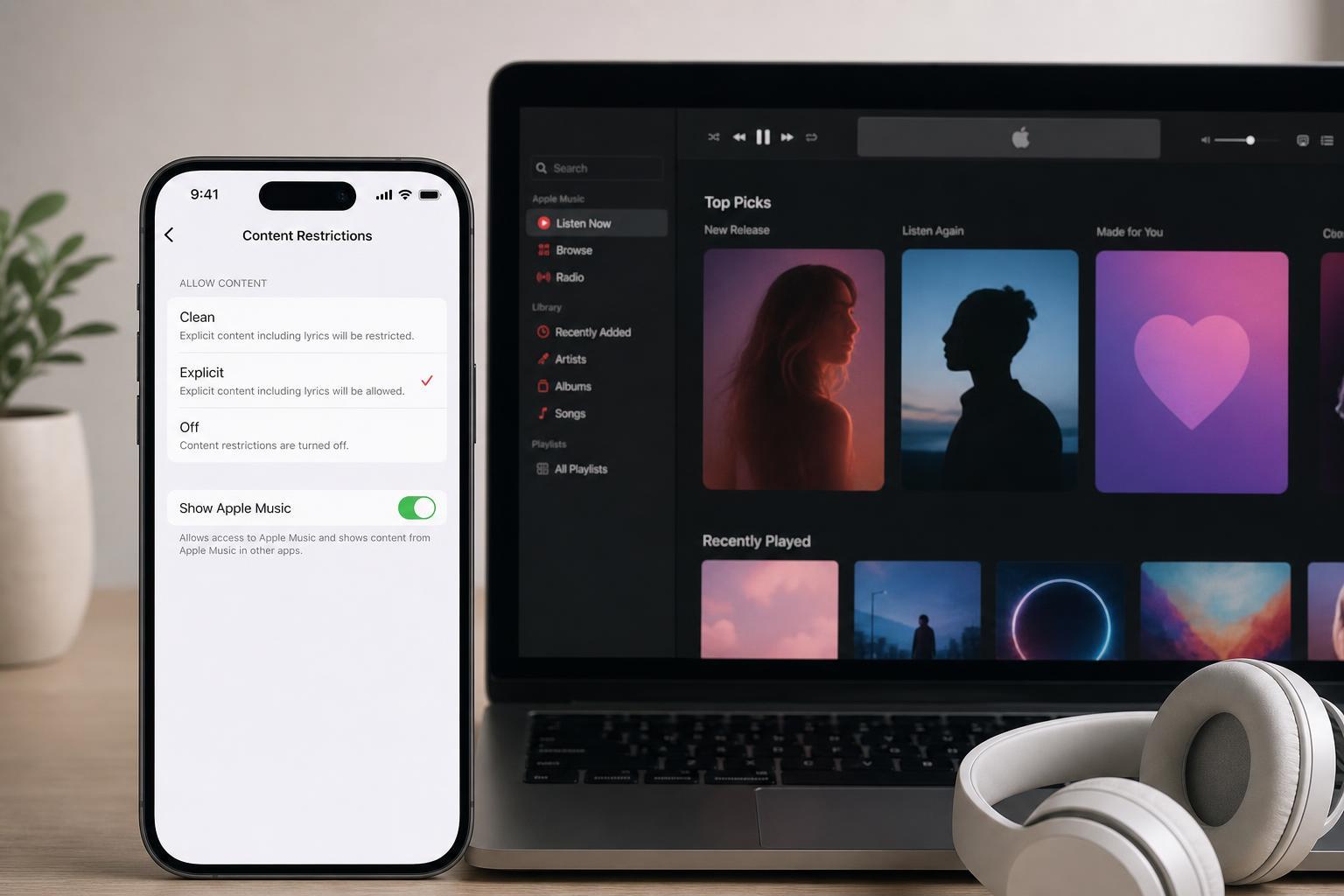
Allow or Block Explicit Content on iPhone or iPad
- Open the Settings app.
- Tap Screen Time.
- Tap Content & Privacy Restrictions. If prompted, enter your Screen Time passcode.
- Tap Content Restrictions.
- Tap Music, Podcasts, News, Fitness.
- Choose Explicit to allow explicit songs, or Clean to block them.
If Content & Privacy Restrictions are off, Apple Music may not be restricted at all. In that case, turning them on is only necessary if you want to control what can play on the device.
Change the Setting on a Mac
- Open System Settings.
- Click Screen Time.
- Select Content & Privacy.
- Turn Content & Privacy on if needed.
- Open Content Restrictions.
- Set Music, Podcasts, News, Fitness to Allow Explicit Content or limit it to Clean content.
Check the Apple Music App Settings on Android
On Android, the Apple Music app can follow device or account-based restrictions, but the exact controls are more limited than on iPhone, iPad, or Mac. If explicit songs are hidden, check whether the device is using a family or parental control setup, and review any restrictions in the Google Family Link or Apple account settings that may apply.
If You Are Using Family Sharing
For a child account in Family Sharing, the organizer may need to change the restriction from the family member’s Screen Time settings. The child may not be able to change the explicit content setting on their own.
- Open Settings on the organizer’s iPhone or iPad.
- Tap Screen Time.
- Choose the child’s name under Family.
- Tap Content & Privacy Restrictions.
- Open Content Restrictions.
- Set Music, Podcasts, News, Fitness to Explicit or Clean as needed.
How to Tell Whether Explicit Content Is Blocked
- Explicit songs may not appear in search results.
- A track may appear greyed out or unavailable.
- A clean version may play instead of the explicit version.
- Some albums may be missing only certain songs.
If you see these signs even after changing the setting, look for another restriction source such as Screen Time, Family Sharing, or a device management profile from school or work.
What to Try If the Setting Won’t Change
- Confirm that Screen Time restrictions are turned off or updated on the device that manages the account.
- Make sure you are signed in with the Apple ID that actually controls the subscription or family account.
- Check whether a managed profile from school, work, or parental control software is enforcing the filter.
- Verify that the explicit/clean setting was changed for the correct family member, not just the organizer’s own device.
Choose the Right Setting for Your Situation
If your goal is simply to stop explicit songs from appearing on a child’s device, Screen Time is usually the most important place to change. If you are trying to allow explicit music for your own account, make sure no family or device restriction is still active.





