
Posting a story with more than one photo is a quick way to share an event, trip, product, or everyday moment without creating a separate post for each image. Facebook and Messenger both support story-style sharing, but the way you add multiple photos can depend on whether you are using the app, your camera roll, or a collage-style layout.
This guide explains how to add multiple photos to a Facebook Story or Messenger Story, how to choose them in the right order, and what to do if you only see one photo at a time.
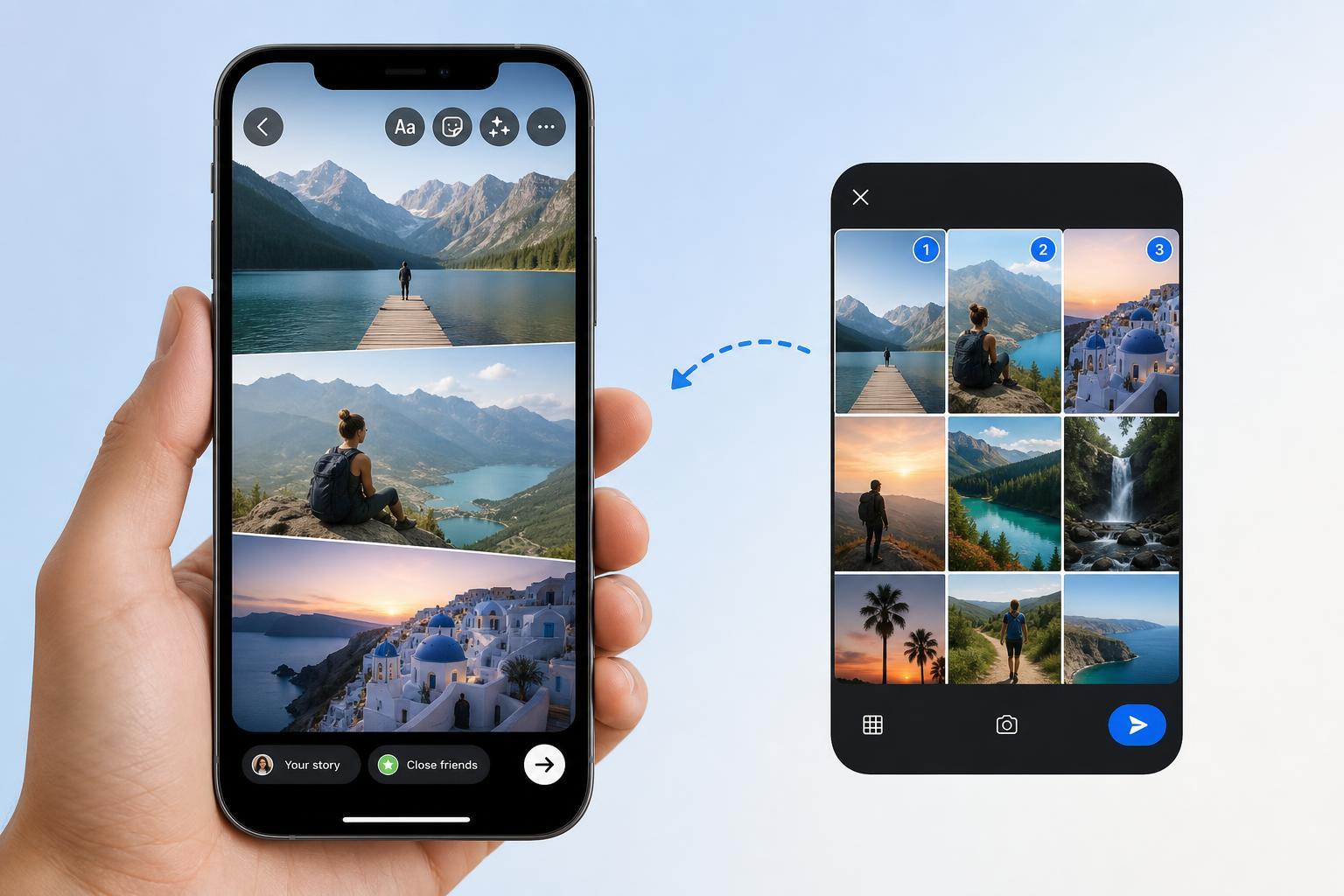
How to Add Multiple Photos to a Facebook Story
- Open the Facebook app and tap Create story, or tap Your story from the Stories row at the top of the app.
- Choose the first photo from your camera roll or take a new photo.
- Look for the Add photo option, or tap the sticker/menu icon if Facebook shows editing tools instead of a direct add button.
- Select another photo from your gallery. Repeat this step to add more images if the app allows it.
- Move, resize, or crop each photo if needed, then tap Share to story.
If your version of Facebook does not show an obvious way to keep adding separate photos to one story frame, use the layout or collage option instead. That lets you combine several images into a single story slide.
How to Add Multiple Photos to a Messenger Story
- Open Messenger and tap Story or Add to story, depending on your version of the app.
- Select a photo from your gallery or take a new one.
- If the app offers an Add photo, collage, or sticker option, use it to bring in additional images.
- Arrange the photos on the screen so they fit the story layout you want.
- Tap Post or Share to add the story.
Messenger Story sharing is usually simpler than full editing apps, so if you want several photos in one clean layout, a collage often works better than trying to place each picture one by one.
Best Ways to Combine Several Photos
- Use a collage layout if you want all photos visible at once.
- Post photos as separate story cards if you want viewers to tap through them in sequence.
- Use the same filter or crop style across all photos for a more consistent look.
- Place the strongest image first, since that is usually the one people see first.
- Keep text and stickers minimal if the photos already contain a lot of detail.
If You Only See One Photo at a Time
Some users expect a story editor to let them stack several photos into one story slide, but the app may only support one image per slide on that screen. In that case, you still have a few good options.
- Create a collage in a photo editor before uploading it.
- Post each photo as a separate story slide.
- Use the Facebook post composer instead of Story if you want a regular album-style post.
- Update the app if your story tools look limited or outdated.
Tips for Better Story Layouts
- Use vertical photos when possible, because they fill the story screen better.
- Crop distracting edges before uploading.
- Check readability if you add text over busy images.
- Preview the story before sharing to make sure nothing important is cut off.
- Avoid too many stickers or overlapping elements that cover the photos.
If the Option Is Missing or Not Working
- Make sure Facebook or Messenger is updated to the latest version.
- Confirm that the app has permission to access your photos.
- Try selecting photos from the camera roll rather than taking them in-app.
- Check whether you are using Story, Post, or Reel, since each tool works differently.
- If the app still only allows one image, use a collage app or separate story slides instead.
Which Method Should You Use?
If you want viewers to swipe through several photos one by one, post multiple story slides. If you want several images visible together in one frame, use a collage. If you want the photos to live as a normal share on your profile or page, a standard Facebook post is usually the better choice.





