
A macro button in Excel lets you run a VBA macro with a single click instead of opening the Macro dialog every time. It is a simple way to speed up repetitive tasks such as formatting reports, copying data, clearing sheets, or applying the same steps to new workbooks.
This guide shows you how to create a macro button in Excel, assign a macro to it, and make sure it works correctly. The steps are slightly different depending on whether you want a button on the worksheet or a button on the Quick Access Toolbar.
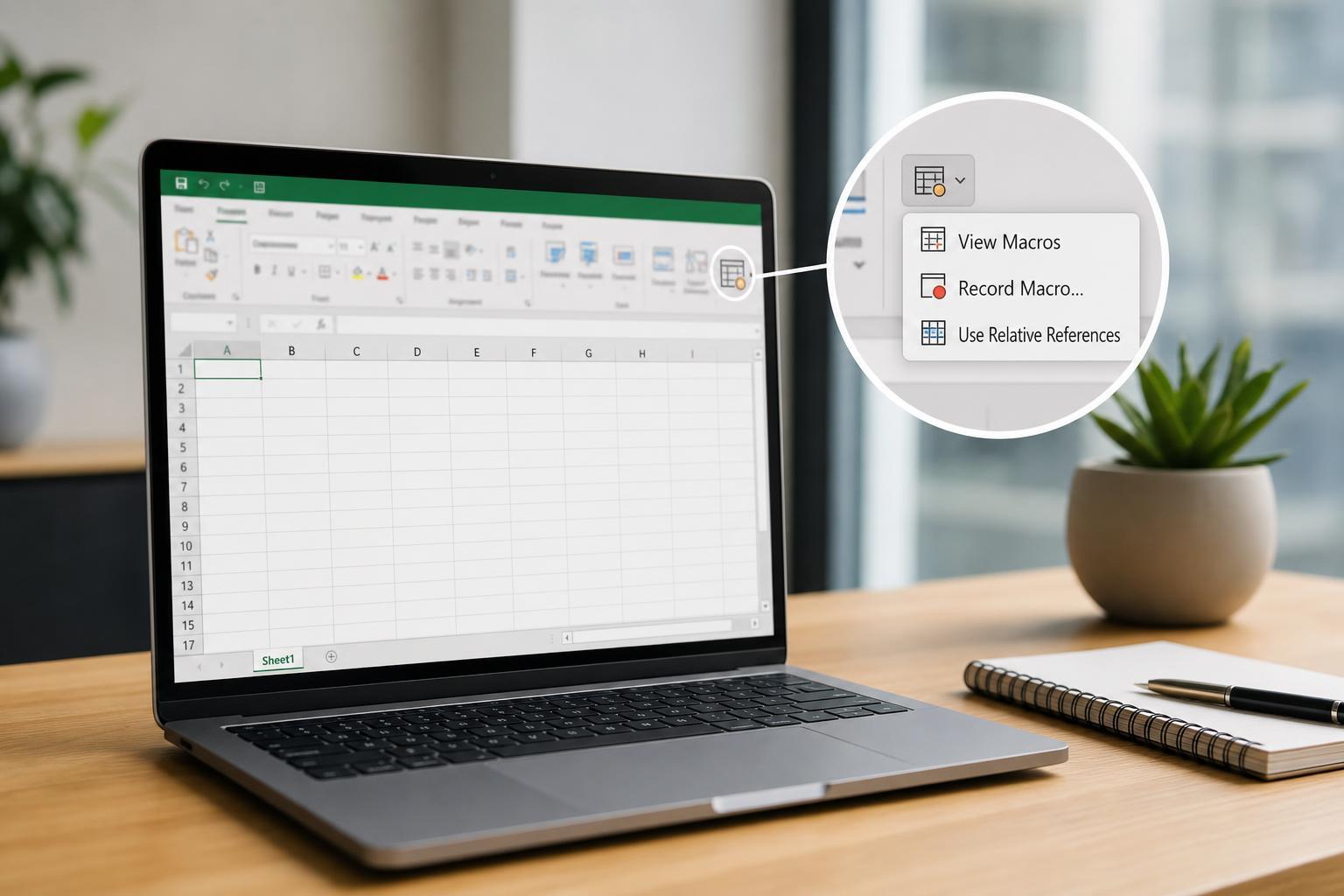
What You Need Before You Start
- A workbook saved as a macro-enabled file, such as .xlsm
- A macro already created in VBA, or a macro recorded with Excel's Macro Recorder
- The Developer tab enabled in Excel if you want to place a button on the worksheet
How to Enable the Developer Tab
The Developer tab is the easiest place to insert a button that runs a macro. If you already see Developer on the ribbon, you can skip this section.
- Open Excel and click File.
- Select Options.
- Choose Customize Ribbon.
- In the right-hand list, check the box for Developer.
- Click OK.
Create a Macro Button on the Worksheet
This method adds a button directly onto the sheet. It is the most common approach when you want other people to click the macro from the workbook itself.
- Open the workbook that contains your macro.
- Go to the Developer tab.
- Click Insert in the Controls group.
- Under Form Controls, choose Button.
- Drag on the worksheet to draw the button.
- When Excel asks you to assign a macro, select the macro you want.
- Click OK.
- Right-click the button to edit the label if needed.
Assign an Existing Macro to a Button
If you already have a macro recorded or written in VBA, you can attach it to a button without recreating the macro. The assignment happens when you insert the button or when you right-click the button and choose Assign Macro.
- Right-click the button on the sheet.
- Select Assign Macro.
- Choose the macro from the list.
- Click OK.
- Click the button to test it.
Create a Button on the Quick Access Toolbar
If you want one-click access to a macro without placing anything on the worksheet, you can add it to the Quick Access Toolbar instead.
- Click the small arrow on the Quick Access Toolbar.
- Choose More Commands.
- In the 'Choose commands from' menu, select Macros.
- Select the macro you want to add.
- Click Add.
- Optionally click Modify to change the icon or display name.
- Click OK.
If Your Macro Does Not Appear in the List
Sometimes a macro is not available when you try to assign it to a button. That usually means Excel cannot see the macro in the current workbook or it is not stored in a way that can be assigned easily.
- The macro is not in the same workbook
- The workbook was saved as .xlsx instead of .xlsm
- The macro is stored in Personal Macro Workbook or another file that is not open
- The macro is Private or not written as a standard public Sub procedure
If you recorded the macro, make sure it was saved in the workbook you are working on. If you wrote the macro manually, it should usually be a public Sub such as `Sub MyMacro()` rather than a function.
How to Test the Button Safely
- Save the workbook first.
- Click the button once.
- Confirm that the expected action happens.
- Undo the action immediately if it is reversible and the result is not correct.
- Adjust the macro or button label if needed.
Common Problems and Fixes
- The button does nothing: check whether macros are enabled for the workbook.
- Excel says the macro cannot be found: reassign the button to the correct macro.
- The workbook asks for permission each time: trust the file or enable content when prompted.
- The button looks different than expected: use the button's right-click options to resize or rename it.
Which Button Method Should You Use?
If the macro is meant for a specific worksheet or report, place a button directly on the sheet. If you want a reusable shortcut for many tasks and many workbooks, the Quick Access Toolbar is usually more convenient.
- Worksheet button: best for workbook-specific actions
- Quick Access Toolbar button: best for frequent personal shortcuts
- Form Controls button: easiest option for most users
A Simple Example Use Case
A common setup is a button named 'Format Report' that runs a macro to bold headings, apply borders, and resize columns. Instead of repeating those steps manually every time, you click the button and let Excel do the work.





