
Facebook Group settings are where you control who can join, who can post, how approvals work, and how the group is moderated. The exact options you see depend on whether you are a group admin or moderator, and some settings appear in different places on desktop and mobile.
This guide shows you how to access Facebook Group settings, what the main options mean, and which changes are most important if you want better control over your community.
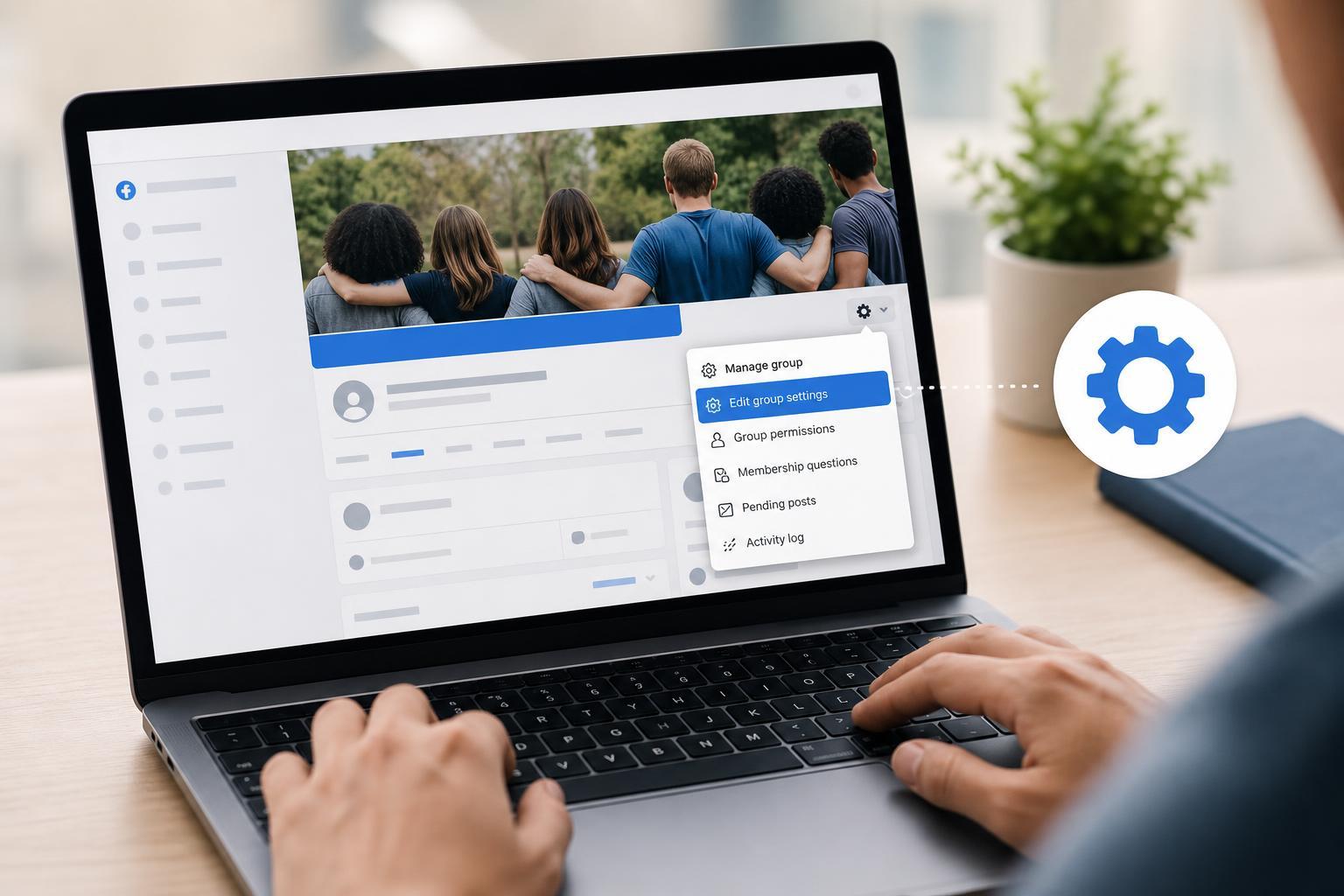
Open Facebook Group Settings on Desktop
- Log in to Facebook and open the group you manage.
- Look for the left-hand menu or the panel near the top of the group page.
- Click Group settings or Manage group, depending on the group layout you see.
- Browse the available sections such as membership, posting permissions, and moderation tools.
Facebook changes the location and names of group controls fairly often, so the menu may not look exactly the same for every group. If you are an admin, you should still see the tools needed to edit the group.
Open Facebook Group Settings on the Mobile App
- Open the Facebook app and go to the group.
- Tap the menu or admin tools area at the top of the group page.
- Choose Group settings or Admin tools.
- Select the setting you want to change.
On mobile, Facebook often groups settings into sections instead of showing everything in one long list. If you cannot find a specific option, check the Admin tools area first, since Facebook sometimes places moderation and membership controls there.
Important Facebook Group Settings You Can Edit
- Privacy: controls whether the group is public, private, or visible to non-members.
- Membership approval: decides whether new members join automatically or need admin approval.
- Posting permissions: controls whether all members can post or only admins and approved members.
- Post approval: lets admins review posts before they appear in the group.
- Member approval for posts and comments: helps reduce spam and off-topic content.
- Questions for new members: helps screen people before they join.
- Bad words filter: blocks or flags unwanted language.
- Admin and moderator roles: lets you add or remove people who help manage the group.
How to Change a Group Setting
- Open the group settings page.
- Find the category you want to change, such as privacy, membership, or moderation.
- Click or tap the current option.
- Choose the new setting and confirm if Facebook asks you to save.
- Review the group to make sure the change worked as expected.
Common Settings Worth Checking First
- Who can post: set this if your group is getting too many low-quality posts.
- Who can join: use approval if strangers are joining too quickly.
- Post approval: helpful for expert groups, sales groups, or community groups that need tighter control.
- Admin assist: can automatically flag posts that may break your rules.
- Membership questions: useful for filtering bots or people who do not fit the group topic.
If You Cannot Find Group Settings
- Make sure you are signed in with an account that has admin or moderator access.
- Check whether you are viewing the group as a regular member instead of as an admin.
- Try the desktop version if the mobile app hides a setting you need.
- Look for Admin tools, Manage group, or the three-dot menu if the settings page is not obvious.
- Some options may be unavailable if Facebook has removed them or merged them into a different menu.
Best Practices When Editing Group Settings
- Change one or two settings at a time so you can see what effect each change has.
- Write clear group rules before opening the group to more members.
- Use approval tools only as strictly as needed, or you may slow down genuine participation.
- Review roles periodically so inactive admins do not keep unnecessary access.
- Check settings after Facebook app updates, since menu locations can change.
When Group Settings Do Not Seem to Save
If a setting changes back or does not appear to update, refresh the page or reopen the app and check the group again. Facebook sometimes delays showing the latest version of a setting, especially after several quick changes. If the problem continues, try switching from mobile to desktop or vice versa to confirm whether the issue is tied to the app interface rather than the setting itself.
How to Narrow Down the Right Setting
If you are trying to solve a specific problem, match the issue to the setting that controls it. Spam is usually handled by approval and moderation tools. Unwanted members are usually managed through join approval and member questions. Too many irrelevant posts often means posting permissions need tightening. Starting with the exact problem will save time and make the group easier to manage.





