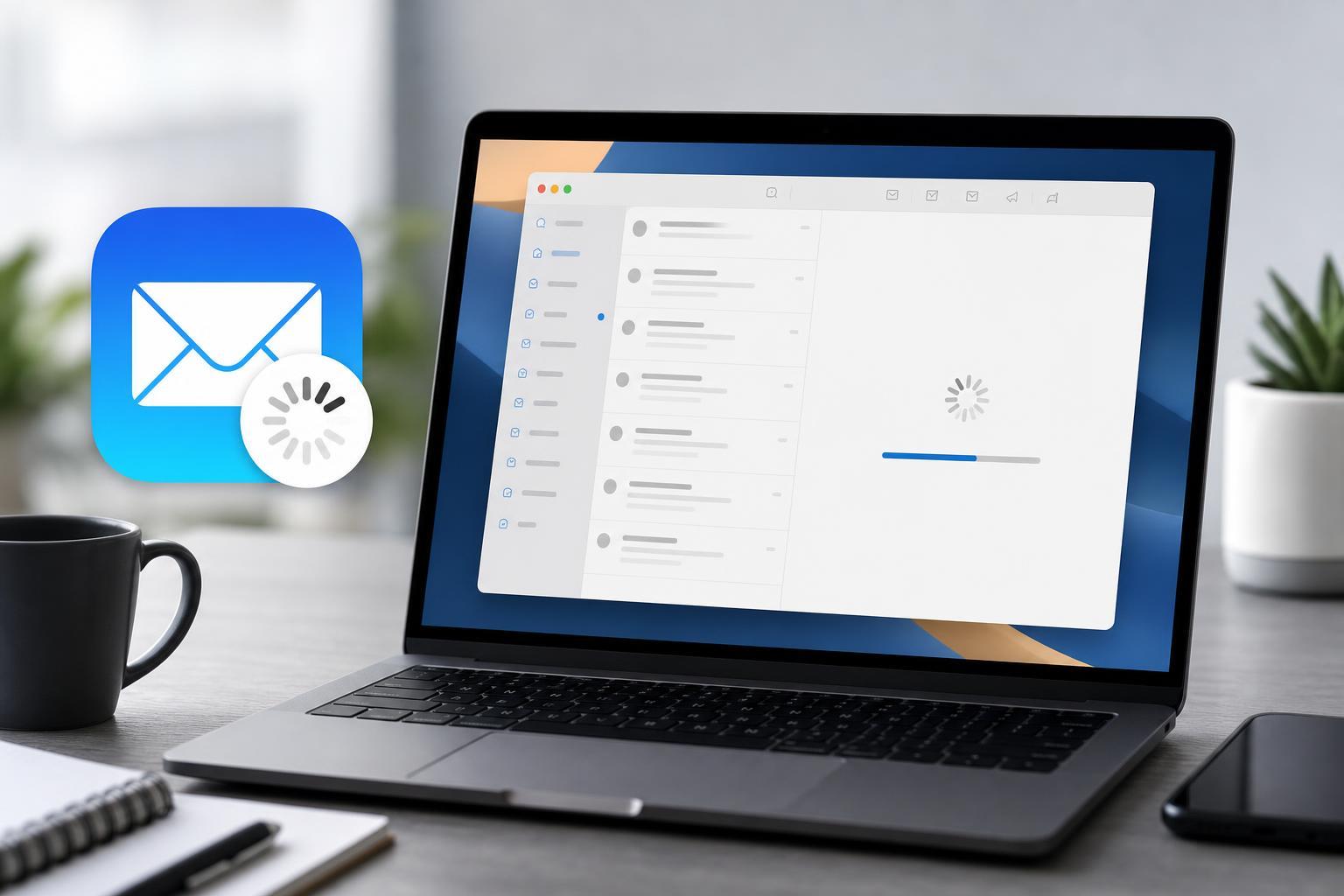
If Apple Mail says it is downloading messages but never seems to finish, the issue is usually caused by a sync problem, a connection issue, or a server-side delay. The good news is that in many cases you can narrow it down quickly and get Mail working again without losing any email.
This guide walks through the most useful checks in a sensible order, starting with simple account and network problems and moving on to more advanced fixes only if needed.
What Usually Causes Apple Mail to Get Stuck
- A weak or unstable internet connection
- A problem with one mail account or mailbox
- Incorrect password or authentication settings
- A full or stuck outbox with a message that will not send
- Large attachments or very large mailboxes slowing sync
- Temporary issues with the mail provider's server
- Mailbox corruption or a sync conflict in Mail app data
Check Whether It Is a Mail App Problem or a Server Problem
Before changing settings, find out whether Apple Mail is the only app affected. Open the same email account in a web browser or another mail app if you have one. If messages appear there but not in Apple Mail, the issue is local to the device. If nothing is arriving anywhere, the mail provider may be having a server-side problem.
Make Sure Your Internet Connection Is Working Properly
- Open a website in Safari or another browser to confirm that the connection is active.
- If pages load slowly or fail, switch to another Wi-Fi network or test with mobile data on iPhone.
- If you are on a VPN, temporarily disconnect it and try Mail again.
- If you are using a captive network such as hotel or office Wi-Fi, complete any sign-in page first.
Mail can look like it is stuck downloading messages when it is really waiting on a connection that keeps dropping. Even brief interruptions can break sync, especially with large inboxes or multiple accounts.
Refresh the Mail App
- In Mail on Mac, choose the mailbox and click Get Mail, or press Shift + Command + N if available.
- On iPhone or iPad, pull down in the mailbox list or inbox to force a refresh.
- Wait a moment to see whether new mail appears or the status changes.
- If messages begin to load, let Mail finish before switching apps or closing the window.
Check for a Stuck Outbox Message
A message waiting in the Outbox can sometimes interfere with normal mail activity, especially if it includes a large attachment or was sent using a flaky connection.
- Open the Outbox or Sent folder in Apple Mail.
- Look for messages that failed to send or are still waiting.
- If one message is stuck, try sending it again when your connection is stable.
- If it still will not send, remove large attachments or save the message as a draft and resend it later.
Verify the Account Is Still Signed In
If Mail cannot authenticate your account, it may keep trying to download messages without success. This is common after a password change or when two-factor authentication requires you to sign in again.
- Open Mail settings or Internet Accounts on your device.
- Select the affected account.
- Look for a warning that says the account needs a password or reauthentication.
- Enter the updated password or sign in again if prompted.
- If the account uses app-specific passwords, make sure you are using the correct one.
Confirm Mail Sync Settings
Sometimes the account is connected, but sync settings limit what Mail downloads. This is especially worth checking if only part of your mailbox seems available.
- Make sure Mail is enabled for the account.
- Check whether the account is set to fetch manually instead of automatically.
- Review whether only recent messages are being synced on the device.
- If you use IMAP, confirm that the relevant folders are subscribed and visible.
Force Apple Mail to Rebuild the Mailbox View on Mac
If Mail can connect but the message list or downloads remain stuck, rebuilding the mailbox can clear display and sync glitches without removing the account.
- In Mail on Mac, select the mailbox that is having trouble.
- From the mailbox menu, choose Rebuild if that option is available.
- Allow Mail time to re-index and re-download messages.
- Check whether new messages now appear normally.
Remove and Re-Add the Account if the Problem Continues
If the account is still stuck after the basic checks, removing and adding it again can clear a bad sync state or authentication issue. This is more disruptive than the earlier steps, so use it only after you have confirmed that your mail is stored on the server and will sync back down.
- Back up anything important that exists only on the device, such as local drafts or messages stored in an On My Mac mailbox.
- Remove the affected account from Mail or from Internet Accounts.
- Restart Mail or the device if prompted.
- Add the account again using the correct provider settings.
- Allow time for the mailbox to resync, especially if you have a lot of mail.
Look for a Large Message or Attachment Causing the Delay
A single oversized message can make Mail appear frozen while it attempts to download the message body or attachments. This is more likely if the problem happens every time Mail reaches the same email.
- Open the mailbox in webmail and see whether one recent message is unusually large.
- Delete or move the message from webmail if it is safe to do so.
- If the message contains attachments, try downloading them from the browser instead of in Mail.
- Ask the sender to resend the content in a smaller file if needed.
Clear App-Specific Glitches on iPhone or iPad
On iPhone and iPad, Mail may get stuck because of a background sync hiccup rather than a full account failure. If the account works elsewhere, try focusing on the device itself.
- Open Settings and check that Mail has permission to use the account.
- Verify that Background App Refresh is enabled if you rely on frequent sync.
- Make sure Low Power Mode is not restricting background activity for long periods.
- Delete and re-add the account if only that device is affected and the mail is stored on the server.
When to Contact Your Email Provider or IT Team
If Apple Mail still says it is downloading messages after you have confirmed the account details, checked the connection, and tested the account elsewhere, the problem may be beyond the device. The provider may need to reset mailbox sync, repair the account, or check for server-side errors.
- The same account fails in webmail too
- You recently changed passwords or security settings
- The mailbox contains an error or quota warning from the provider
- You use a work or school account managed by IT
- Only one folder, such as Inbox or Sent, refuses to sync
How to Narrow Down the Problem Fast
- Check the account in webmail or another app.
- Confirm that the internet connection is stable.
- Look for password or sign-in warnings in Mail.
- Test whether one message or one mailbox is causing the hold-up.
- Rebuild the mailbox or re-add the account if the issue remains.
- Escalate to the provider if the problem also appears on the server side.
Keeping Apple Mail from Getting Stuck Again
- Keep your email password and app-specific password information up to date.
- Avoid leaving very large attachments in the Outbox during weak network conditions.
- Remove accounts cleanly rather than force-closing Mail during sync.
- Watch for mailbox size limits or provider warnings.
- Check periodically that only the folders you need are syncing on each device.
If Apple Mail keeps getting stuck on downloading messages, the quickest path is usually to identify whether the issue is network-related, account-related, or tied to one mailbox or message. Once you isolate that layer, the right fix is usually much easier to apply.