
If your Bluetooth headset connects to a Windows PC but the microphone won’t work, the problem is usually caused by a Windows input setting, a wrong default device, Bluetooth profile limits, or a driver issue. The good news is that this is often fixable without replacing the headset.
This guide walks through the most likely causes first, then moves on to more advanced checks if the mic still does not work in apps like Zoom, Discord, Teams, or Voice Recorder.
Start With the Most Common Cause: Windows Is Using the Wrong Mic
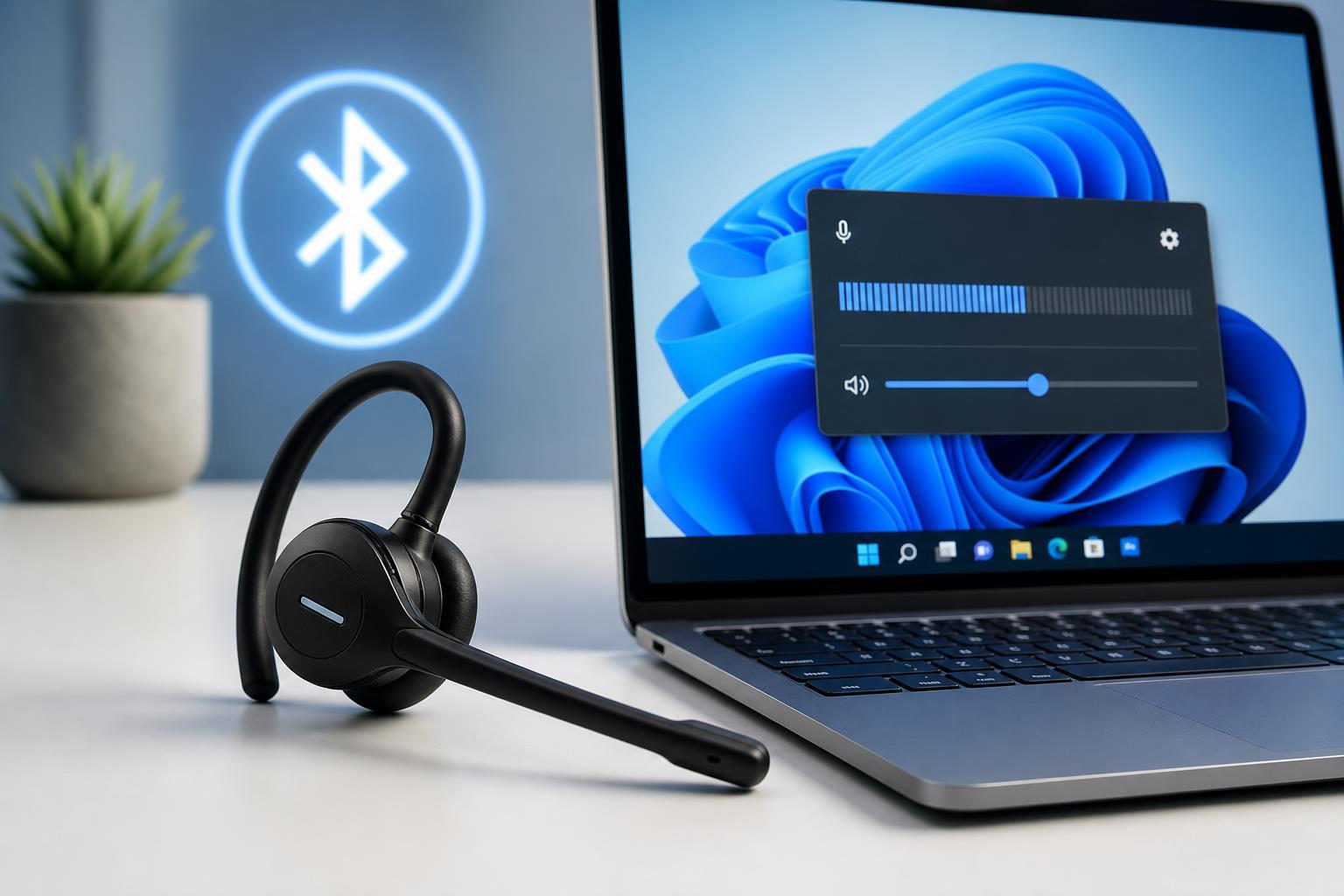
Windows can connect to a Bluetooth headset for listening while still sending your microphone input to another device, such as the laptop’s built-in mic or a USB webcam mic. Before changing anything else, confirm that Windows is actually using the headset microphone.
- Right-click the speaker icon in the taskbar and choose Sound settings.
- Under Input, look at the selected microphone device.
- Choose your Bluetooth headset from the list if it is not already selected.
- Speak into the headset and watch whether the input level moves.
- If the wrong device is selected, set the headset as the default input in the app you are using as well.
Check the Privacy Permission for Microphone Access
If Windows is blocking microphone access, the headset can connect normally but no app will receive audio from it.
- Open Settings and go to Privacy & security.
- Select Microphone.
- Turn on Microphone access.
- Also turn on Let apps access your microphone.
- If the app you are using is listed separately, make sure it is allowed too.
Make Sure the Headset Is in the Right Bluetooth Mode
Many Bluetooth headsets support two different audio modes. One mode is optimized for high-quality listening, and another mode is used when the microphone is active. On Windows, the headset may appear as two devices: one for stereo playback and one for hands-free calling.
- If you only hear audio but the mic is silent, Windows may be using the stereo playback profile instead of the hands-free profile.
- If the headset has a companion app, check whether the mic is disabled there.
- Some headsets automatically switch modes when a call or voice chat begins, so test it inside the app you plan to use.
Set the Headset Mic as the Default Recording Device
If Windows has multiple recording devices, your headset may be installed correctly but not chosen as the default input source.
- Press Windows + R, type mmsys.cpl, and press Enter.
- Open the Recording tab.
- Right-click your Bluetooth headset microphone.
- Choose Set as Default Device and, if available, Set as Default Communication Device.
- Speak into the mic and check whether the green level meter moves.
Remove and Re-Pair the Headset
Bluetooth pairing can become corrupted, especially after Windows updates or if the headset has been connected to multiple devices. Removing the headset and pairing it again often clears the issue.
- Open Settings and go to Bluetooth & devices.
- Find the headset and select Remove device.
- Turn the headset off and then back on.
- Put it into pairing mode again.
- Pair it with the PC and test the microphone.
Check App-Specific Audio Settings
Some voice apps do not automatically follow Windows system settings. If the headset mic works in one program but not another, the app may be pointing to the wrong input device.
- Zoom: open Audio settings and choose the headset microphone manually.
- Discord: check Voice & Video settings and confirm the input device.
- Microsoft Teams: open Device settings and select the correct microphone.
- Game launchers and in-game voice chat menus may have separate audio device selections.
Test the Microphone in Windows
Testing in Windows helps you tell whether the issue is system-wide or limited to one app. If the headset mic works in Windows Voice Recorder or the sound test in Settings, the problem is probably inside the app rather than the headset itself.
- Open Settings and go to System > Sound.
- Under Input, choose the Bluetooth headset microphone.
- Speak normally and watch the input bar.
- Open Voice Recorder and record a short clip if needed.
- Play it back to confirm whether Windows is capturing sound.
Update or Reinstall Bluetooth and Audio Drivers
Driver problems can stop the microphone from working even when the headset still plays audio. This is especially common after a Windows update or when older Bluetooth drivers are installed.
- Right-click Start and open Device Manager.
- Expand Bluetooth and Sound, video and game controllers.
- Look for your Bluetooth adapter and headset-related audio devices.
- Right-click the device and choose Update driver.
- If updating does not help, uninstall the device and restart Windows so it can reinstall it automatically.
Check Whether the Headset Is Connected to Another Device
Many Bluetooth headsets can connect to more than one device, but some models limit microphone use when they are already active on a phone, tablet, or another PC. If the headset mic suddenly stops working, another device may be taking over the connection.
- Turn off Bluetooth on nearby paired devices and test again.
- Disconnect the headset from your phone before using it on the PC.
- Check the headset app if it supports multipoint connections.
- If available, clear the headset’s saved connections and pair only with the PC for testing.
Disable Hands-Free Telephony Only if You Understand the Tradeoff
Some users disable the hands-free profile to improve audio quality, but doing that usually removes microphone support entirely. If your headset mic is not working, this is not the fix you want to try unless you are specifically troubleshooting a bad hands-free profile.
Run the Windows Troubleshooter or Audio Services Check
Windows includes troubleshooters that can sometimes detect obvious device or configuration problems. They do not always fix Bluetooth headset issues, but they are worth trying if the earlier steps did not help.
- Open Settings and go to System > Troubleshoot > Other troubleshooters.
- Run the Recording Audio troubleshooter.
- Also run the Bluetooth troubleshooter if available.
- If the microphone service seems stuck, check that Windows Audio and Bluetooth Support Service are running in Services.
If the Mic Still Does Not Work
At this point, the problem is usually one of three things: the headset’s microphone is faulty, the Bluetooth adapter or driver on the PC is not handling the headset properly, or the headset has a compatibility issue with Windows.
- Test the headset on another computer or phone that supports Bluetooth calling.
- Test a different Bluetooth headset on the same PC.
- Try a USB Bluetooth adapter if the built-in adapter seems unreliable.
- Use the headset manufacturer’s support app or firmware update tool if one is available.
What This Usually Means
If your Bluetooth headset works for audio but not microphone input, the most common fixes are choosing the correct input device, enabling microphone permissions, re-pairing the headset, and checking app-specific audio settings. Driver updates and multipoint connections are the next most likely causes.
If none of those steps restores the mic, the headset hardware or the PC’s Bluetooth setup may be the real issue. Testing the headset on another device is the fastest way to tell which side is failing.





