
Cache files can help Windows and apps load faster, but over time they can take up a lot of storage space or contribute to odd app behavior. If you want to free disk space or remove stale temporary data, Windows 10 and Windows 11 give you several safe ways to clear cache files.
Not all cache is the same, so the best method depends on what you want to clean. This guide covers the common cache locations most Windows users can clear without affecting personal files.
What Counts as Cache in Windows?
In Windows, cache usually means temporary data stored so the system or apps can open faster next time. That can include thumbnail previews, temporary update files, browser cache, Microsoft Store cache, and leftover temporary files from apps.
The Safest Place to Start: Windows Storage Settings
If your main goal is to free space quickly, Storage settings is the easiest place to begin. It lets Windows identify common temporary files and lets you choose what to remove.
- Open Settings.
- Select System, then Storage.
- Wait for Windows to scan the drive.
- Select Temporary files.
- Review the items listed before deleting anything.
- Check the types of files you want to remove, then select Remove files.
Clear Temporary Files with Disk Cleanup
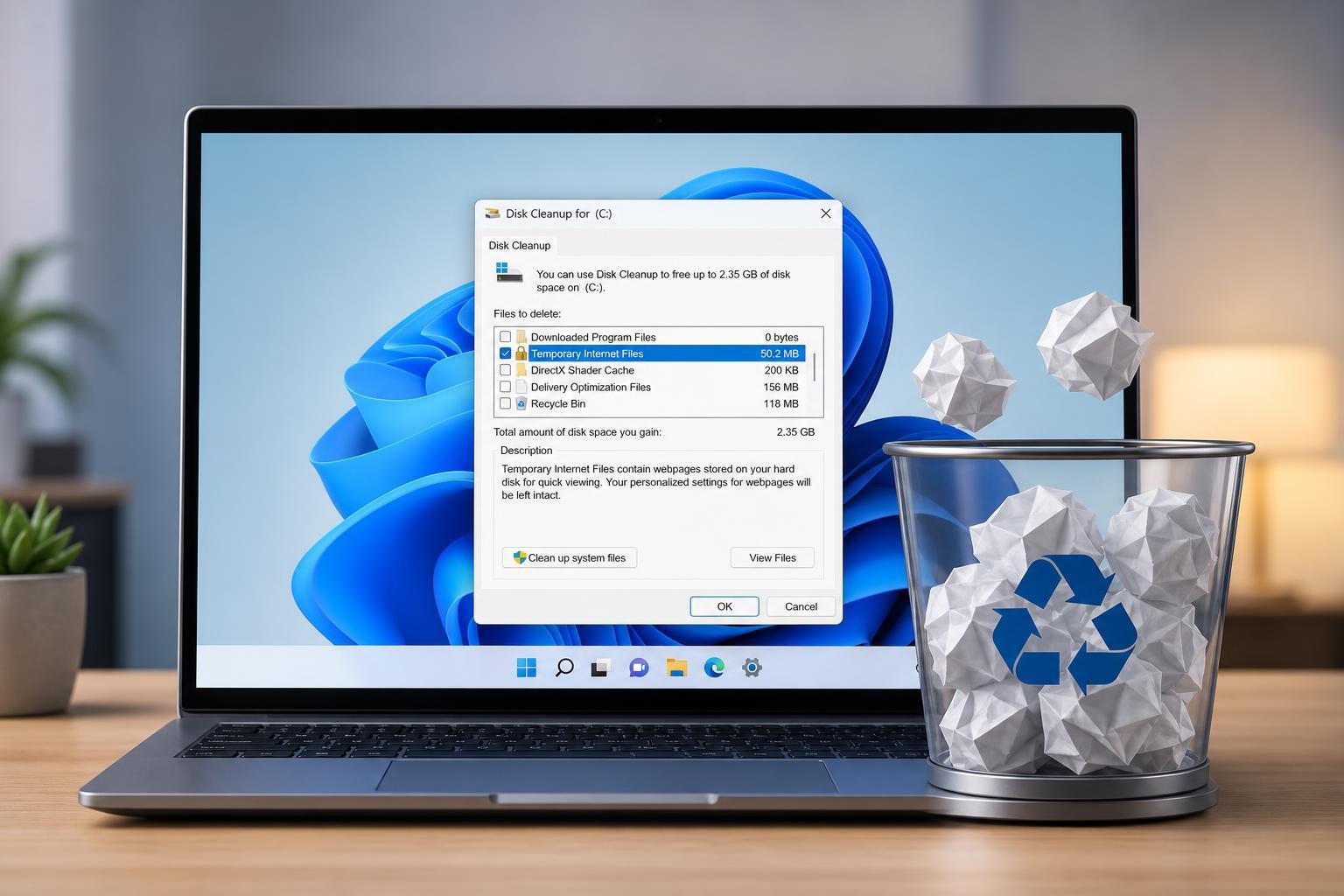
Disk Cleanup is still useful in both Windows 10 and Windows 11, especially for removing system-generated junk such as update leftovers and thumbnail caches.
- Search for Disk Cleanup in the Start menu and open it.
- Choose the drive you want to clean, usually C:, and select OK.
- Wait while Windows calculates what can be removed.
- Select Clean up system files if you want a deeper scan.
- Check the boxes for files you want to delete, then select OK and confirm.
- Temporary Internet Files and browser leftovers
- Thumbnails
- Delivery Optimization Files
- Windows Update Cleanup
- Temporary files
Clear the Microsoft Store Cache
If Microsoft Store apps are loading slowly, failing to download, or showing strange errors, clearing the Store cache can help without removing your apps.
- Press Windows + R to open the Run box.
- Type wsreset.exe and press Enter.
- A blank Command Prompt window will appear briefly.
- Wait for the Microsoft Store to open automatically when the reset is complete.
Remove Browser Cache
If your browser is the main problem, clearing browser cache is often the most effective step. This can fix page display issues, old login data, or websites that are not loading correctly.
- In Microsoft Edge or Chrome, open the browser menu.
- Go to Settings, then Privacy or Privacy, search, and services.
- Find Clear browsing data or Delete browsing data.
- Choose Cached images and files.
- Select a time range, then clear the data.
Clear File Explorer Thumbnail Cache
Windows stores thumbnail previews so folders open faster and show image or video previews. If those thumbnails become corrupted, you may see blank or incorrect previews. Clearing the thumbnail cache can fix that.
- Open Disk Cleanup or Storage settings.
- Look for Thumbnails in the list of files to remove.
- Select it and delete the cache.
- Windows will rebuild thumbnails automatically as needed.
Clear Temporary Files Manually
Windows stores a lot of temporary data in the temp folders. You can safely remove many of these files, but some may be in use by currently open programs.
- Press Windows + R.
- Type %temp% and press Enter.
- Select the files and folders inside the Temp folder.
- Delete what Windows allows, then skip anything currently in use.
- Repeat with temp if you want to check the system temp folder as well.
Clear DNS Cache When Websites Stop Loading Properly
Sometimes the cache problem is not on the disk at all. Windows also keeps a DNS cache that stores recent network lookup results. If websites are loading the wrong address or failing to resolve, clearing DNS cache can help.
- Open Command Prompt or Windows Terminal as an administrator.
- Type ipconfig /flushdns and press Enter.
- You should see a confirmation that the DNS Resolver Cache was cleared.
When You Should Be Cautious
Most cache-clearing steps are safe, but it is still smart to check what you are deleting before confirming. Some cleanup tools also offer files that are not really cache, such as downloads, previous Windows installations, or recycle bin contents.
- Do not clear Downloads unless you are sure you no longer need the files there.
- Review update-related cleanup options if you may need to roll back a recent Windows update.
- Expect websites and apps to sign you out after browser cache cleanup.
- If a folder is actively syncing with OneDrive or another cloud app, let the sync finish before deleting temporary files.
Which Cache Should You Clear First?
If you are trying to solve a storage problem, start with Storage settings and Disk Cleanup. If a specific app is acting up, clear that app’s cache first, such as the Microsoft Store or your browser. If the issue is network-related, DNS cache is the better target.
Quick Summary
- Use Storage settings for the easiest general cleanup.
- Use Disk Cleanup for deeper temporary file removal.
- Use wsreset.exe to fix Microsoft Store cache issues.
- Clear browser cache when websites or logins misbehave.
- Use ipconfig /flushdns for network lookup problems.
- Delete temp folder contents carefully and skip files that are in use.





