If Windows Firewall refuses to turn on, the problem is usually caused by a disabled service, damaged system files, a third-party security app, or a corrupted firewall configuration. The good news is that most cases can be fixed without reinstalling Windows.
This guide walks through the most practical fixes in the right order, starting with the most common causes and moving to deeper repair steps if needed.
Check Whether Another Security App Is Controlling the Firewall
Some antivirus and internet security suites include their own firewall and may turn off Windows Firewall automatically. If a third-party security program is managing protection, Windows may block you from enabling its built-in firewall until that software is changed or removed.
- Open your antivirus or security app and look for firewall or network protection settings.
- If the app has its own firewall, disable it temporarily and try turning on Windows Firewall again.
- If you no longer want the security suite, uninstall it completely and then test Windows Firewall after a reboot.
- If the app has a repair option, use that before uninstalling it.
Make Sure the Required Services Are Running
Windows Firewall depends on background services. If one of them is stopped or disabled, the firewall may not start at all.
- Press Windows + R, type services.msc, and press Enter.
- Find Windows Defender Firewall in the list.
- Double-click it and set Startup type to Automatic.
- If the service is stopped, click Start.
- Look for Base Filtering Engine as well and make sure it is running with Automatic or Automatic (Delayed Start) if available.
- Apply the changes and try enabling Windows Firewall again.
Use the Built-in Firewall Troubleshooter
Windows can sometimes detect and repair basic firewall issues automatically. This is worth trying before making more invasive changes.
- Open Settings.
- Go to System > Troubleshoot > Other troubleshooters.
- Find Network and Internet or Windows Store Apps troubleshooting options if available, then run any firewall-related or network repair tools.
- Follow the on-screen prompts and apply any fixes it suggests.
Reset Windows Firewall to Its Default Settings
If the firewall configuration is corrupted, resetting it can restore the default rules and settings. This often fixes cases where the firewall toggle will not stay on or Windows reports an error when you try to enable it.
- Open Control Panel.
- Select System and Security.
- Click Windows Defender Firewall.
- Choose Restore defaults from the left panel.
- Confirm the reset and test the firewall again.
Repair Corrupted System Files
If Windows system files are damaged, firewall components may fail to load correctly. Running the built-in repair tools can restore missing or corrupted files.
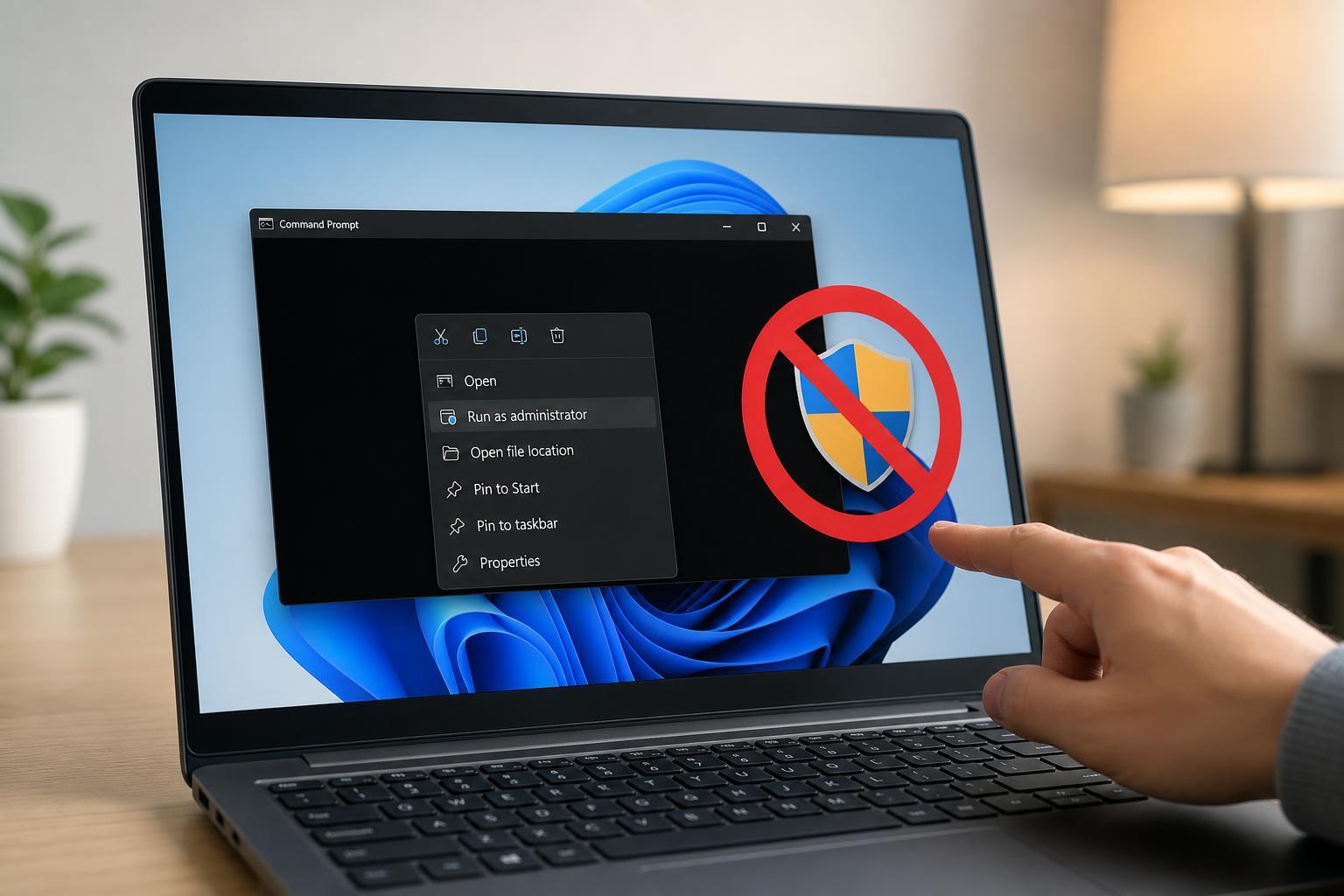
- Right-click the Start button and open Terminal or Command Prompt as administrator.
- Run: sfc /scannow
- Wait for the scan to finish.
- If problems remain, run: DISM /Online /Cleanup-Image /RestoreHealth
- Restart your PC after the scan completes and test Windows Firewall again.
Check Whether the Firewall Service Is Being Blocked by Group Policy or Registry Changes
On some PCs, especially work or school devices, policy settings can prevent Windows Firewall from turning on. Malware or manual tweaks can also change registry values that disable the firewall.
- If this is a managed work or school PC, contact the administrator before changing policy settings.
- If you recently used a registry cleaner or security tweak tool, undo those changes if possible.
- Look for Group Policy settings that disable firewall profiles if you know the device is not managed.
- Be careful with registry edits unless you are following a trusted repair guide for your exact Windows version.
Run a Malware Scan
Malware can disable security features, including Windows Firewall, to make the system easier to attack. If the firewall stopped working suddenly, a scan is worth doing.
- Open Windows Security.
- Go to Virus & threat protection.
- Run a Full scan, or a Microsoft Defender Offline scan if you suspect something deeper.
- Remove anything detected and then try enabling the firewall again.
Try a Clean Boot if a Conflicting Program Is Causing the Problem
A startup program or background service may be interfering with Windows Firewall. A clean boot starts Windows with only essential Microsoft services so you can test whether another app is responsible.
- Open System Configuration by typing msconfig in the Start menu.
- On the Services tab, check Hide all Microsoft services.
- Click Disable all.
- Open Task Manager and disable startup apps.
- Restart the computer and try turning on Windows Firewall.
- If it works, re-enable items gradually until you find the conflict.
When to Use a Windows Repair Install
If none of the steps above work, the Windows installation itself may be damaged. A repair install can replace core system components without wiping your files and most apps.
This is a stronger option than repeated resets because it repairs Windows features more thoroughly while keeping your personal data intact in many cases. It is best saved for last, after services, firewall settings, and system file repairs have been ruled out.
Which Fix Should You Try First?
Start with the checks most likely to solve the problem quickly: third-party security software, the Windows Defender Firewall service, and the built-in firewall reset. If those do not help, move on to system file repair and malware scanning. Only after that should you consider more advanced policy or repair-install options.
If you want, I can also turn this into a shorter step-by-step troubleshooting checklist or tailor it for Windows 10 or Windows 11 specifically.