
If you want your Google Photos library to appear inside the Windows 11 Photos app, the easiest path is to use Google Drive as the bridge. This setup does not fully merge the two services, but it can make cloud-stored photos easier to browse and open on your PC.
In this guide, you’ll learn how the connection works, how to set it up, and what to expect so you do not run into surprises about syncing, storage, or file availability.
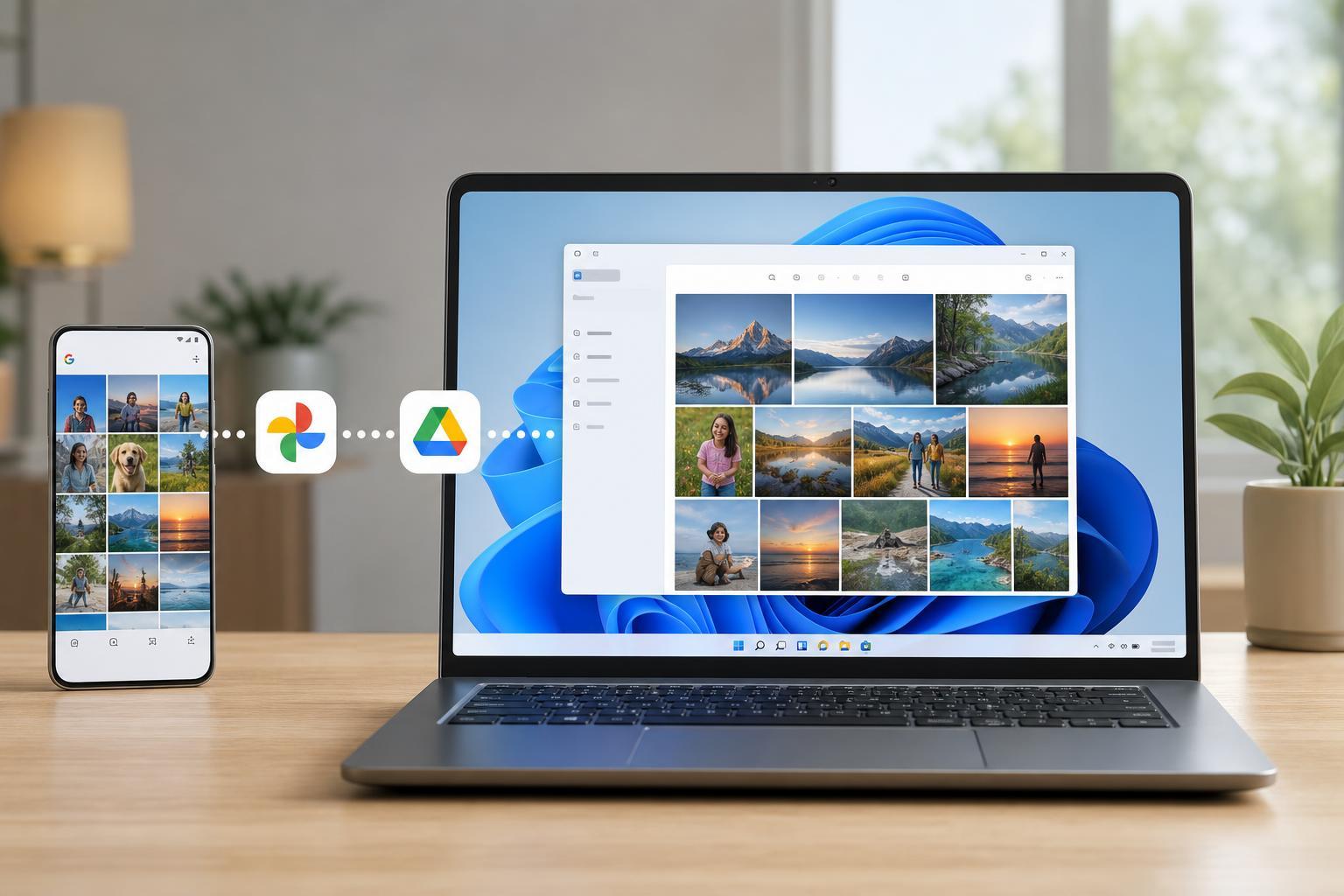
What This Setup Actually Does
Google Photos and the Windows 11 Photos app do not have a direct built-in sync link. Instead, you can use Google Drive for desktop to make your Google Drive files available on Windows, and then let the Photos app index and display the image files that are synced to your computer.
Before You Start
- A Windows 11 PC
- A Google account with access to Google Photos and Google Drive
- Google Drive for desktop installed on the PC
- Enough local storage if you plan to keep photos available offline
- An internet connection for initial setup and ongoing sync
Install Google Drive for Desktop
- Download Google Drive for desktop from Google’s official site and install it on your Windows 11 PC.
- Sign in with the Google account that holds the photos you want to access.
- Choose whether you want to stream files or mirror them locally. Streaming saves disk space, while mirroring keeps copies on your PC.
- Complete the setup and wait for Google Drive to finish connecting to your account.
Make Sure Your Photos Are Available Through Google Drive
For the Windows 11 Photos app to see your images, the files must be accessible to Windows as regular image files. If your photos are already in a Google Drive folder, they should appear once Drive for desktop syncs them to your PC.
- Open File Explorer and go to your Google Drive folder.
- Check whether the photo folders or image files you want are visible there.
- If needed, copy or move photos into a Drive folder that is being synced to your computer.
- Wait for Drive to finish syncing before opening the Photos app.
Open the Photos App and Add the Synced Folder
- Open the Windows 11 Photos app.
- Look for the option to add folders or choose where Photos looks for pictures.
- Add the Google Drive folder that contains your synced images.
- Allow Photos time to scan the folder and build its library view.
Once the folder is added, the Photos app can display the images stored there just like it would with pictures in your local Pictures folder. If you change or add files in Google Drive, those updates should appear in Windows after syncing completes.
How to Keep Photos in Sync
- Add new photos to the synced Google Drive folder so they appear in Windows automatically.
- Keep Google Drive for desktop running so updates continue in the background.
- Wait for sync to finish before opening files on another device.
- If you want photos available without an internet connection, make sure they are set to stay on your device.
If you delete or move a file in the synced folder, that change can also affect what appears in Google Drive and on your PC. Treat the folder like a shared source of truth rather than a separate copy.
Common Problems and What They Usually Mean
- Photos are missing in Windows: the files may not be in a synced Drive folder, or Photos has not finished scanning yet.
- Images appear blurry or unavailable offline: the files may be streamed from the cloud instead of stored locally.
- Changes are not showing up: Drive for desktop may be paused, signed out, or still syncing.
- Only some photos appear: the missing images may be stored only in Google Photos and not exposed through Google Drive.
If the Photos App Still Does Not Show Your Images
- Confirm that the files are visible in File Explorer inside the Google Drive folder.
- Open Google Drive for desktop and check that sync is active.
- Make sure the files are actual image formats that Windows Photos can read, such as JPG, PNG, or HEIC with the proper support installed.
- Remove the folder from Photos and add it again if the app is not refreshing its library.
- Check whether the files are stored only in Google Photos rather than in Drive-accessible storage.
A Better Option If You Mainly Want Local Access
If your real goal is simply to view Google Photos images in Windows 11, the most reliable approach is often to download the photos you want and store them in a local folder that the Photos app already watches. That gives you full control over what appears in the app and avoids confusion about what is or is not being synced.
Final Check
- Verify that Google Drive for desktop is signed in and syncing.
- Confirm the photos are present in a folder accessible through File Explorer.
- Add that folder to the Windows 11 Photos app if needed.
- Open a few images to make sure they load correctly both online and offline, depending on your sync choice.
Once everything is set up, you can use Google Drive as the bridge between Google Photos storage and the Windows 11 Photos app. The key is remembering that the Photos app is reading files from a synced folder, not directly logging into Google Photos.





