
Windows File Explorer is good enough for basic file browsing, but it can feel limited if you move large numbers of files, work with archives, need tabbed browsing, or want faster navigation. If you spend a lot of time managing folders, a better file manager can save time and reduce friction.
This guide looks at the best Windows File Explorer alternatives and explains what each one is best for, so you can choose a file manager that fits the way you work.
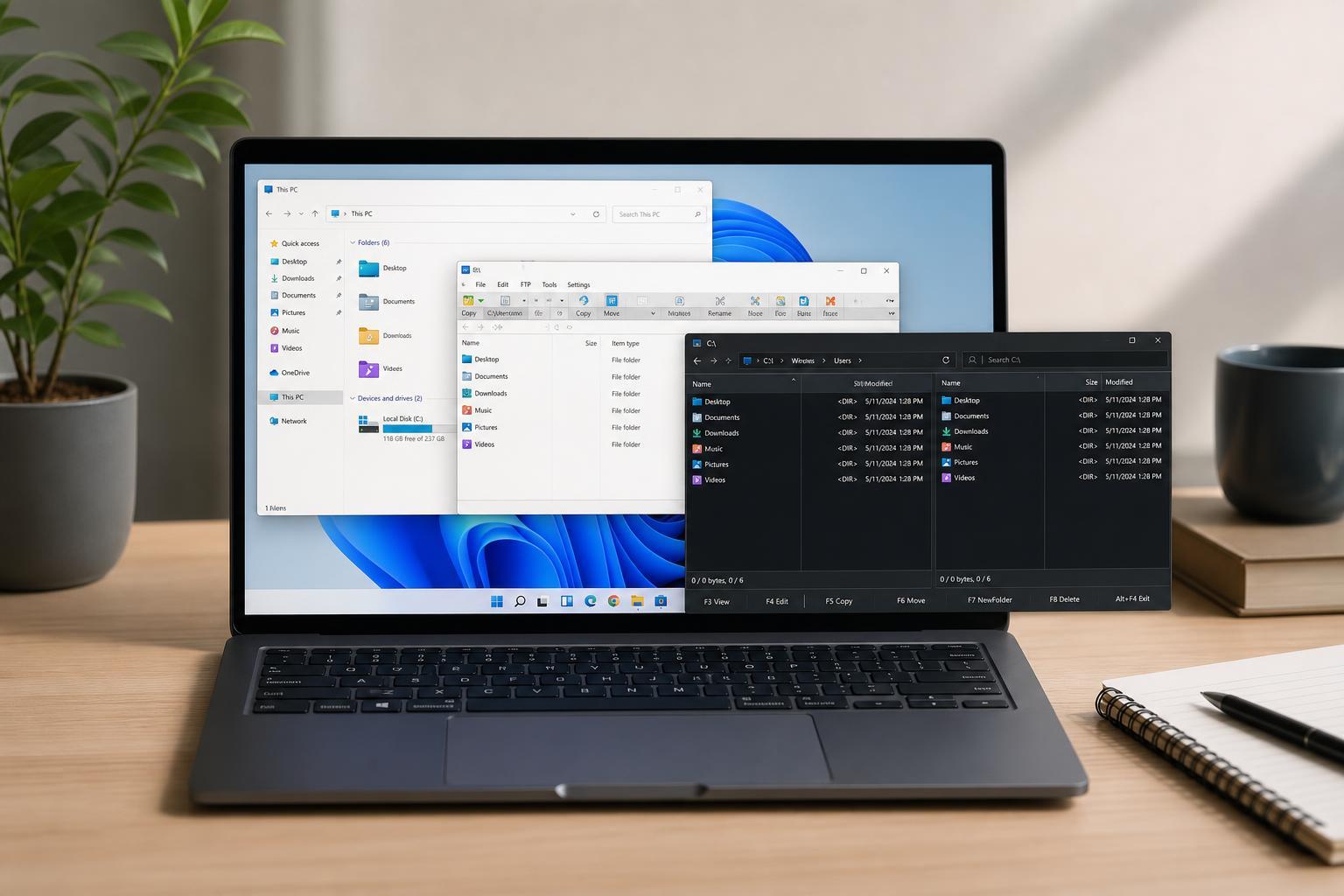
What Makes a Good File Explorer Alternative?
The best replacement depends on how you use your PC. Some people want a cleaner interface with tabs. Others want advanced tools like dual panes, batch rename, file previews, sync features, or built-in archive handling. A strong alternative should be easy to navigate, stable, and faster than the default app in the areas that matter to you.
- Tabbed browsing or dual-pane layout for quicker file moves
- Fast search and filtering
- Easy keyboard navigation
- Archive support for ZIP, RAR, and similar formats
- Folder synchronization and batch renaming for power users
- A layout that is easy to learn and does not get in the way
1. Files
Files is one of the most popular alternatives because it keeps the Windows-style feel while adding features many users expect, such as tabs, dual-pane mode, and better visual organization. It is especially appealing if you want something that feels like a natural upgrade instead of a completely different tool.
It also supports cloud storage integrations and a cleaner workflow for moving files between locations. For many users, that makes it one of the easiest File Explorer alternatives to adopt.
2. Directory Opus
Directory Opus is one of the most feature-rich file managers available on Windows. It offers extensive customization, dual panes, powerful batch operations, scripting support, and detailed control over how files are displayed and handled.
This is not the simplest option, and it takes time to learn. But if you regularly organize large libraries of files, handle complex folder structures, or want the file manager to adapt to your workflow, it is one of the most capable choices available.
3. Total Commander
Total Commander has been around for a long time, and that shows in its design philosophy. It focuses on speed, function, and efficiency rather than a modern visual style. The dual-pane layout is ideal for copying, moving, and comparing files between folders.
It also supports plugins, archive handling, FTP features, and a strong set of file tools. If you are comfortable with older utility-style software and want something efficient rather than flashy, Total Commander remains a very practical option.
4. XYplorer
XYplorer stands out because it is portable, meaning you can run it without a full installation in many cases. It includes tabs, a dual-pane option, strong file search, and scripting features for more advanced work.
This makes it a good fit for users who move between PCs, work on shared machines, or want a file manager they can keep on a USB drive or external storage. Its feature set is substantial without being as overwhelming as some heavier alternatives.
5. FreeCommander
FreeCommander is a solid option if you want many of the conveniences of paid file managers without spending money. It includes dual-pane browsing, tab support, folder comparison, archive handling, and a number of practical tools for daily file work.
Its interface is functional rather than stylish, but it covers a lot of ground for copying, organizing, and maintaining files. For many users, it hits a useful balance between capability and cost.
6. One Commander
One Commander focuses on a cleaner, more contemporary look while still offering useful file-management features such as tabs, tags, columns, and a streamlined browsing experience. It is a good fit if you like a modern interface and want something that feels lighter than some traditional power-user tools.
It is especially appealing for users who prefer a visually organized approach to file management and do not need every advanced feature under the sun.
7. Q-Dir
Q-Dir uses a multi-pane interface that lets you view several folders on one screen. That can be extremely helpful when comparing directories or moving files between multiple locations without constantly switching windows.
It is not the most polished-looking option, but it is very practical. If your work involves repeated folder comparisons or dragging files across several destinations, Q-Dir can be a real time-saver.
How to Choose the Right Alternative
- Choose Files if you want the most natural upgrade from File Explorer.
- Choose Directory Opus if you want the deepest feature set and are willing to learn it.
- Choose Total Commander if you like keyboard-driven efficiency and a classic layout.
- Choose XYplorer if portability matters or you want a compact, powerful tool.
- Choose FreeCommander if you want strong features without paying.
- Choose One Commander if you prefer a modern-looking interface.
- Choose Q-Dir if you want multiple panes for comparing and organizing folders quickly.
Are File Explorer Alternatives Better for Everyone?
Not always. If you only browse a few folders, copy an occasional download, and do not need special tools, Windows File Explorer may already be enough. The alternatives in this list are most valuable when file management is a regular part of your day.
If you are unsure, start with a free option such as Files, FreeCommander, or Q-Dir. That lets you test whether tabs, dual panes, or better search features actually improve your workflow before moving to a paid tool.
A Good Starting Point for Most Users
For most Windows users, Files is the easiest first choice because it feels familiar while adding the features people most often miss in File Explorer. If you want something more advanced, Directory Opus and Total Commander are the strongest long-term productivity tools. If portability or a free license matters more, XYplorer, FreeCommander, and Q-Dir are all worth a look.





