
Google Forms is easy to create and share, but editing them is a little different depending on whether you are using a desktop browser or a mobile device. Some changes are simple on a phone, while other edits are much easier on a computer.
This guide explains how to edit an existing Google Form on both mobile and desktop, what you can change, and the limitations to watch for when you are away from your computer.
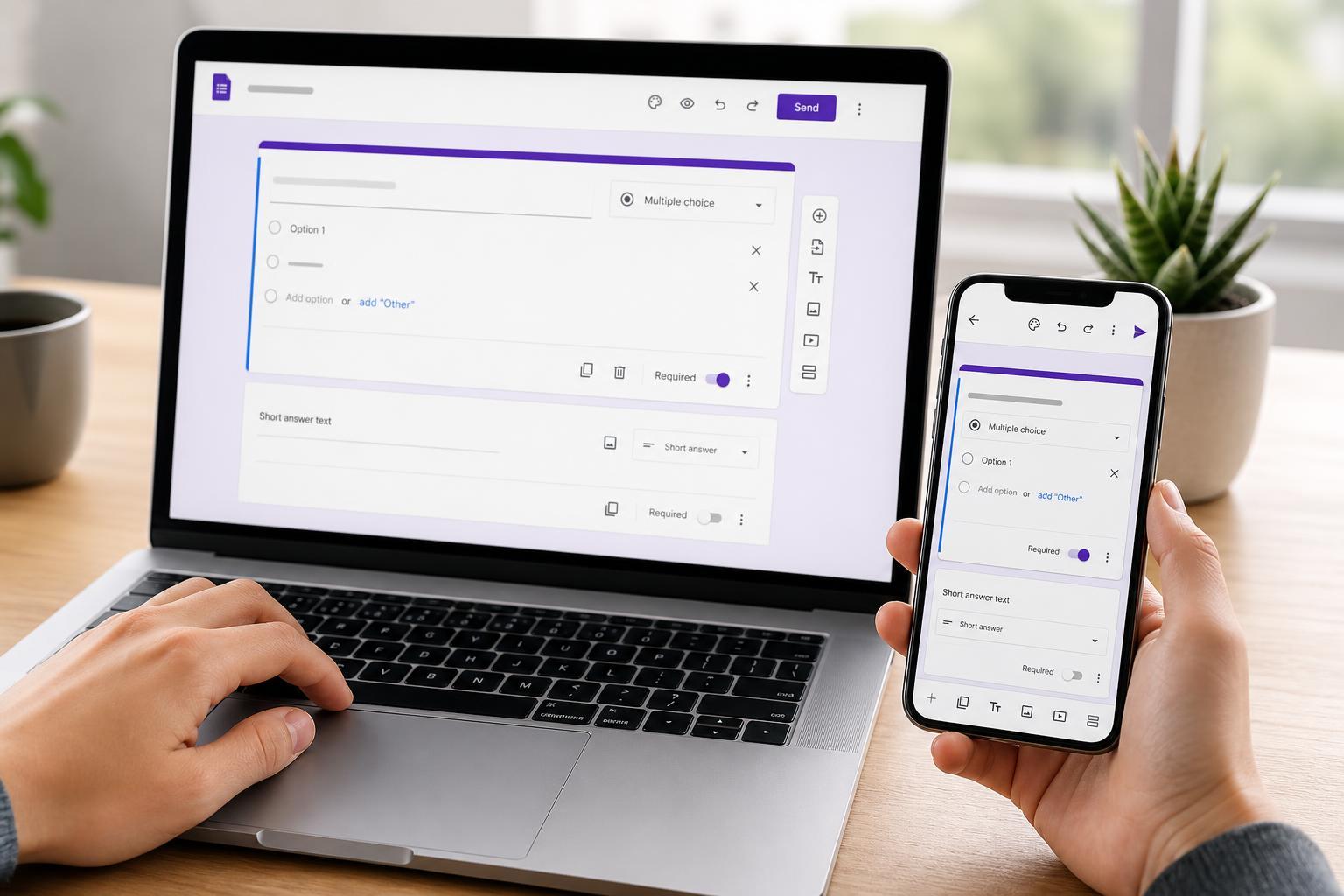
What You Can Edit in Google Forms
You can update most parts of a form after creating it. Common edits include questions, answer choices, section titles, descriptions, form theme, settings, and the order of questions or sections.
- Question text and question type
- Multiple-choice, checkbox, dropdown, and short-answer options
- Required or optional status
- Section breaks and page order
- Form title and description
- Confirmation message and response settings
- Theme colors and header image
How to Edit Google Forms on Desktop
The desktop version is the most complete and reliable way to edit a Google Form. It gives you full access to form design, settings, and question logic.
- Go to forms.google.com in a web browser and sign in to your Google account.
- Open the form you want to edit from the list of recent forms, or use Drive if you cannot find it.
- Click directly on a question, title, or section to edit the text.
- Use the toolbar on the right side to add a new question, title, image, video, or section.
- Open the settings panel to adjust response collection, quiz options, and presentation settings.
- Use the theme button to change colors, fonts, or the header image.
- Check the Preview icon before sharing the updated form again.
How to Edit Google Forms on Mobile
On mobile, the easiest way to edit a Google Form is usually through a browser such as Chrome or Safari. Google Forms does not offer the same smooth editing experience on smaller screens as it does on desktop, but many basic changes are still possible.
- Open your mobile browser and go to forms.google.com.
- Sign in with the same Google account that owns or can edit the form.
- Open the form you want to change.
- Tap the text or question you want to edit.
- Use the available controls to add questions, change answer choices, or adjust basic settings.
- Save changes by leaving the editor after confirming your edits are visible.
What Mobile Editing Is Best For
Mobile editing is most useful when you need to make a quick fix rather than rebuild a form. It works well for changing wording, correcting a typo, updating a response option, or checking whether a form is still collecting responses correctly.
- Fixing typos in a question or title
- Updating a date, time, or contact detail
- Changing a single answer choice
- Toggling a question between required and optional
- Reviewing a form before sharing it
Editing a Form on an Android or iPhone
The basic steps are the same on Android and iPhone: open Google Forms in a browser, sign in, and load the form. If your phone sends you to a simplified view, look for the option to open the desktop site in your browser settings.
Common Problems When Editing Forms on Mobile
If you cannot edit a form on mobile, the issue is usually one of a few common causes. The account may not have edit access, the browser may be loading a limited view, or the form may be difficult to use on a small screen.
- You are signed into the wrong Google account
- You only have view access, not edit access
- The form is opening in a simplified mobile layout
- Pop-ups or scripts are blocked in the browser
- The screen is too small to easily select the correct item
How to Make Editing Easier
A few small habits can make Google Forms much easier to manage, especially if you switch between devices.
- Keep forms organized in Google Drive so you can find them quickly
- Use clear section headings so edits are easier to review
- Save large edits for desktop whenever possible
- Preview the form after making changes
- Check sharing permissions before asking someone else to edit
When Desktop Is the Better Choice
Use a desktop computer whenever you need full control over the form. That is especially important for forms with many questions, section branching, quizzes, or custom themes. Desktop is also better when you want to review everything carefully before sending the form to others.
A Simple Way to Check Your Changes
- Make your edits.
- Open Preview to see the form as respondents will see it.
- Submit a test response if the form is open to responses.
- Review the response summary or spreadsheet if needed.
- Share the updated link only after confirming everything looks correct.
Google Forms is flexible once you know where to edit, but desktop remains the best option for major changes. Mobile works well for quick adjustments, while a computer is better for detailed editing and cleanup.





