
Windows 11 includes several built-in tools that make it much easier to work with multiple apps, documents, and browser tabs at the same time. If you often switch between tasks, these tips can help you stay organized and move faster without installing extra software.
From snapping windows into neat layouts to using virtual desktops and keyboard shortcuts, these Windows 11 multitasking tricks can make a busy desktop feel far more manageable.
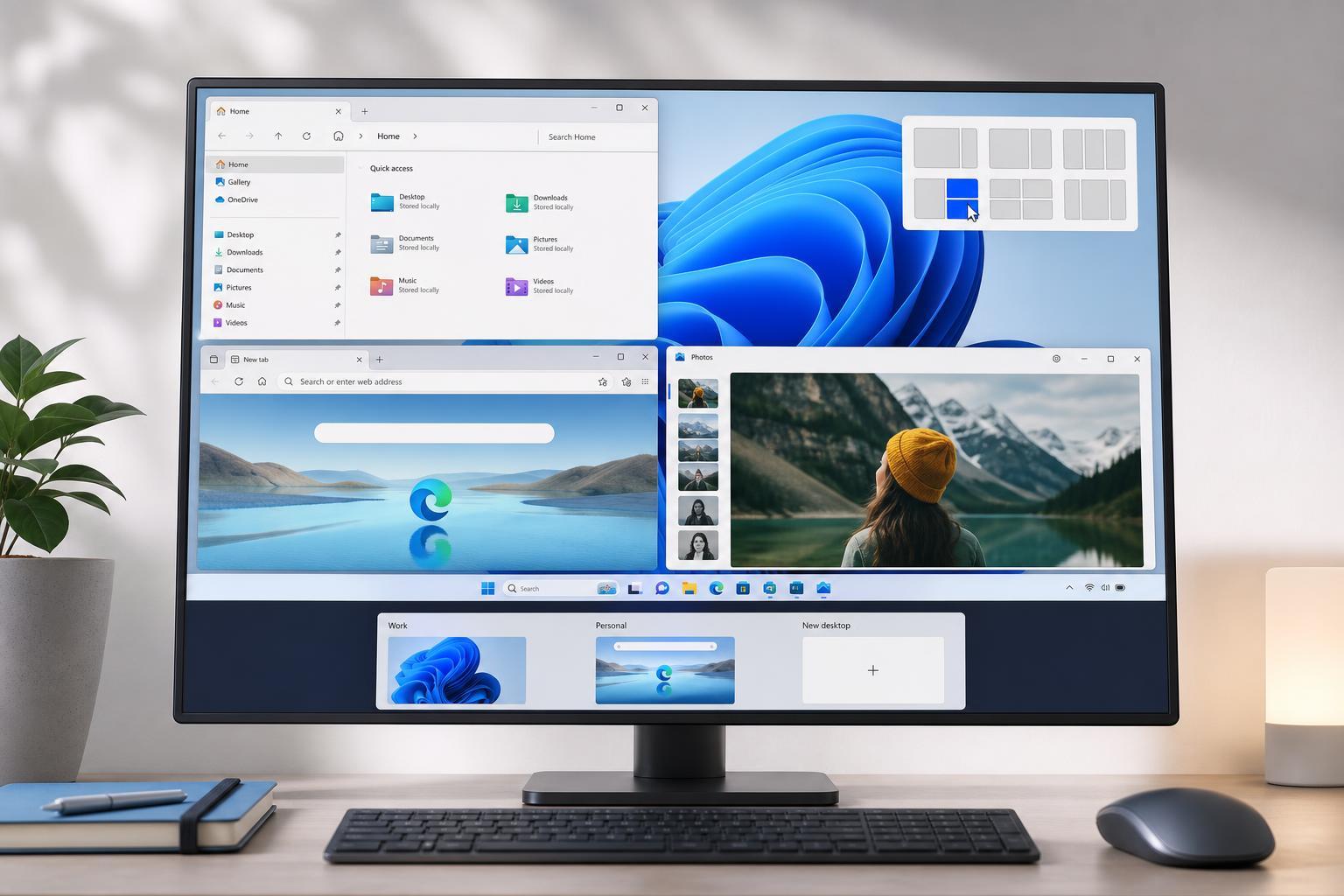
1. Use Snap Layouts to Arrange Windows Quickly
Snap Layouts are one of the easiest ways to multitask in Windows 11. Hover over the maximize button on any window, or press Windows + Z, and you will see several layout options for splitting your screen.
This is especially useful when you want to keep a browser open next to a document, compare two files side by side, or monitor chat while working in another app.
- Hover over the maximize button and choose a layout.
- Click into each area to place the apps you want.
- Use Snap Assist to fill remaining spaces with other open windows.
2. Master the Most Useful Window Shortcuts
Keyboard shortcuts can save a surprising amount of time if you switch windows often. Instead of reaching for the mouse each time, use shortcuts to move, maximize, minimize, and cycle through open apps.
- Windows + Left Arrow or Windows + Right Arrow to snap a window to one side.
- Windows + Up Arrow to maximize a window.
- Windows + Down Arrow to restore or minimize a window.
- Alt + Tab to switch between open apps.
- Windows + Tab to open Task View and see your windows and desktops.
3. Create Separate Virtual Desktops for Different Tasks
Virtual desktops let you separate work into different spaces. You might keep email and meetings on one desktop, research on another, and entertainment on a third. This can make your workflow feel less cluttered and easier to focus on.
Open Task View with Windows + Tab, then select New desktop. You can switch between desktops from Task View or with Windows + Ctrl + Left/Right Arrow.
- Keep work and personal apps separate.
- Group related projects by desktop.
- Reduce visual clutter when many windows are open.
4. Use Task View to See Everything at Once
Task View gives you an overview of all open windows and desktops. It is helpful when you have lost track of a window behind others or need to move an app from one desktop to another.
To open it, click the Task View button on the taskbar if it is enabled, or press Windows + Tab. From there, you can choose a window, switch desktops, or drag windows between desktops.
5. Turn On or Adjust Snap Settings
Windows 11 includes snap behavior settings that control how windows act when you drag them around. If snapping feels awkward or too aggressive, it is worth checking these options.
- Open Settings.
- Go to System, then Multitasking.
- Review the Snap windows options.
- Enable or disable related behaviors such as showing layouts when you drag a window to the top of the screen.
6. Use Keyboard-Friendly Task Switching with Taskbar Shortcuts
The taskbar is more powerful than it first appears. You can open pinned apps quickly, switch to running apps, and use keyboard shortcuts to move through the taskbar without constantly clicking.
- Press Windows + number keys to open pinned taskbar apps.
- Use Shift + click on a taskbar icon to open a new instance when supported.
- Use middle-click on some taskbar or app icons to open or close items more quickly.
If you use the same tools every day, pinning them to the taskbar can save a lot of time compared with searching through the Start menu.
7. Keep Related Files and Apps in One Workflow
Multitasking is easier when your setup matches the job you are doing. For example, if you are writing a report, keep your document, browser references, and notes app together in a snap layout or on the same virtual desktop.
- Use one desktop for a single project.
- Keep your file manager open next to the app you are working in.
- Pin frequently used project apps to the taskbar.
- Close temporary windows as soon as they are no longer needed.
8. Make Better Use of Multiple Monitors
If you use more than one display, Windows 11 can make multitasking much easier. You can spread out windows across screens, keep communication apps on one monitor, and dedicate another display to your main work.
Open Settings, go to System, then Display, and make sure your monitors are arranged correctly. That way, moving your mouse between screens feels natural and windows open where you expect them to.
- Put reference material on a secondary monitor.
- Keep your main app front and center on the primary display.
- Use one screen for chat, email, or calls.
- Match the physical monitor order to the on-screen layout.
9. Learn When Widgets, Search, and Quick Access Help
Not every multitasking improvement is about window management. Sometimes the fastest workflow comes from finding what you need sooner. Windows Search, pinned apps, and widgets can reduce the time you spend hunting for information or opening tools.
- Use Windows Search to launch apps and find files quickly.
- Pin common tools so you do not need to search for them repeatedly.
- Use widgets or quick-access apps only if they support your routine, not as extra clutter.
The goal is to spend less time managing the desktop and more time actually doing the work in front of you.
Which Multitasking Habit Helps the Most?
For most people, Snap Layouts and virtual desktops offer the biggest improvement because they immediately reduce window clutter and make common workflows easier to repeat. If you prefer shortcuts, learning a few keyboard commands can also make a noticeable difference very quickly.
The best approach is to combine a small number of tools that match how you actually work. A cleaner desktop, faster app switching, and better window organization usually matter more than trying every feature at once.





