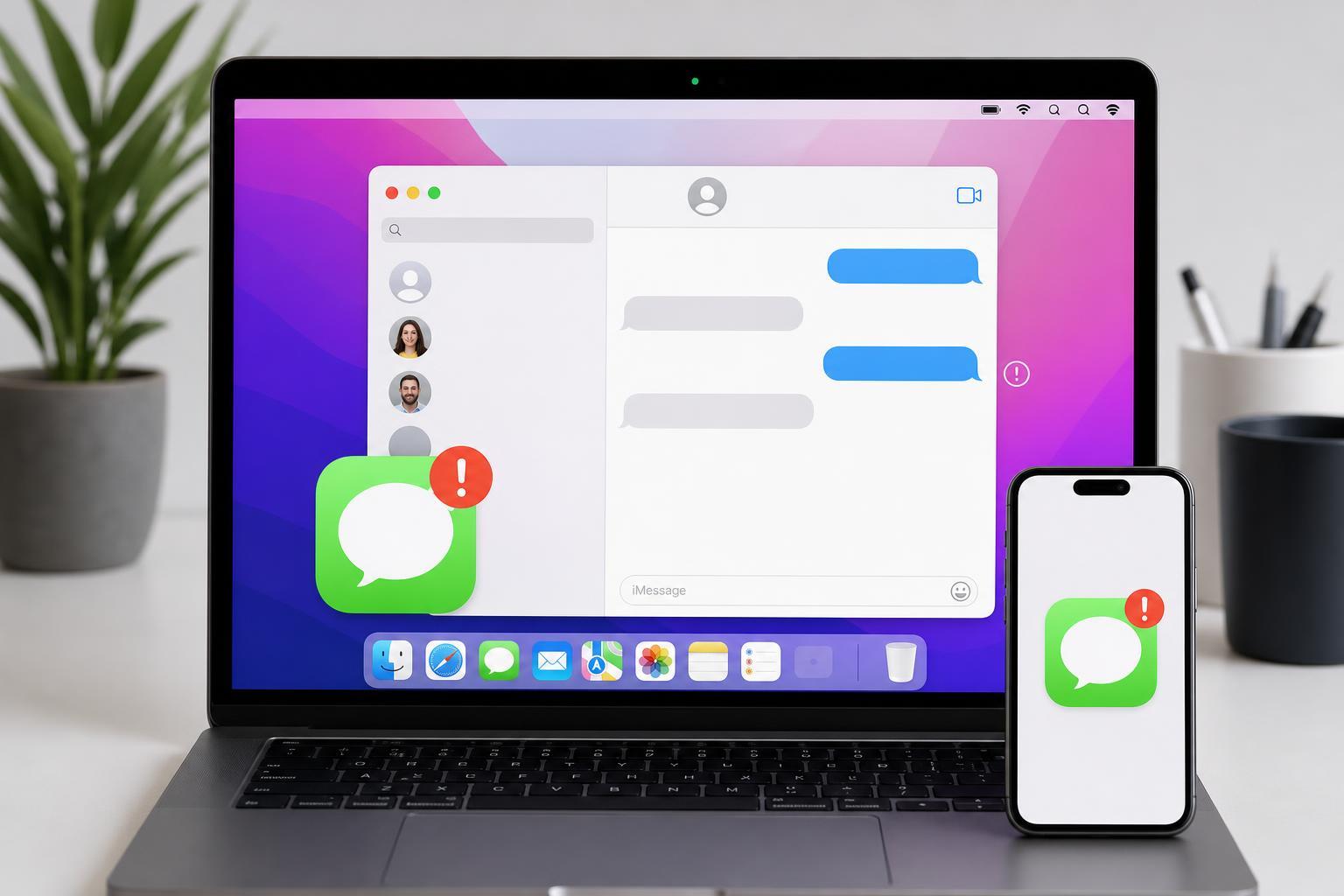
When iMessage stops working on a Mac, the problem can show up in a few different ways: messages fail to send, conversations do not sync, the Messages app keeps asking you to sign in, or iMessage never fully activates. The good news is that most Mac iMessage issues come down to account settings, network access, or Apple ID sync problems rather than a serious system fault.
This guide walks through the most useful fixes first, starting with the checks most likely to solve the problem quickly.
1. Check That iMessage Is Enabled on Your Mac
Start with the Messages app itself. Open Messages, then go to Messages > Settings and check the iMessage tab. Make sure you are signed in with the correct Apple ID and that iMessage is turned on. If you are using multiple Apple IDs, it is easy to sign into the wrong one and miss your messages.
2. Confirm Your Mac Has a Working Internet Connection
iMessage needs an active internet connection to send and receive messages. If your Mac is offline, on a restricted network, or having DNS problems, Messages may appear to be working while nothing actually goes through. Test by opening a website in Safari or another browser.
- Try a different website to confirm the connection is actually working.
- If you are on Wi-Fi, check whether other apps can reach the internet.
- If possible, test with another network to rule out a router or ISP issue.
3. Make Sure the Date and Time Are Correct
An incorrect clock can interfere with Apple services and authentication. On your Mac, open System Settings, go to General, then Date & Time, and enable automatic date and time if it is not already on. If the time is wrong, iMessage may fail to activate or sign in properly.
4. Sign Out of Messages and Sign Back In
If iMessage is stuck, signing out and back in can refresh your Apple ID session. Open Messages, go to Messages > Settings > iMessage, then sign out. After a short wait, sign in again with the correct Apple ID. This can clear temporary authentication problems that prevent messages from syncing.
5. Check Which Addresses and Numbers Are Reachable
Sometimes iMessage works, but not for the address you expect. In Messages > Settings > iMessage, look for the section that lists how you can be reached for messages. Make sure your email addresses and phone number are selected correctly. Also check the Start new conversations from setting, since choosing the wrong sender address can make replies appear to come from a different identity.
- Select the email addresses you actually want to use with iMessage.
- Make sure your phone number is checked if it should be available.
- Choose the correct default address for new conversations.
6. Verify That Messages in iCloud Is Syncing
If messages appear on your iPhone but not on your Mac, iCloud syncing may be paused or disabled. In the iMessage settings on your Mac, look for Messages in iCloud and confirm it is enabled. If sync is on but conversations still do not appear, there may be a temporary delay while Apple’s servers catch up.
7. Update macOS
Apple frequently fixes Messages and Apple ID issues in macOS updates. If your Mac is running outdated software, update it through System Settings > General > Software Update. Even a minor update can resolve problems with iMessage activation, syncing, or app stability.
8. Check Apple’s System Status
Sometimes the problem is not on your Mac at all. Apple services can occasionally experience outages that affect iMessage, FaceTime, or Apple ID sign-in. Check Apple’s System Status page to see whether iMessage-related services are marked as having issues.
9. Reset Network Settings by Renewing the Connection
macOS does not have a simple one-click network reset like some other systems, but you can still refresh the connection. Turn Wi-Fi off and on again, reconnect to the network, or forget and rejoin the Wi-Fi network if needed. If you use a VPN, proxy, or security filter, temporarily disable it and test iMessage again because these tools can block Apple services.
- Reconnect to your Wi-Fi network.
- Disable VPN or proxy software temporarily.
- Test iMessage on another network to see whether the issue is specific to your current connection.
If iMessage Still Will Not Work
If none of the steps above fix the issue, the problem may be tied to your Apple ID account, Keychain data, or a deeper macOS account sync fault. At that point, it helps to narrow down the failure by checking whether iMessage works on your iPhone, whether the problem affects all contacts or only some, and whether the Messages app gives a specific error message.
- Check whether iMessage works on another Apple device using the same Apple ID.
- Try sending messages to more than one contact to see whether the problem is contact-specific.
- Look for error prompts, activation warnings, or repeated sign-in requests in Messages.
- If the issue appears account-related, contact Apple Support for help with Apple ID or iMessage activation.
Which Fix Should You Try First?
If you want the fastest path, start with the basics: confirm iMessage is enabled, verify your internet connection, and sign out and back into Messages. Those three steps solve a large share of Mac iMessage issues because they directly address account setup and connectivity, which are the most common causes.