
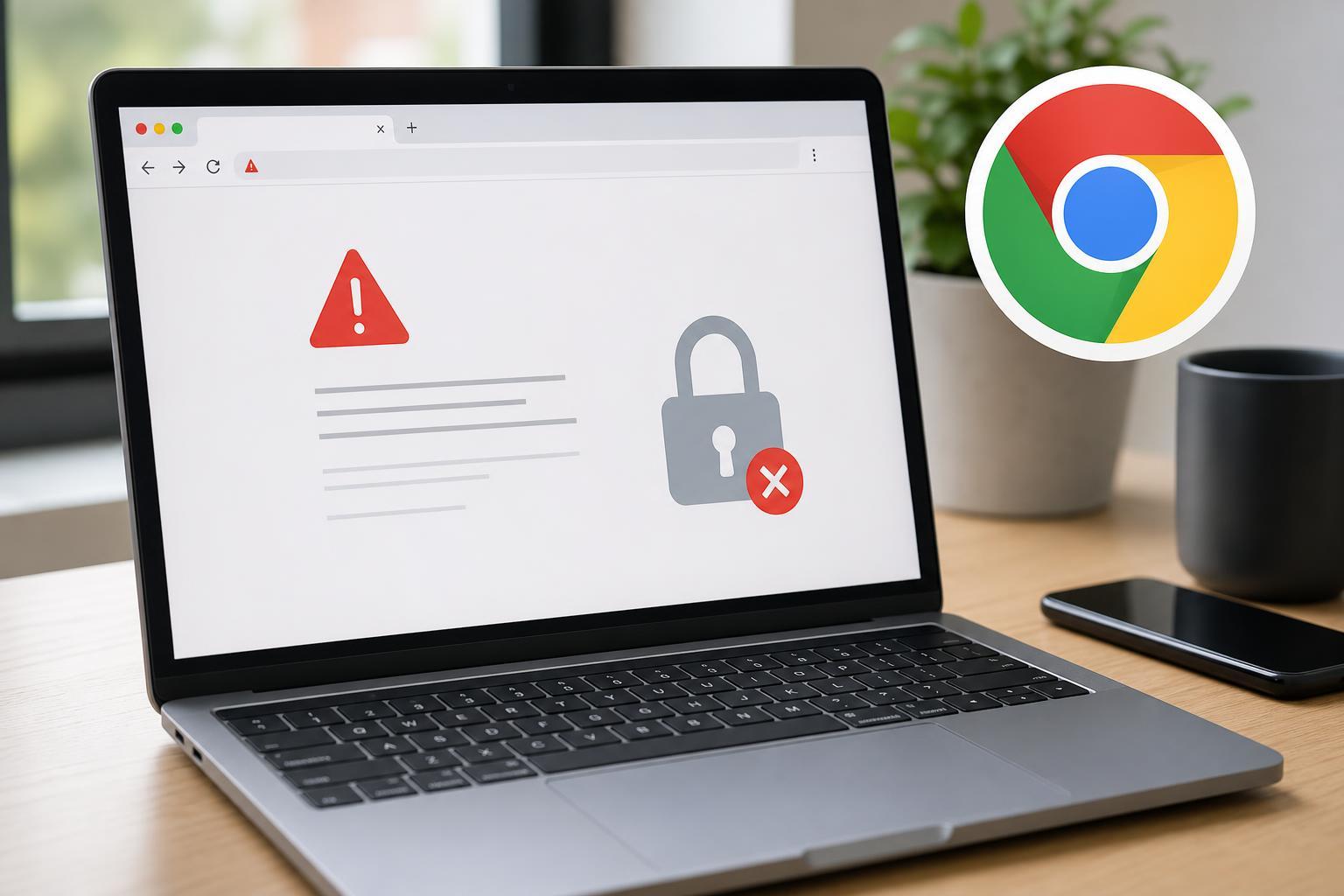
A Chrome certificate security error usually means the browser cannot verify that a website’s security certificate is valid. That can happen because of an incorrect clock, a problem with the site itself, outdated browser data, antivirus interception, or a network that is rewriting secure connections.
Some certificate warnings are harmless and temporary, while others point to a real security risk. The goal is to identify whether the problem is on your computer, your network, or the website itself, then apply the right fix.
1. Check the Date, Time, and Time Zone
Chrome relies on your device’s clock to decide whether a certificate is still valid. If the date or time is wrong, secure websites can suddenly look unsafe even when they are working normally.
- Open your computer’s date and time settings.
- Turn on automatic time and time zone if available.
- If the clock is clearly wrong, correct it manually.
- Close and reopen Chrome, then try the site again.
2. Reload the Page and Check Whether the Site Is Actually Down
Sometimes the certificate error is caused by the website, not your browser. A site may have an expired certificate, a misconfigured server, or a temporary hosting issue.
- Try reloading the page once or twice.
- Open the site in another browser or on another device.
- If the error appears everywhere, the website may need to fix its certificate.
- If only one page fails, the problem may be limited to that specific server or subdomain.
3. Clear Chrome Cache and Cookies for the Site
Corrupted cookies or cached security data can sometimes make Chrome keep showing an old certificate state. Clearing the site’s stored data can force Chrome to load a fresh connection.
- Open Chrome settings.
- Go to Privacy and security.
- Open Site settings or Clear browsing data.
- Remove cached files and cookies for the affected site, or clear browsing data for a wider reset.
- Restart Chrome and visit the site again.
4. Update Chrome to the Latest Version
An outdated browser may not trust newer certificate standards correctly, and older builds can also contain bugs that affect secure connections.
- Open Chrome.
- Click the three-dot menu.
- Go to Help, then About Google Chrome.
- Let Chrome check for updates and install them.
- Relaunch the browser if prompted.
5. Disable Antivirus HTTPS Scanning or Web Shield Features
Some security programs inspect encrypted web traffic before it reaches Chrome. That can trigger certificate warnings if the software inserts its own certificate or interferes with the secure connection.
- Look for features named HTTPS scanning, encrypted connection scanning, web shield, or SSL/TLS inspection.
- Temporarily disable the feature and test the site again.
- If the warning disappears, add Chrome or the site to the software’s exclusions if that option is available.
- Re-enable protection after testing if the site is not trusted or the issue remains unresolved.
6. Reset Chrome Settings That May Be Interfering
Browser extensions, custom proxy settings, or altered security options can affect certificate validation. Resetting Chrome can remove problematic settings without deleting everything on your computer.
- Open Chrome settings.
- Go to Reset settings.
- Choose the option to restore settings to their original defaults.
- Review what will be reset before confirming.
- Test the site again after the reset.
If you suspect an extension, you can also disable extensions one by one to see whether one of them is causing the warning.
7. Check Proxy, VPN, and Public Wi-Fi Issues
Some networks intercept traffic, use login portals, or apply filtering that changes how certificates are presented to Chrome. This is common on public Wi-Fi, school networks, and some work networks.
- Turn off your VPN temporarily and test the site.
- Try a different network, such as mobile hotspot or home Wi-Fi.
- If you are on public Wi-Fi, open a non-secure site first to see whether a login page appears.
- Avoid entering passwords or payment details until the certificate problem is resolved.
8. Install Missing Windows or System Certificate Updates
On some systems, especially if updates have been delayed, outdated root certificates or pending system updates can cause trusted sites to fail validation.
- Run your operating system’s update tool and install pending updates.
- Restart after updates are installed if prompted.
- If you are on Windows, make sure the date, time, and root certificate updates are current.
- Try Chrome again after the system finishes updating.
When You Should Not Ignore the Warning
Not every certificate error is a false alarm. If the warning appears on a banking site, email service, or any page asking you to sign in, treat it seriously until you know why Chrome is objecting.
- The warning appears on a site you have never used before.
- The certificate name does not match the site you intended to visit.
- The browser says the certificate is expired, invalid, or untrusted.
- The error persists across different browsers and networks.
How to Narrow Down the Cause Quickly
A few simple checks can tell you whether the problem is local, network-related, or site-specific. That saves time before you start changing settings.
- Test the site on another device.
- Try a different browser on the same device.
- Switch between Wi-Fi, mobile hotspot, or wired network.
- Check whether the problem affects one website or many sites.
- Look at the certificate warning details if Chrome provides them.
If the error happens on one site only, the website owner likely needs to fix the certificate. If it happens on many secure sites, your device, browser, security software, or network is more likely to be the cause.
What to Try First
The fastest and most effective first steps are usually checking the clock, updating Chrome, and testing another network. If those do not help, move on to cached data, browser resets, and security software settings. That approach solves most everyday certificate warnings without unnecessary changes.





