
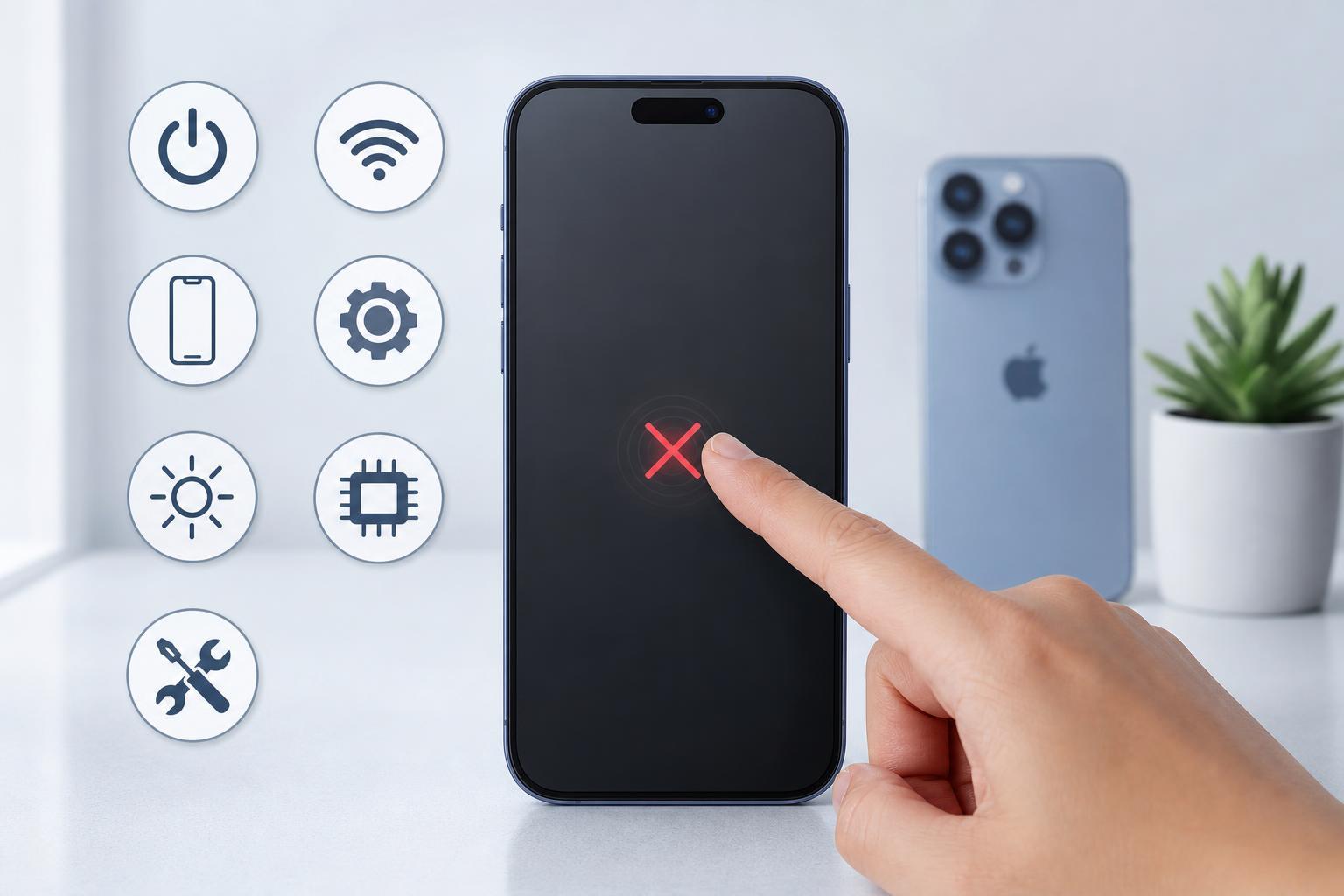
When an iPhone touchscreen stops responding, the cause can be something simple like moisture, a bad screen protector, or a temporary software glitch. In other cases, it can point to a deeper hardware problem. This guide walks through seven practical fixes, starting with the quickest checks and moving toward more advanced troubleshooting.
1. Clean the Screen and Your Hands
Before changing settings or assuming the phone is damaged, make sure the screen is clean and dry. Oils, dust, moisture, or residue from lotion can interfere with touch detection. If your hands are wet, very cold, or wearing gloves that are not touch-compatible, that can also affect how the screen responds.
- Wipe the screen gently with a soft, lint-free cloth.
- Remove moisture, fingerprints, and grime.
- Make sure your hands are clean and dry.
- Avoid using harsh cleaners or abrasive cloths.
2. Remove the Case, Screen Protector, or Other Accessories
A thick case, cracked screen protector, or poorly fitted accessory can press on the display or block touch input around the edges. This is especially common if the issue started after you installed a new protector or changed cases.
- Remove the case and any screen protector.
- Check whether the touchscreen responds normally without them.
- If touch works again, replace the accessory with one that fits properly.
- Look for cracks, lifting edges, bubbles, or dirt trapped under the protector.
3. Force Restart the iPhone
If the touchscreen is not responding because iOS has frozen, a force restart can clear the problem without erasing your data. This is different from a normal restart because it does not require you to use the touchscreen.
- Press and quickly release Volume Up.
- Press and quickly release Volume Down.
- Press and hold the Side button until the Apple logo appears.
4. Check for iOS Updates Once the Screen Works Again
If the touchscreen starts working intermittently, install the latest iOS update as soon as you can. Touch input bugs are sometimes caused by software issues that Apple fixes in later versions.
- Open Settings.
- Tap General.
- Tap Software Update.
- Install any available update.
5. Disconnect Lightning or USB-C Accessories
Charging cables, adapters, docks, and damaged third-party accessories can sometimes interfere with touch input or make the phone behave erratically. If the problem happens while charging, the accessory or power source is a strong suspect.
- Unplug the charging cable.
- Try a different cable, charger, or outlet.
- Disconnect any docks or adapters.
- Test the phone again without accessories attached.
6. Remove Moisture, Heat, or Dirt Around the Device
iPhone touchscreens can become unreliable if the device is too hot, has condensation under a screen protector, or has been exposed to liquid. Even if the phone still powers on, touch detection may act strangely until conditions return to normal.
- Let the phone cool down if it feels hot.
- Dry the exterior carefully if it was exposed to moisture.
- Remove any wet or dusty accessory.
- Do not charge the phone while it is damp.
7. Reset All Settings or Get the iPhone Checked
If the touchscreen still does not work after the earlier steps, the issue may be caused by a setting conflict, a damaged display assembly, or another hardware fault. A settings reset is a reasonable next step because it does not erase your personal data, but it does remove saved system settings such as Wi-Fi passwords and display preferences.
- Open Settings.
- Tap General.
- Tap Transfer or Reset iPhone.
- Tap Reset.
- Choose Reset All Settings.
If the touchscreen remains unresponsive after that, the phone likely needs professional service. Problems such as a failing display, loose internal connector, or impact damage usually cannot be fixed with software steps.
How to Narrow Down the Cause
A few clues can help you tell whether you are dealing with software, accessories, or hardware:
- Touch fails only after a new screen protector or case: accessory issue.
- Touch fails only while charging: cable, adapter, or power interference.
- Touch freezes after a drop: likely hardware damage.
- Touch works after a force restart: temporary software problem.
- Touch is dead in one area only: possible display damage or protector issue.
When to Seek Repair
You should contact Apple or a trusted repair center if the touchscreen still does not respond after cleaning, removing accessories, force restarting, and checking for updates. Repair is also the better option if the iPhone has visible screen cracks, liquid exposure, ghost touches, or areas of the display that never respond at all.
- The screen is cracked or lifting from the frame.
- The iPhone was dropped hard before the problem started.
- Touch works only in certain spots.
- The display shows lines, flickering, or discoloration.
- Nothing you try changes the behavior.





