
When Windows 10 file sharing stops working, the problem is usually caused by a network setting, permission issue, or a service that is turned off. The good news is that most sharing problems can be narrowed down with a few checks instead of guessing at random fixes.
This guide walks through seven practical ways to fix file sharing in Windows 10, from simple network checks to more advanced settings such as sharing permissions, discovery, and firewall rules.
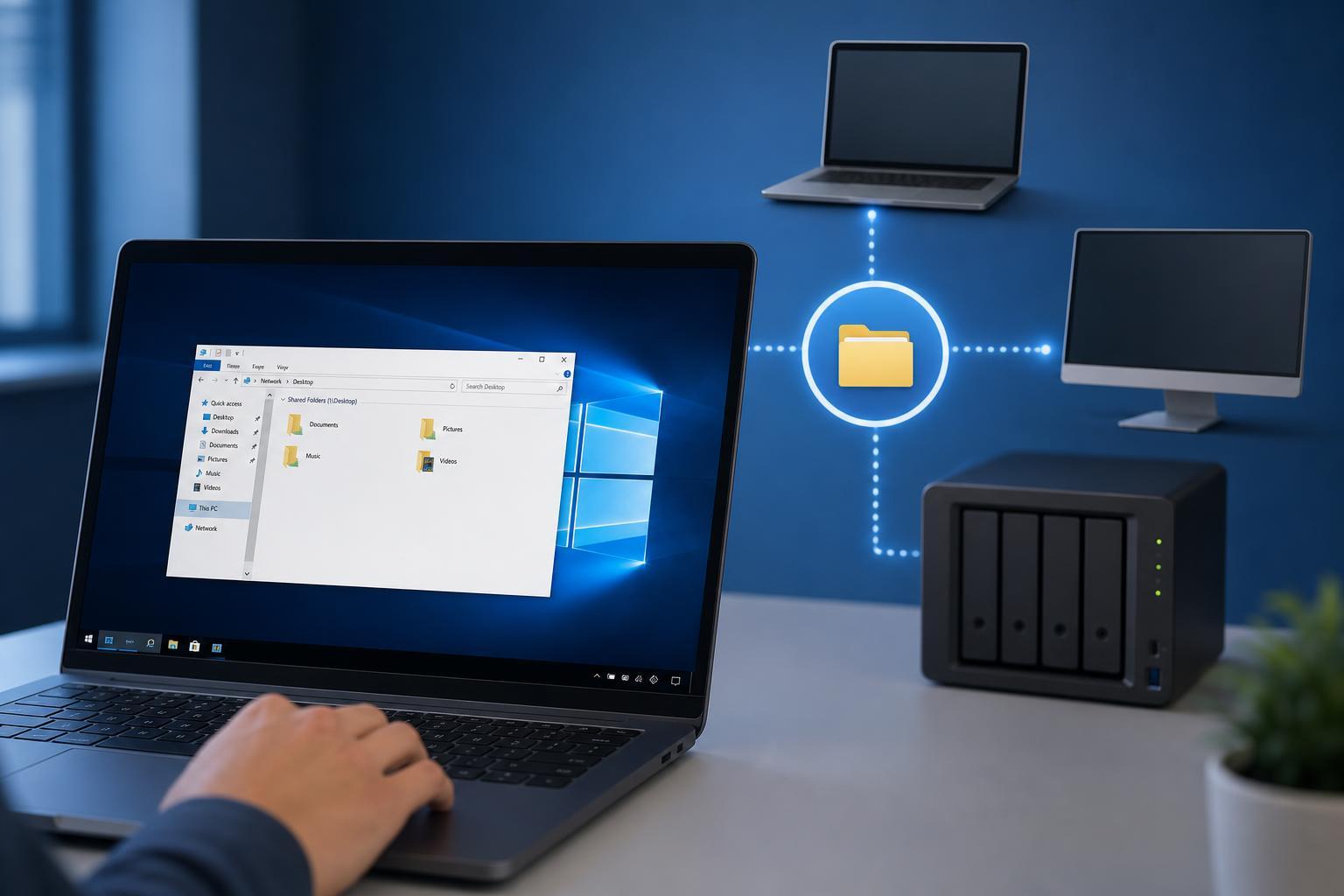
1. Make Sure Both PCs Are on the Same Network
File sharing only works properly when the computers can see each other on the same local network. If one PC is on Wi-Fi and the other is connected to a guest network, different VLAN, or a separate router network, Windows may block access even if both machines have internet.
- Check that both PCs are connected to the same router or access point.
- Avoid guest Wi-Fi networks, which often block local device communication.
- If you use a mesh system or multiple routers, confirm both devices are on the same subnet.
- Try opening File Explorer and typing the other PC’s IP address into the address bar to see whether the network path is the real issue.
2. Turn On Network Discovery and File Sharing
Windows 10 can hide your PC from other devices if Network discovery or File and printer sharing is turned off. These settings control whether Windows can detect nearby computers and whether shared folders can be accessed at all.
- Open Control Panel and go to Network and Sharing Center.
- Select Change advanced sharing settings.
- Under the Private profile, turn on Network discovery.
- Turn on File and printer sharing.
- If needed, also turn on Public folder sharing for the correct profile, though this is usually not necessary for normal file sharing.
- Click Save changes.
3. Check the Folder’s Sharing and Security Permissions
A folder can be shared on the network but still be blocked by permissions. In that case, other users may see the folder name but get an access denied message when they try to open it.
- Right-click the folder and choose Properties.
- Open the Sharing tab and click Share or Advanced Sharing.
- Confirm the folder is actually shared with the correct user or group.
- Open the Security tab and check that the same user or group has the needed NTFS permissions.
- If you are testing, add a temporary permission for Everyone with read access to see whether the problem is caused by account permissions.
4. Turn On Password-Protected Sharing or Use the Right Credentials
Windows 10 may block access if password-protected sharing is enabled and the remote PC is not using the correct username and password. This often happens when the computer expects a local account login but the user tries to connect as a guest.
- If password-protected sharing is on, make sure you know the exact username and password for the shared PC.
- When connecting, use the credentials for an account that exists on the computer hosting the share.
- If you are in a trusted home network and want easier access, you can temporarily test with password-protected sharing turned off to see whether credentials are the problem.
- Avoid using guest access unless you fully understand the security implications.
5. Restart the Windows Sharing Services
Several Windows services help network discovery and file sharing work in the background. If one of them is stopped or disabled, shares may disappear or connections may fail even though the settings look correct.
- Press Windows + R, type services.msc, and press Enter.
- Find Function Discovery Provider Host and Function Discovery Resource Publication.
- Make sure both are running and set to Manual or Automatic as appropriate.
- Also check Server and Workstation services.
- If one of the services is stopped, start it and test sharing again.
6. Allow File Sharing Through Windows Firewall
Windows Defender Firewall can block local sharing traffic even when the folder permissions are correct. This is especially likely after a Windows update, security tool installation, or a network profile change.
- Open Windows Security and go to Firewall & network protection.
- Select Allow an app through firewall.
- Make sure File and Printer Sharing is allowed on Private networks.
- If you use a third-party firewall or antivirus suite, check its own network protection settings too.
- Temporarily disable the third-party firewall only if you are testing on a trusted home network and you know how to turn it back on immediately.
7. Reset the Network Adapter or File Sharing Stack
If the earlier fixes do not help, the Windows network configuration itself may be corrupted or misconfigured. Resetting the adapter or refreshing the network stack can clear stubborn issues without changing your files.
- Open Settings and go to Network & Internet.
- Open Status and select Network reset, or use the network troubleshooter if you want a lighter first step.
- After the reset, reconnect to the network and test file sharing again.
- If you prefer a more targeted repair, open Command Prompt as administrator and run ipconfig /flushdns, netsh winsock reset, and netsh int ip reset, then reboot if required.
How to Narrow Down the Problem Faster
If file sharing still fails, use the error message and the symptom to identify where the failure is happening. That can save a lot of time.
- Cannot see the other PC at all: focus on network discovery, services, and firewall settings.
- Can see the PC but not the folder: focus on folder sharing and permissions.
- Asked for credentials repeatedly: focus on password-protected sharing and account names.
- Access denied after connecting: focus on NTFS permissions and Share permissions.
- Works by IP address but not by computer name: the problem may be name resolution or network discovery rather than sharing itself.
Which Fix Should You Try First?
For most Windows 10 file sharing problems, the best order is: confirm both PCs are on the same network, enable Network discovery and File and printer sharing, verify permissions, then check credentials and firewall rules. If those do not solve it, move on to the Windows services and network reset steps.
That order works because it starts with the most common causes and avoids more disruptive changes until they are actually needed.





