
If your Apple Watch face keeps changing by itself, the cause is usually a setting, a gesture, or a shortcut that is switching it without you realizing it. In many cases, you can stop the changes by checking a few watch settings and disabling the feature that is triggering the swap.
This guide covers the most common reasons an Apple Watch face changes unexpectedly and walks you through the fixes in a practical order, from the easiest checks to the more specific ones.
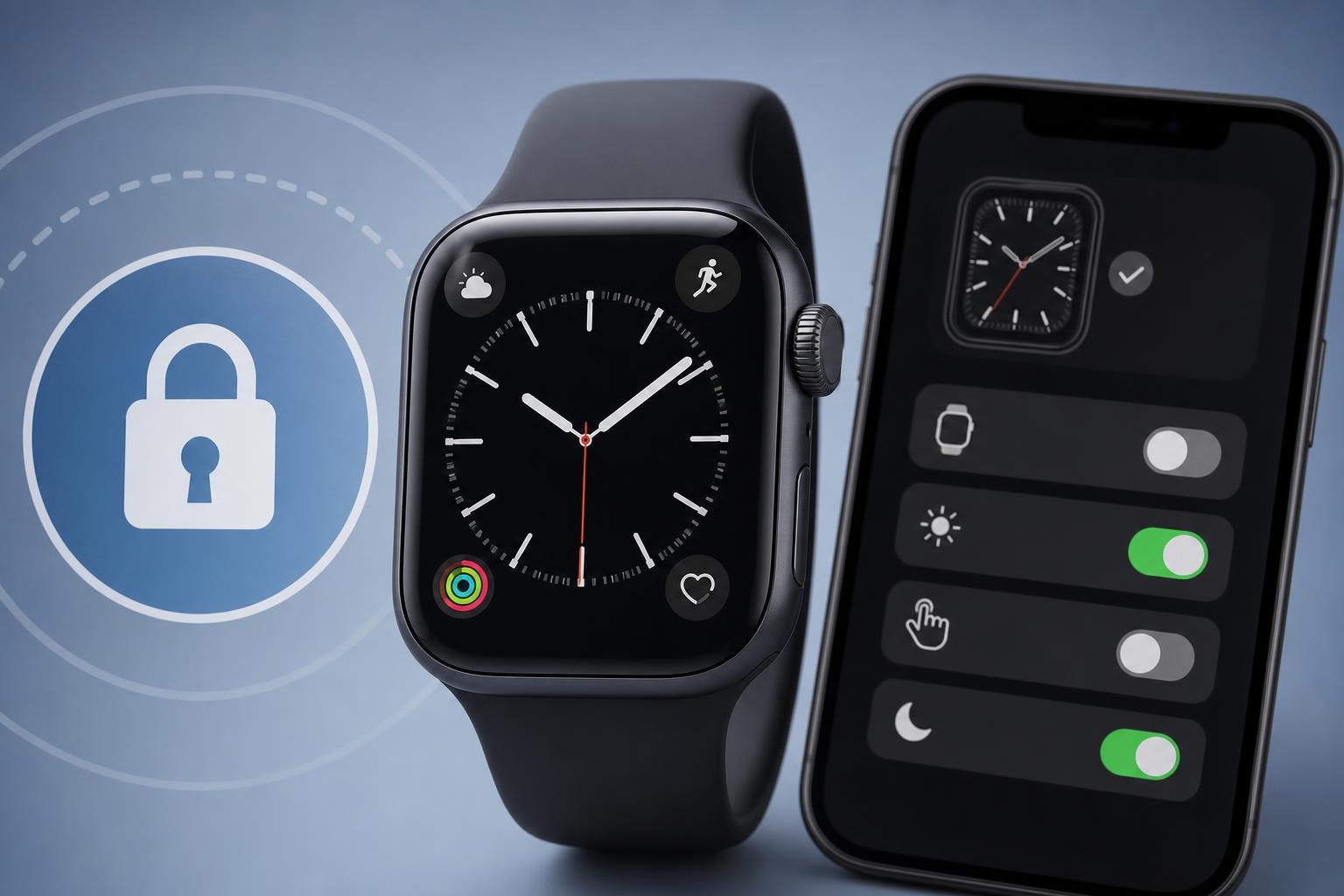
1. Check for Unintentional Swipe Gestures
The Apple Watch lets you switch faces by swiping left or right from the current watch face. If your watch face seems to change randomly, you may be brushing the screen while moving your wrist, adjusting clothing, or tapping the display in a way that triggers a swipe.
- Wake your watch and stay on the current face for a moment.
- Swipe left or right deliberately to see whether the face changes easily.
- If the watch changes face when you only touch the screen lightly, clean the display and make sure no screen protector or case is interfering with touch input.
- Pay attention to when the changes happen, such as while exercising, putting on a jacket, or sleeping.
2. Remove Extra Watch Faces You Do Not Use
If you have many watch faces saved, it is easier to swipe onto one by accident. Deleting unused faces does not fix every case, but it reduces the chance of accidental switching and makes it easier to tell whether a gesture is the problem.
- Press and hold the current watch face until Face Gallery appears.
- Swipe to find watch faces you do not use.
- Swipe up on a face and tap Remove, or delete it from the Watch app on your iPhone if that is easier.
- Keep only the faces you actually want to use.
3. Turn Off or Review Focus Modes
Focus modes can change the watch face automatically based on the mode that is active. For example, a Work focus or Sleep focus may switch to a different face if that face was linked to the mode.
- Open the Watch app on your iPhone.
- Tap Face Gallery.
- Look for faces that are tied to specific Focus modes.
- If a face is connected to a focus mode you do not want, remove that link or choose a different face.
- On your iPhone, also check Settings > Focus to see whether a focus mode is activating automatically at certain times or locations.
4. Check for Automation or Shortcuts That Change the Face
The Shortcuts app on iPhone can run automations that affect Apple Watch settings, including watch face changes. If you have ever set up an automation tied to time, location, sleep, workouts, or a connected device, it may be switching faces in the background.
- Open the Shortcuts app on your iPhone.
- Tap Automation.
- Look for personal automations that run at specific times or events.
- Open any automation that might affect your Apple Watch and review the actions inside it.
- Disable or delete any automation that changes the face when you do not want it to.
5. Disable the Wrist Raise or Always-On Behavior That Makes It Seem Like the Face Changed
Sometimes the watch face has not actually changed. The watch may simply wake into a different visible state, or the screen may look different because complications, dim mode, or sleep-related behavior is active.
- Check whether the watch face itself is changing or only the display appearance.
- Open Settings on Apple Watch and review Display & Brightness.
- Look for options related to Always On, Wake on Wrist Raise, or similar display behavior.
- Turn off a setting temporarily to see whether the problem still happens.
6. Reset Face Customization or Update watchOS
If none of the earlier fixes help, the watch face may be tied to a corrupted or unstable configuration. Updating watchOS can resolve odd behavior, and rebuilding a troublesome face from scratch may help if one specific face keeps misbehaving.
- Open the Watch app on your iPhone and check for a watchOS update.
- Install any available update if your watch has enough battery and is connected properly.
- If one specific face keeps changing or acting strangely, delete it and recreate it from scratch.
- Set up the face again with only the complications and options you actually want.
How to Narrow Down the Cause
If you want to troubleshoot quickly, watch for a pattern. The timing of the change usually gives away the cause.
- Changes when you swipe or move your wrist: likely accidental touch input or a case/protector issue
- Changes at the same time every day: likely Focus mode or automation
- Changes after workouts or sleep: likely a linked Focus or scheduled mode
- Changes only on one specific face: likely a bad configuration or complication setup
- Changes across all faces: more likely a system-level setting or display behavior issue
When a Face Change Is Actually Expected
In some cases, the watch face changing is normal. Apple Watch can change faces based on Focus modes, schedules, and automations that you or another app set up earlier. That is why it helps to check whether the face switch is happening for a reason before assuming the watch is malfunctioning.





