
The Windows error “Multiple connections to a server or shared resource by the same user” usually appears when a computer tries to connect to the same file server, NAS, or shared folder using more than one set of credentials. It often shows up when you map a drive, open a shared folder, or connect to a business server from different accounts.
The good news is that this problem is usually caused by conflicting saved logins rather than a broken network connection. In most cases, you can fix it by clearing old connections and making sure Windows uses only one username and password for that server.
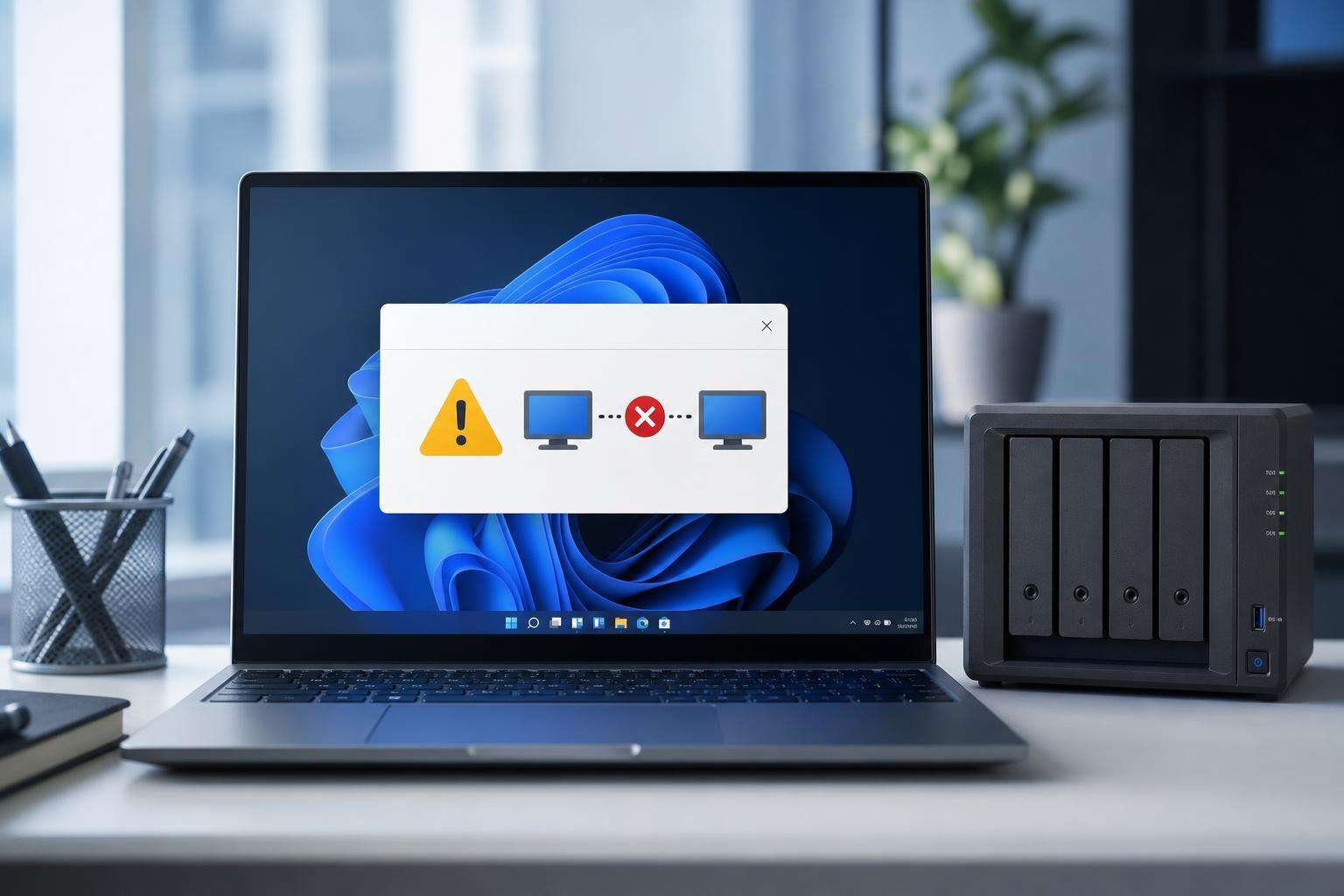
Why Windows Shows This Error
Windows allows only one active connection to the same server or shared resource under a single user session. If you already connected to that server with one account and then try again with another account, Windows blocks the second connection and shows this message.
1. Disconnect Existing Connections to the Server
The first thing to check is whether you already have an open connection to the same server. If so, Windows may need the old session closed before it will accept a new one.
- Open File Explorer and look for mapped drives or shared folders connected to the same server.
- Right-click the mapped drive and choose Disconnect if it is no longer needed.
- If you opened the share from multiple locations, close every File Explorer window that points to that server.
- Try connecting again using only one path and one account.
2. Remove Saved Credentials in Credential Manager
Windows may be automatically reusing old credentials in the background. If those saved details do not match the account you want to use, the connection attempt can fail.
- Open Control Panel and search for Credential Manager.
- Select Windows Credentials.
- Look for entries that reference the server name, NAS name, IP address, or domain.
- Remove the conflicting saved credentials.
- Try connecting again and enter the correct username and password when prompted.
3. Use the Same Username for All Connections to That Server
If you need access to the same server from multiple folders or shares, Windows typically expects the same account to be used for each connection. Mixing accounts is what triggers the error.
- Decide which account should be used for that server.
- Disconnect any existing sessions to that server.
- Reconnect using only that one username and password.
- Avoid opening the same server through a different share with another account until the session is closed.
4. Map the Drive Again After Clearing Old Sessions
Sometimes the easiest fix is to remove the mapped drive and recreate it cleanly. This is especially useful when the drive letter is tied to an old login or a stale session.
- Open File Explorer and disconnect the mapped network drive.
- Open This PC and choose Map network drive if needed.
- Enter the server path again, such as \\SERVER\Share.
- Select Connect using different credentials only if you are sure no other session to that server is active.
- Enter the correct account details and finish the wizard.
5. Clear Current Network Sessions from Command Prompt
If File Explorer does not show an obvious connection, Windows may still have an active session in the background. You can view and remove these sessions from Command Prompt.
- Open Command Prompt as a normal user or administrator.
- Type net use and press Enter to list current network connections.
- Look for entries pointing to the problem server or share.
- Remove a specific connection with net use \\server\share /delete, or disconnect all network sessions with net use * /delete if appropriate.
- Reconnect to the share after the old session is gone.
6. Check for Domain, NAS, or Permission Conflicts
If the error keeps returning, the server may be enforcing account rules that conflict with how Windows is connecting. This is common on domain networks, file servers, and some NAS devices.
- The account may not have permission to the share you are trying to open.
- The server may expect domain credentials, but you are entering a local account.
- The NAS may treat username and IP-based connections differently.
- A cached login from a previous session may still be active on the server side.
- Confirm the correct account type for the share or server.
- Use the server name consistently instead of mixing hostname and IP address if possible.
- Check the share and NTFS permissions if you manage the server.
- Sign out from the server or NAS web interface if the device keeps old sessions active.
When to Try a More Advanced Fix
If you have already disconnected old sessions, removed saved credentials, and verified the correct account, the issue may be caused by a deeper networking or policy problem. That is more likely in business environments where group policies, domain logons, or file server rules are involved.
- Restarting the File Explorer process can help if Windows is holding a stale connection.
- Logging off and back on can clear session-specific network state.
- A domain administrator may need to reset the server-side session or adjust permissions.
- On a NAS, rebooting the device can clear stuck SMB sessions if the administrator approves it.
Which Fix Should You Try First?
Start with the simplest checks: disconnect the existing share, remove saved credentials, and reconnect using one account only. For most users, one of those steps resolves the conflict immediately.
- Home PC or NAS: clear saved credentials and remap the share.
- Work PC or domain network: check for multiple logins to the same server.
- Persistent error after reconnecting: use net use to remove active sessions.
- Still failing: review permissions or ask the server administrator to check the account.





