
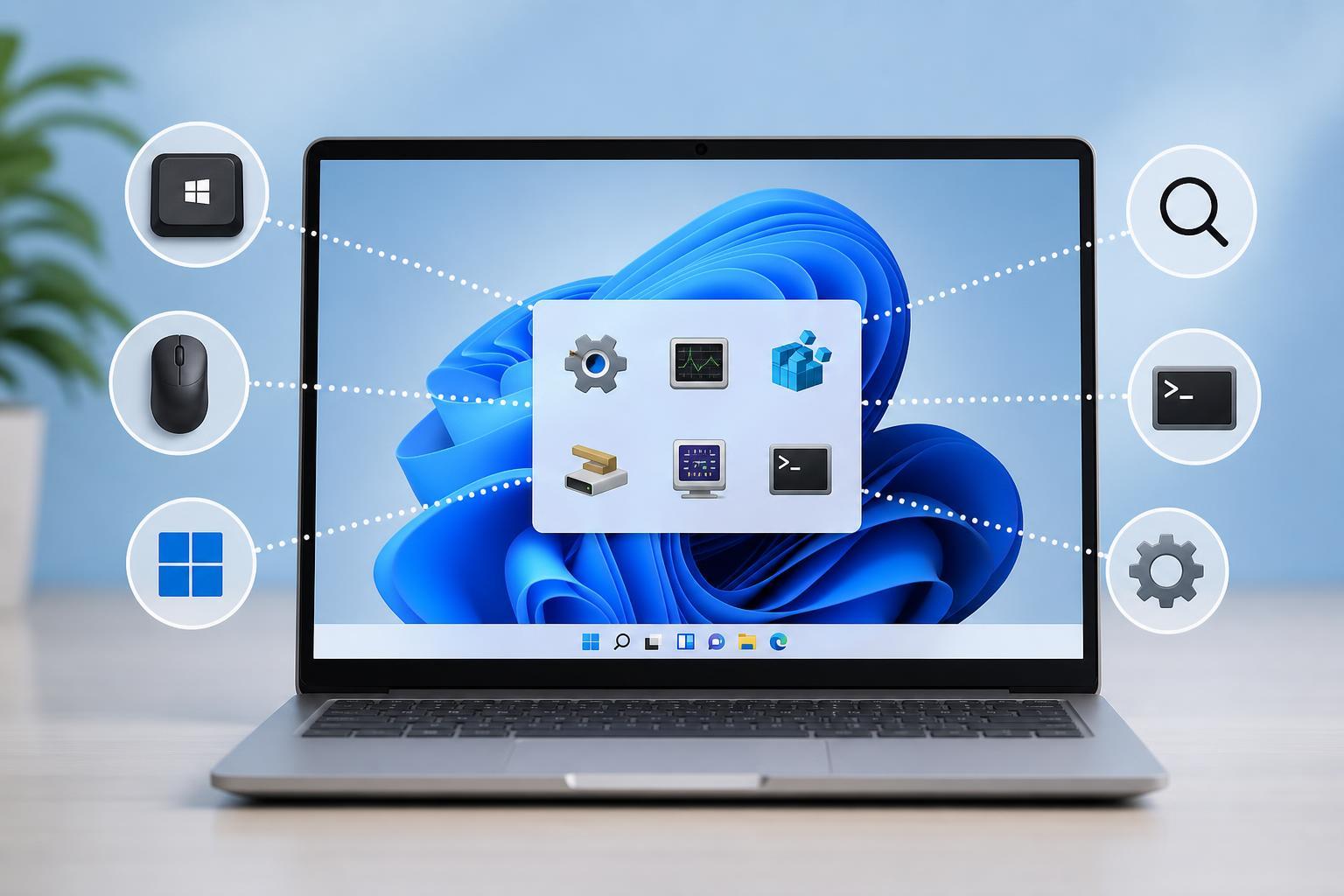
Windows Tools in Windows 11 gives you quick access to many built-in utilities such as Command Prompt, Control Panel, Event Viewer, Task Scheduler, and more. If you use these tools often, knowing a few different ways to open the folder can save time and make troubleshooting easier.
This guide covers the most practical ways to access Windows Tools in Windows 11, from the simplest Start menu method to faster options for power users.
1. Open Windows Tools from the Start Menu
The Start menu is the easiest way to find Windows Tools if you only need occasional access. Windows 11 includes a direct entry for it in the apps list.
- Click the Start button or press the Windows key.
- Select All apps.
- Scroll down to the Windows Tools folder.
- Click Windows Tools to open it.
2. Search for Windows Tools
If you do not want to scroll through the full apps list, search is usually faster.
- Press the Windows key.
- Type Windows Tools.
- Select the matching result from the search results.
3. Use the Run Dialog
The Run dialog is one of the fastest ways to open Windows Tools if you prefer keyboard shortcuts.
- Press Windows + R.
- Type control admintools.
- Press Enter.
4. Open It from File Explorer
Windows Tools is also available as a folder in File Explorer, which can be useful if you already have Explorer open.
- Open File Explorer.
- Click the address bar.
- Type Control Panel\Administrative Tools and press Enter.
5. Create a Desktop Shortcut for Faster Access
If you open Windows Tools often, creating a shortcut can save time and keep it one click away.
- Right-click an empty area on the desktop.
- Choose New, then Shortcut.
- In the location box, type control admintools.
- Click Next, give the shortcut a name, then click Finish.
6. Pin Windows Tools to the Start Menu or Taskbar
Windows Tools itself can be easier to reach if you pin it after finding it once. This is helpful when you use several administrative utilities regularly.
- Open Windows Tools using any method above.
- Right-click Windows Tools or the shortcut you created.
- Choose Pin to Start or Pin to taskbar if the option is available.
Which Method Should You Use?
If you only need Windows Tools occasionally, Start menu search is usually the easiest choice. If you want speed, the Run command is the fastest method for many people. If you use Windows Tools regularly, creating a shortcut or pinning it to Start gives you the best long-term convenience.
- Best for beginners: Start menu or Search
- Best for keyboard users: Run dialog
- Best for frequent use: Desktop shortcut or Start pin
- Best for already-open windows: File Explorer
What You Can Find in Windows Tools
Windows Tools is more than just one utility. It acts like a central hub for many built-in admin and troubleshooting tools.
- Command Prompt
- Control Panel
- Computer Management
- Event Viewer
- Task Scheduler
- Disk Cleanup
- Defragment and Optimize Drives
- Registry Editor
- System Information





