
When an HDMI port stops working on Windows 11, the cause is often something simple like a loose cable, the wrong display input, or a display setting that changed after an update. In other cases, the problem may be a graphics driver issue or a faulty port on the PC or monitor.
The fixes below start with the quickest checks and move toward more advanced troubleshooting so you can narrow down whether the issue is Windows, the cable, the monitor, or the hardware itself.
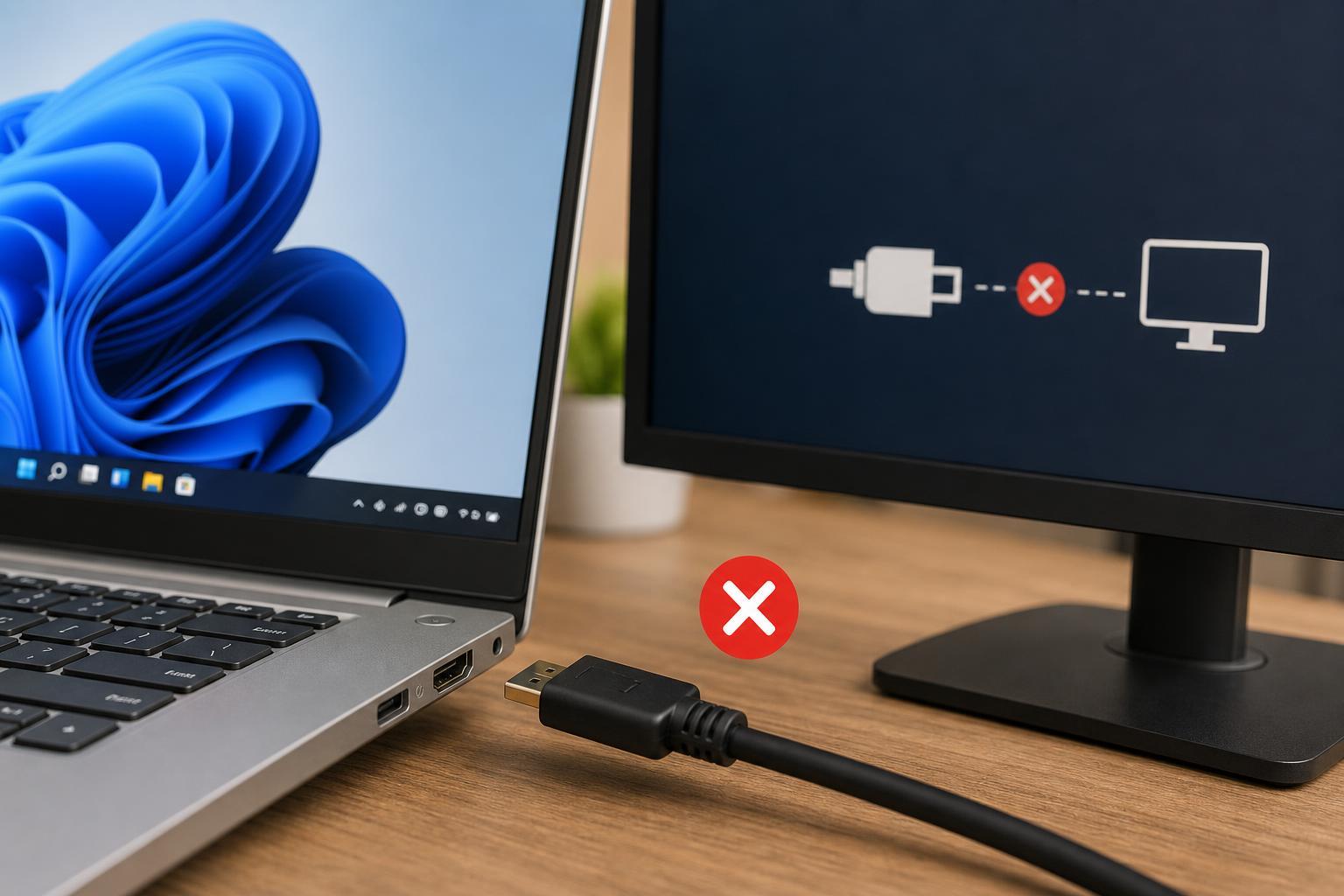
1. Check the HDMI cable, monitor input, and physical connection
Before changing Windows settings, make sure the display path is actually connected correctly. HDMI problems are often caused by a cable that is partly unplugged, a damaged cable, or a monitor or TV that is set to the wrong input source.
- Unplug the HDMI cable from both the PC and the monitor or TV, then plug it back in firmly.
- Make sure the display is set to the correct HDMI input using its onboard menu or input button.
- Try a different HDMI cable if you have one available.
- If your PC has more than one HDMI port or graphics output, test a different port.
2. Make Windows detect the display again
Windows 11 may not automatically switch to an external screen, especially if the display was disconnected while the PC was on or if the system woke from sleep in an odd state. Manually forcing Windows to detect the monitor can bring the connection back.
- Press Windows + I to open Settings.
- Go to System > Display.
- Scroll down and expand Multiple displays if needed.
- Select Detect to search for an external display.
- Use Windows + P and choose Duplicate or Extend instead of PC screen only.
3. Update or reinstall the graphics driver
The HDMI output on many laptops and desktops is controlled by the graphics driver. If the driver is outdated, corrupted, or incompatible after an update, the HDMI port can stop sending a signal even though the port itself is fine.
- Right-click the Start button and open Device Manager.
- Expand Display adapters.
- Right-click your graphics card and choose Update driver.
- Select Search automatically for drivers.
- If updating does not help, open the device again and choose Uninstall device, then restart the PC so Windows can reinstall it.
If Windows Update does not find a newer driver, check the laptop or graphics card manufacturer’s support page for the correct Windows 11 driver. Manufacturer drivers often work better than the generic version Windows installs automatically.
4. Adjust display settings that can block HDMI output
Sometimes the HDMI connection is working, but Windows is sending the image in a way the monitor cannot use. This can happen after changing resolution, refresh rate, scaling, HDR, or multi-monitor settings.
- Lower the display resolution to a standard setting such as 1920 x 1080 if the monitor supports it.
- Change the refresh rate to a more common value like 60 Hz if the display supports it.
- Turn HDR off temporarily in Display settings if the screen goes black or flashes.
- Use Duplicate or Extend mode instead of a mode that disables the external screen.
If the external display worked before and stopped after a recent change, undoing the last display setting is often enough to restore the signal.
5. Test the port, the display, and the PC hardware
If the cable and Windows settings look correct, the remaining possibilities are hardware-related. The HDMI port on the computer, the display input on the monitor, or the graphics hardware itself may be failing.
- Try the same PC with a different monitor or TV.
- Try a different computer or game console on the same monitor input.
- If your PC has a dedicated graphics card, test both the graphics card HDMI port and any motherboard video output only if the system supports it.
- For laptops, test an external display while the laptop is awake, plugged in, and set to output to the second screen.
When the HDMI port still does not work
If none of the steps above help, the problem may be more serious than a driver or setting issue. A damaged HDMI socket, faulty graphics hardware, or a motherboard problem may need repair.
- The HDMI port works intermittently when the cable is moved
- The port feels loose or physically damaged
- No display works on that HDMI output, even with known-good cables and monitors
- The issue started after a drop, power surge, or hardware repair
If the computer is still under warranty, contact the manufacturer before opening the system or attempting board-level repairs.





