
If your Windows 11 laptop screen suddenly looks warm, washed out, or yellowish, the cause is often a color setting rather than a failing display. Windows, the graphics driver, and even the laptop’s own eye-comfort features can all change how the screen looks.
This guide walks through five practical ways to fix a yellow tint on a Windows 11 laptop screen, starting with the most common and easiest checks.
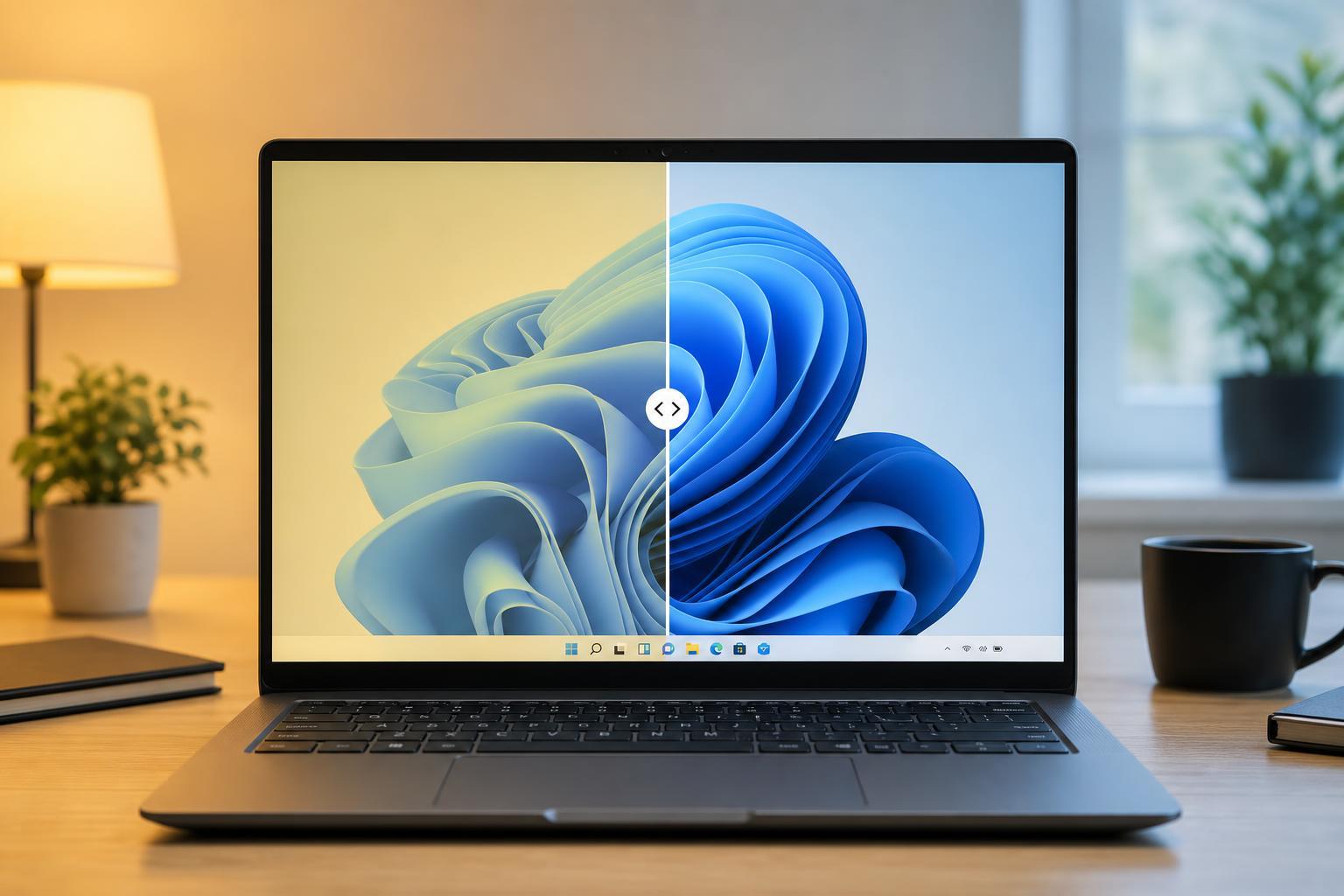
1. Turn Off Night Light
Night Light is one of the most common reasons a laptop screen takes on a yellow or orange tint. It reduces blue light and makes the display warmer, especially in the evening.
- Press Windows + I to open Settings.
- Go to System > Display.
- Look for Night light and turn it off.
- If you want to keep using it, open the Night light settings and lower the strength slider instead.
2. Check Color Filters and Accessibility Settings
Windows color filters can change the appearance of your screen, and some users turn them on by accident with a shortcut. A filter can make whites look off and give the whole display a tinted appearance.
- Open Settings with Windows + I.
- Go to Accessibility > Color filters.
- Make sure Color filters is turned off.
- Also check whether a shortcut turned them on accidentally by pressing Windows + Ctrl + C.
3. Reset Your Display Color Profile
A bad or incorrect color profile can make a laptop screen look too warm, too green, or generally inaccurate. Resetting the profile often helps when the yellow tint affects only one user account or started after driver changes.
- Open Control Panel and search for Color Management.
- Select your laptop display from the device list if needed.
- Check Use my settings for this device if it is available.
- Remove unusual or recently added profiles.
- Set the profile to sRGB IEC61966-2.1 if available, or return to the default profile for your display.
4. Update or Reinstall the Graphics Driver
A graphics driver problem can change color output or conflict with Windows display settings. This is more likely if the tint started after a Windows update, a driver update, or a graphics-related crash.
- Right-click the Start button and open Device Manager.
- Expand Display adapters.
- Right-click your graphics adapter and choose Update driver.
- If updating does not help, select Uninstall device and restart the laptop so Windows can reinstall it.
- For the best result, download the latest driver from your laptop or graphics manufacturer instead of relying only on Windows Update.
5. Check Hardware and External Display Issues
If software changes do not help, the tint may be coming from the screen itself, the display cable, or the panel hardware. This is more likely if the yellow tint appears on every screen and in the BIOS or startup logo.
- Connect the laptop to an external monitor and compare the image.
- If the external monitor looks normal, the laptop screen or display cable is more likely the problem.
- If the tint appears on both displays, the issue is more likely in software or the graphics output.
- Look for signs such as flickering, uneven brightness, or color shifts when the lid moves.
- If the color changes when the screen angle changes, the display cable may be loose or damaged.
How to Narrow Down the Cause Quickly
A few simple clues can save time and help you choose the right fix.
- Yellow tint only at night or after sign-in: Night Light is likely on.
- Tint changes after keyboard shortcuts: Check color filters.
- Tint affects only Windows, not the startup screen: Driver or color profile issue.
- Tint shows on external monitor too: Graphics settings or driver problem.
- Tint shows everywhere, including boot screens: Possible hardware issue.
When the Screen Still Looks Yellow
If none of these fixes help, the laptop may need a deeper driver reset, a manufacturer color utility adjustment, or service for the display panel. On some models, power-saving or eye-comfort features from the laptop maker can also override Windows settings, so check any preinstalled display app as well.





