
Windows Defender, now called Microsoft Defender Antivirus, is built into Windows and protects your PC from malware in real time. In some situations, you may want to turn it off temporarily for testing, software installation, or troubleshooting conflicts with another security tool.
Because Microsoft Defender is tied closely to Windows security features, fully disabling it can be more complicated than simply flipping one switch. Some methods only pause protection for a short time, while others can reduce or stop it from running more permanently.
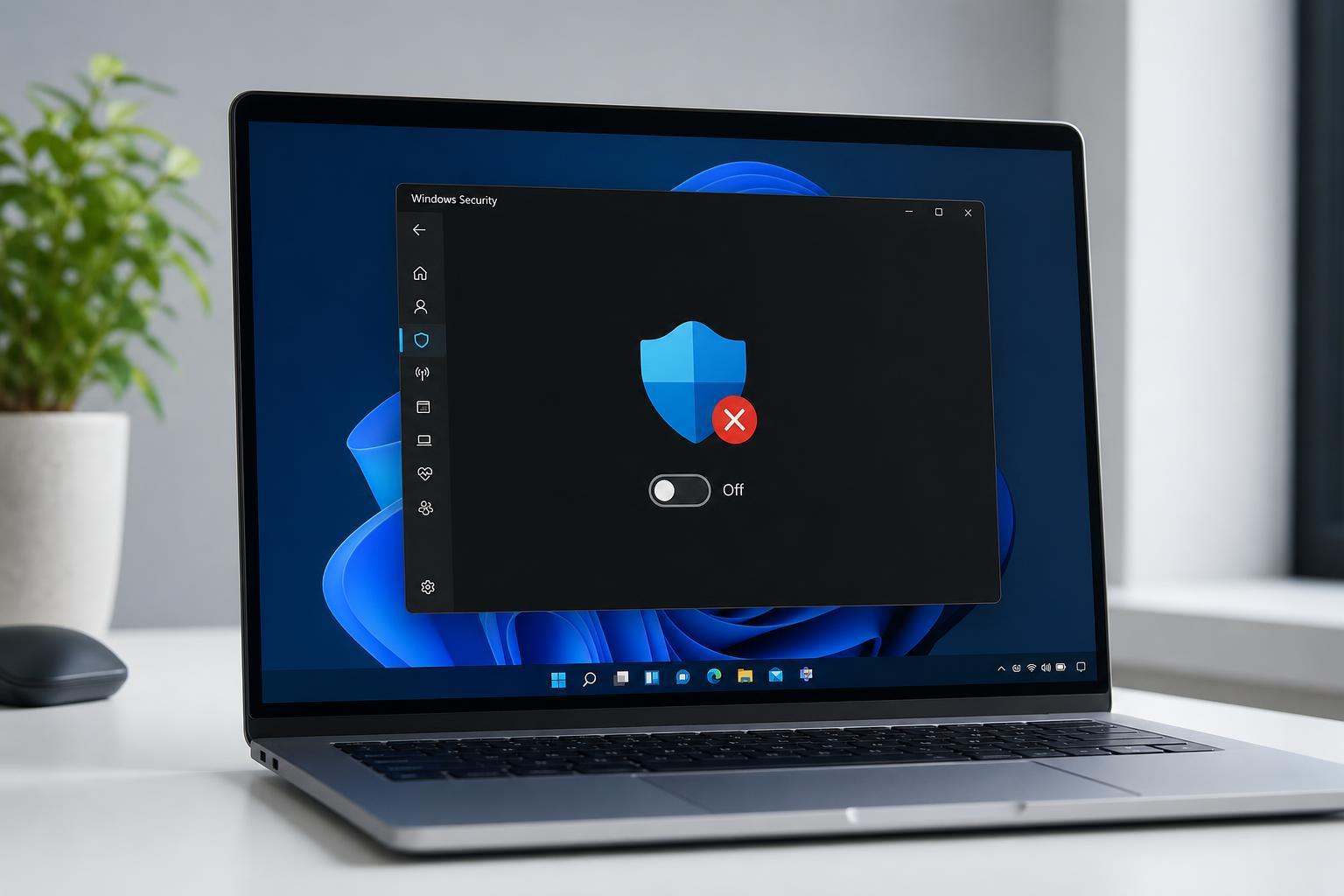
1. Turn Off Real-Time Protection in Windows Security
This is the quickest method and usually enough if you only need Defender out of the way briefly. It stops active scanning, but Windows may turn it back on later, especially after a restart.
- Open Start and search for Windows Security.
- Select Virus & threat protection.
- Under Virus & threat protection settings, click Manage settings.
- Turn off Real-time protection.
- If needed, also turn off Cloud-delivered protection and Automatic sample submission for a short period while troubleshooting.
2. Disable Tamper Protection First
On many systems, Tamper Protection prevents security settings from being changed. If you try to disable Defender and the option keeps turning itself back on, this setting may be the reason.
- Open Windows Security.
- Go to Virus & threat protection.
- Select Manage settings under Virus & threat protection settings.
- Find Tamper Protection and switch it off.
- Now try changing the Defender settings again.
3. Use Group Policy to Disable Microsoft Defender Antivirus
If you use Windows Pro, Enterprise, or Education, Local Group Policy Editor gives you a more permanent way to stop Microsoft Defender Antivirus from running. This is useful for managed environments or advanced troubleshooting.
- Press Windows + R, type gpedit.msc, and press Enter.
- Navigate to Computer Configuration > Administrative Templates > Windows Components > Microsoft Defender Antivirus.
- Open Turn off Microsoft Defender Antivirus.
- Set it to Enabled, then click Apply and OK.
- Restart the PC if the change does not take effect immediately.
4. Disable Defender with the Registry Editor
Registry editing can also be used to prevent Defender from running, especially on editions where Group Policy is not available. This method should be used carefully, because incorrect registry changes can affect system stability.
- Press Windows + R, type regedit, and press Enter.
- Go to HKEY_LOCAL_MACHINE\SOFTWARE\Policies\Microsoft\Windows Defender.
- If the Windows Defender key does not exist, create it.
- Create a new DWORD (32-bit) Value named DisableAntiSpyware.
- Set its value to 1 and restart the PC.
5. Install a Third-Party Antivirus Program
In many cases, Windows will automatically reduce or disable Microsoft Defender Antivirus when it detects another active antivirus product. This is the cleanest way to replace Defender if you want a different security suite instead of no protection at all.
- Install a reputable third-party antivirus product.
- Let the installer finish and restart if requested.
- Check Windows Security to confirm Defender has stepped back.
- Use the new antivirus program as your primary protection.
What to Expect After Disabling Defender
Depending on the method you use, Defender may turn itself back on after a Windows update, a restart, or a security check. Temporary changes like Real-time protection are easiest to reverse, while policy or registry changes are more persistent but also riskier.
- Windows may re-enable protection automatically.
- Some settings are blocked unless Tamper Protection is off.
- Work or school-managed PCs may override local changes.
- A third-party antivirus can take Defender's place in many cases.
How to Re-Enable Windows Defender
If you only disabled Defender for testing, turn it back on as soon as possible.
- Open Windows Security.
- Go to Virus & threat protection.
- Open Manage settings.
- Turn Real-time protection back on.
- If you disabled Tamper Protection, re-enable it after you finish changing security settings.
Which Method Should You Use?
If you only need a short break from Defender, use Windows Security settings. If you need a more persistent change on a supported edition, Group Policy is usually cleaner than the registry. If you want Defender replaced entirely, installing another antivirus is often the simplest long-term approach.
For most people, the safest answer is to disable Defender only briefly or replace it with another security product rather than leaving the PC unprotected.





