
If Notepad on your PC has started showing AI features or a newer interface you do not want, you have a few ways to get back to the simpler classic experience. The exact option you should use depends on your Windows version and whether you want to remove the new features entirely or just avoid them.
This guide focuses on practical ways to return to the old-style Notepad behavior, including checking for the legacy app, removing the newer version if Windows installed it separately, and using alternatives if Microsoft has already replaced the built-in version on your system.
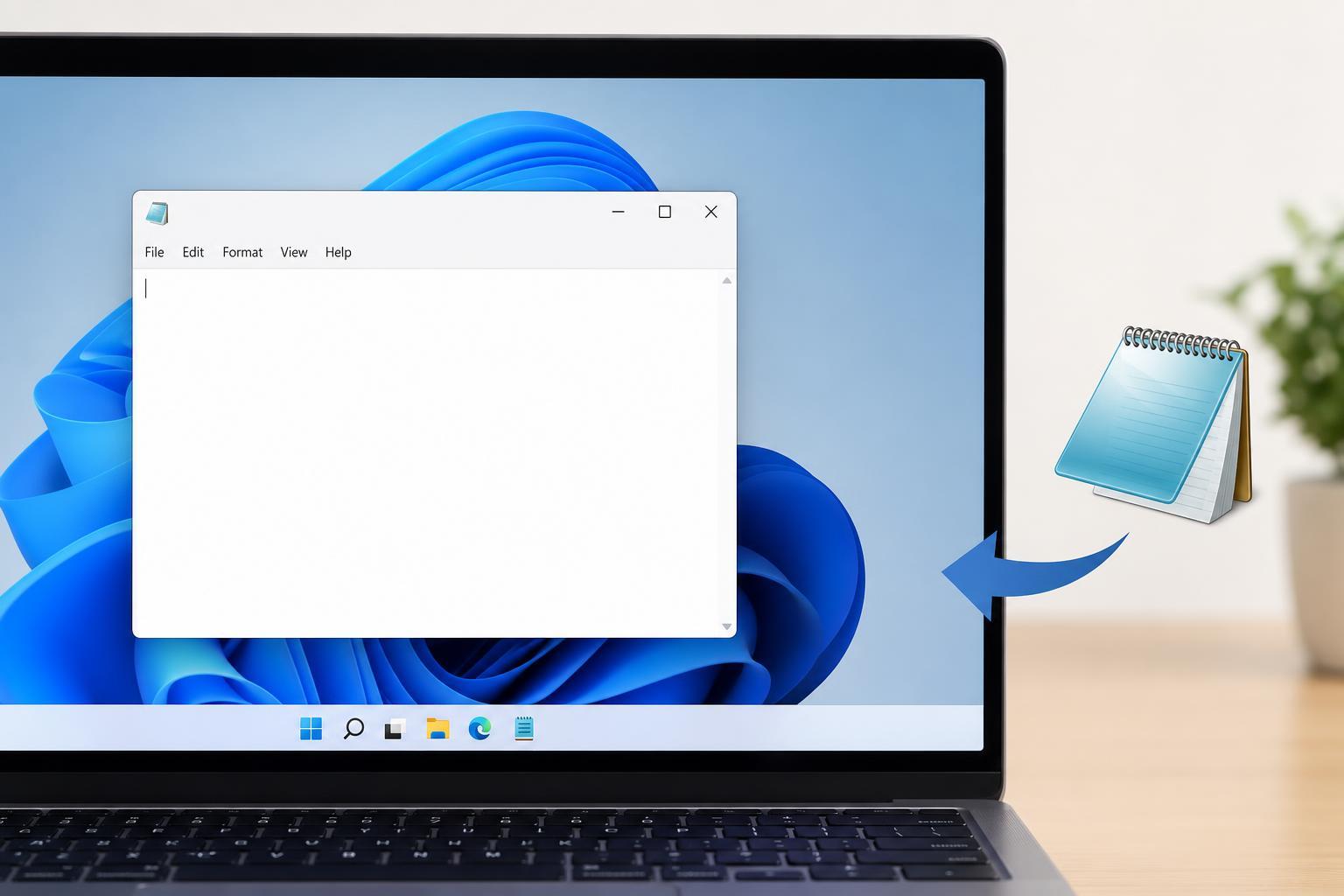
Check Which Notepad You Have
Before making changes, open Notepad and look at the interface. Windows 11 versions of Notepad may include tabs, cloud integration prompts, or AI-related features such as rewrite or summarize tools, depending on the build and region. If you only want the plain text editor feel, identifying the version helps you choose the fastest fix.
- Older classic Notepad usually has a very simple menu bar and no tabs.
- The Microsoft Store version may update separately from Windows.
- Some Windows updates can replace the built-in app with a newer Notepad build.
- If AI options appear, they may be part of the updated app rather than Windows itself.
Try the Simple Fix: Open the Classic Notepad Shortcut
On some systems, the original Notepad executable is still present even if a newer version is installed. You may be able to open the plain version directly from the Run dialog or by launching it from its system folder.
- Press Windows + R to open the Run dialog.
- Type notepad and press Enter.
- If the app opens in the familiar plain interface, you already have the classic version available.
- If it opens the newer Notepad, move on to the next section.
Remove the Newer Notepad App if Windows Lets You
If Notepad is installed as an app rather than a core Windows component, Windows may let you uninstall it. This is the cleanest way to get rid of AI features if they are bundled with that version.
- Open Settings.
- Go to Apps, then Installed apps.
- Search for Notepad.
- If an Uninstall button appears, select it and confirm.
- After uninstalling, check whether Windows restored the older built-in version or prompts you to install a replacement.
Install an Older or Simpler Version if Available
If you want the old-style interface and your system no longer includes it, the safest option is to use a trusted alternative text editor that behaves like classic Notepad. This avoids the newer features without trying to force Windows back to an older app version.
- Notepad++ for a lightweight but more capable editor
- Visual Studio Code for users who want more features
- WordPad alternatives only if you need simple formatting, since WordPad itself has been removed from newer Windows versions
Turn Off AI-Related Features Instead of Removing the App
If you do not want to uninstall Notepad, look for in-app settings related to AI features, suggestions, or sign-in requirements. The exact options vary by version, and not every build offers the same controls.
- Open Notepad.
- Open its settings or app menu.
- Look for options related to AI features, rewrite tools, or connected services.
- Disable any feature you do not want, if the app provides a toggle.
- Close and reopen Notepad to confirm the change took effect.
If Windows Keeps Reinstalling the New Version
Windows Update or the Microsoft Store may reinstall or update Notepad automatically. If the app keeps changing back, you may need to control automatic app updates.
- Open the Microsoft Store.
- Click your profile icon and open App settings.
- Turn off automatic app updates if that option is available.
- Check Windows Update after major feature updates, since those can restore newer built-in apps.
- Recheck Notepad after updates to confirm it still behaves the way you want.
When You May Need an Alternative Instead
If Microsoft has fully replaced the old Notepad behavior on your version of Windows, there may not be a supported way to restore the exact classic app permanently. In that case, using a lightweight text editor is usually the most reliable answer.
- You want a completely plain interface with no AI prompts
- Your PC keeps restoring the newer version after updates
- You need predictable behavior for scripts, logs, or quick text editing
- You are on a work-managed PC where app changes are restricted
What to Avoid
A few changes may look tempting but can cause more problems than they solve.
- Do not download random copies of Notepad from unofficial websites.
- Do not delete Windows app files manually unless you know the exact package and recovery steps.
- Do not use registry tweaks from untrusted sources that claim to remove AI features system-wide.
- Do not disable security or update services just to keep one app from changing.
Choosing the Best Approach
The right fix depends on what you mean by getting the old Notepad back.
- If the newer app is removable, uninstall it and see whether the classic version returns.
- If AI features are optional, disable them in the app settings.
- If Windows keeps replacing the app, use a lightweight third-party text editor instead.
- If the PC is managed, ask your administrator whether app versions are controlled centrally.





