When your Mac shows it is connected to Wi‑Fi but nothing loads, the problem is usually not the Wi‑Fi icon itself. The issue is often with DNS, your router, a network configuration problem, or a temporary macOS connection glitch.
This guide walks through the most effective fixes in a sensible order, starting with quick checks and moving to deeper network troubleshooting if needed.
Check Whether the Problem Is Your Mac or the Network
Before changing settings, make sure the problem is actually on your Mac. If other devices on the same Wi‑Fi network can browse normally, the issue is likely local to your Mac. If nothing on the network can get online, the router or internet connection is the more likely cause.
- Try opening a few different websites, not just one
- Check whether other devices on the same Wi‑Fi can load pages
- Look for a captive portal, such as hotel or café Wi‑Fi that requires sign-in
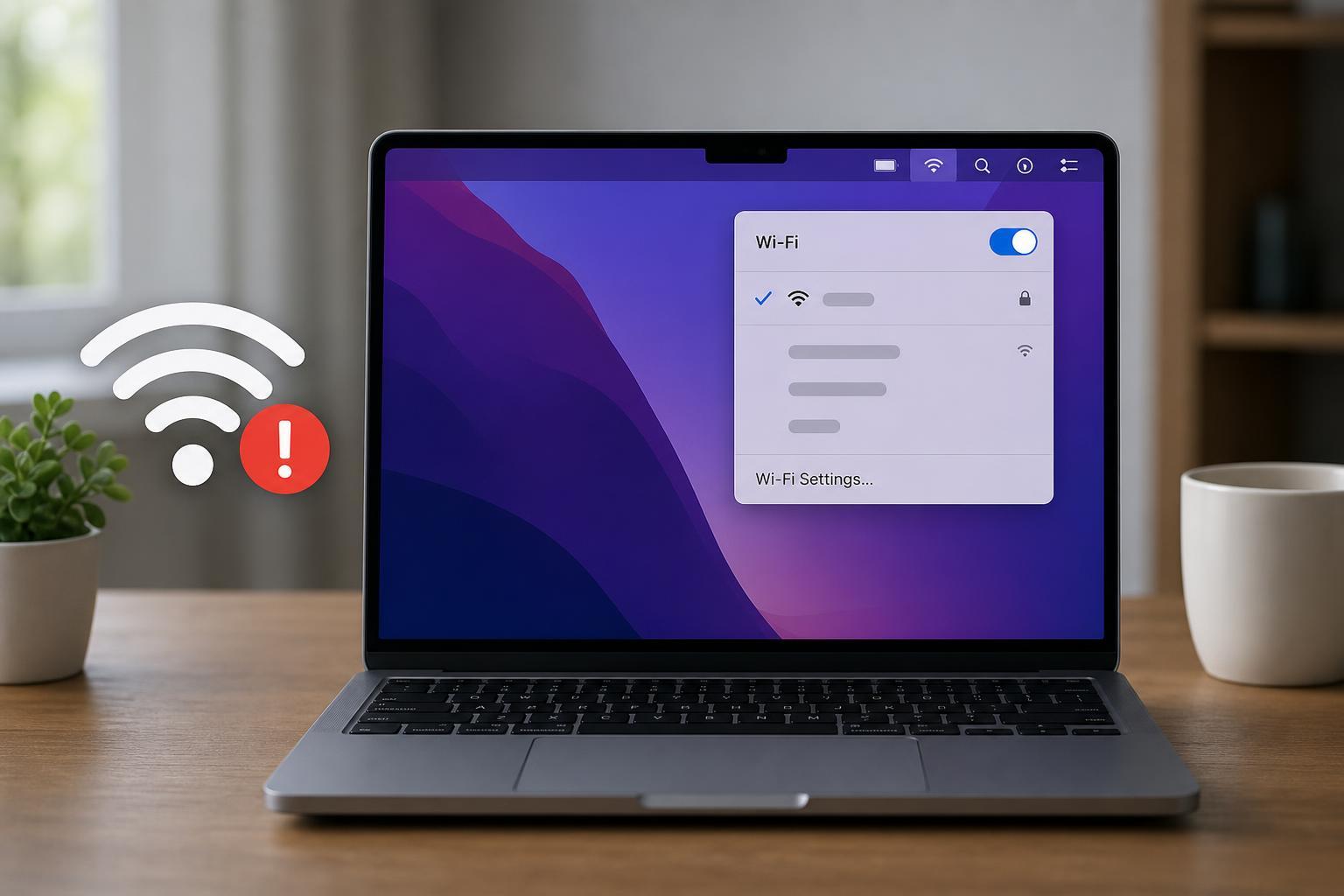
- Confirm that the Wi‑Fi network shows a strong connection icon and not a warning symbol
1. Renew the Wi‑Fi Lease and Reconnect to the Network
A bad DHCP lease can leave your Mac connected to Wi‑Fi but unable to reach the internet properly. Renewing the lease forces your Mac to request fresh network information from the router.
- Open System Settings and select Wi‑Fi.
- Click the connected network, then open its details or advanced settings.
- Look for TCP/IP settings and choose Renew DHCP Lease if available.
- Turn Wi‑Fi off, wait a few seconds, then turn it back on.
- If needed, forget the network and reconnect by entering the password again.
2. Fix DNS Problems
Sometimes your Mac is connected to Wi‑Fi, but DNS is failing. DNS is what turns website names like example.com into the numeric addresses your Mac needs. If DNS is broken, websites may not load even though the network connection appears normal.
- Open System Settings and go to Network.
- Select Wi‑Fi, then open the details for your connected network.
- Find the DNS section and check which servers are listed.
- If the network is using a problematic DNS server, replace it with a reliable one such as your router's address or a trusted public DNS service.
- Save the changes and test browsing again.
3. Disable VPN, Proxy, or Security Software Temporarily
VPNs, proxy settings, and some security tools can interfere with normal internet access. A VPN may connect successfully while blocking web traffic, or a proxy setting may send traffic to a server that is no longer available.
- Turn off any active VPN app or disconnect from the VPN service.
- Check whether a proxy is enabled in your Wi‑Fi network settings.
- If you use web-filtering or antivirus software, temporarily disable its network protection features.
- Test the connection again after each change so you can identify the cause.
4. Reset Your Mac’s Network Configuration
If Wi‑Fi still says connected but nothing works, the Mac’s saved network settings may be corrupted. Resetting the network configuration can clear out problematic preferences and force macOS to rebuild them.
- Go to System Settings and open Network.
- Remove the Wi‑Fi service if macOS allows it, then add it back.
- Reconnect to your Wi‑Fi network and enter the password again.
- If the issue continues, delete and re-add the Wi‑Fi preference files only if you are comfortable with advanced troubleshooting.
- Test browsing after the network settings are rebuilt.
5. Restart the Router or Test a Different Network
If your Mac works on another network, the problem is usually with the original router, modem, or ISP connection rather than the Mac itself. A router reboot can clear stalled connections and restore normal traffic.
- Unplug the router and modem from power.
- Wait at least 30 seconds.
- Plug the modem back in first, then the router.
- Wait for the connection lights to stabilize.
- Reconnect your Mac and test again.
- If possible, try your Mac on a phone hotspot or another Wi‑Fi network.
If the Problem Only Happens on One Website or App
If most sites work but one service does not, the issue may not be your Wi‑Fi at all. That could point to a server outage, an account problem, blocked cookies, an outdated app, or a cached login issue.
- Try the site in another browser
- Clear the browser cache for that site
- Sign out and sign back in
- Check whether the service is having an outage
- Update the app if the problem is inside a specific application
When to Go Deeper
If none of the five fixes work, the next likely causes are a damaged macOS network stack, bad router firmware, incorrect manual IP settings, or hardware trouble with the Mac’s Wi‑Fi adapter. At that point, checking for macOS updates, reviewing advanced network settings, or testing with another user account can help narrow it down.
If your Mac connects to Wi‑Fi but never reaches the internet after trying another network, the issue is more likely on the Mac itself. If it works everywhere else but not on one router, focus on the router or ISP.