
An iPad can be much more than a second screen for a streamer. With the right apps, it can become a compact control center for chat, stream planning, scene switching, notes, alerts, and audience engagement. That is especially useful if you stream from a PC or console and want a cleaner, more flexible setup.
This guide focuses on five iPad apps that are genuinely useful for video game streamers, along with what each one does best and when it is worth adding to your setup.
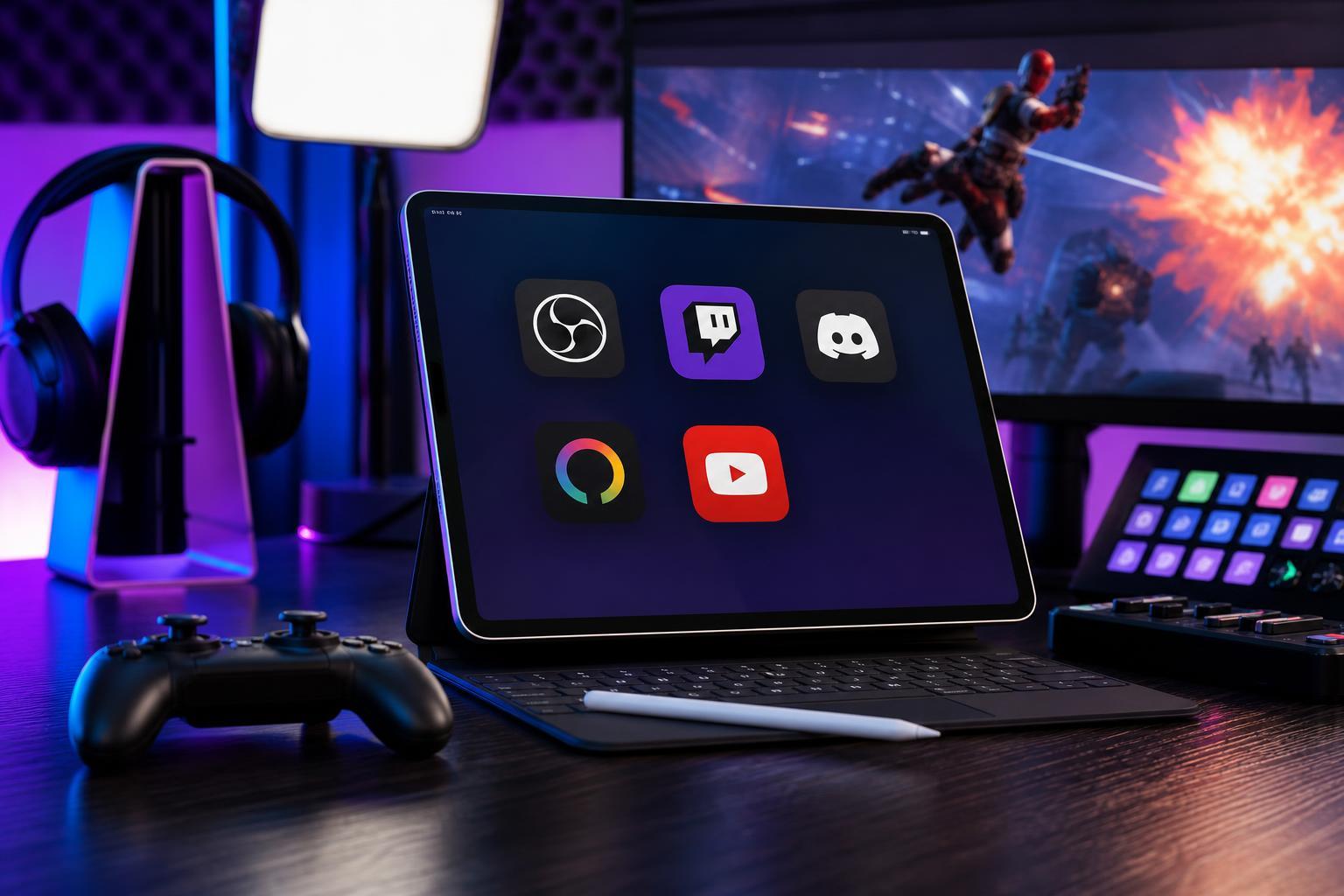
1. Twitch
If you stream on Twitch, the official Twitch app is the most direct way to keep up with your channel when you are away from your main screen. It is useful for checking chat, seeing stream health at a glance, managing notifications, and staying connected with your community before, during, and after a broadcast.
Why it matters: chat management is one of the biggest jobs during a live stream. Being able to glance at your iPad instead of constantly switching windows on your PC makes it easier to stay focused on gameplay.
- Monitor live chat while playing
- Check stream activity and channel notifications
- Review VODs and channel content
- Keep up with community interactions on the go
2. Streamlabs
Streamlabs is useful for streamers who want more control over overlays, alerts, and stream management in one place. The iPad version can help you track events, watch for follower or donation activity, and stay connected to your stream workflow without relying entirely on your desktop.
This app is especially handy if you use Streamlabs as part of your streaming stack and want a mobile-friendly way to keep an eye on engagement while your hands stay on the controller or keyboard.
- View stream events and alerts
- Monitor engagement during a live broadcast
- Access Streamlabs-related tools and account features
- Keep your stream setup tied together across devices
3. Discord
Discord is one of the most valuable apps a streamer can have on an iPad, even if it is not a streaming app in the strict sense. It is often where communities live, where co-stream plans are made, and where viewers and teammates communicate before and after a session.
For many creators, Discord becomes the behind-the-scenes hub for announcements, game nights, voice chat, and moderation coordination. On an iPad, it is easier to keep open while your main PC is dedicated to streaming or gaming.
- Coordinate with mods and teammates
- Post stream announcements and schedule updates
- Keep community channels active
- Join voice channels without taking over your gaming PC
4. OBS WebSocket Companion Apps
If you stream with OBS Studio, a companion app that connects through OBS WebSocket can turn your iPad into a remote control for scenes, sources, transitions, and stream actions. This is one of the most powerful ways to use an iPad in a streaming setup.
These apps are especially useful for streamers who switch between gameplay, starting soon screens, BRB screens, and ending scenes. Instead of clicking around on the desktop, you can tap a few large buttons on the iPad.
- Switch scenes remotely
- Trigger transitions and hotkeys
- Toggle sources and overlays
- Control your stream without leaving the game
5. Notion
Notion is not a live-stream control app, but it is incredibly helpful for stream planning. Many streamers use it to organize content ideas, build schedules, track sponsorship notes, manage game lists, and keep checklists for each broadcast.
An iPad is a great device for this kind of work because it feels more like a notebook than a full computer. You can keep your ideas organized without opening a laptop or cluttering your desktop with planning documents.
- Plan stream schedules
- Track content ideas and game backlogs
- Store sponsor notes or affiliate reminders
- Build repeatable pre-stream and post-stream checklists
How to Choose the Right iPad Apps for Your Stream
The best iPad apps for streaming depend on how you actually create content. A Twitch-first streamer may care most about chat and moderation, while an OBS user may want scene control. A community-focused creator may get more value from Discord and Notion than from a dedicated broadcasting app.
- Start with the tool that solves your biggest bottleneck. If chat is hard to manage, choose a chat app first.
- Match the app to your streaming platform and software. Twitch, OBS, and Streamlabs users all have different needs.
- Look for apps that reduce clutter on your main PC rather than adding more to manage.
- Choose apps that fit your workflow on a tablet, with readable layouts and easy touch controls.
- Keep the setup simple. A few well-chosen apps are usually more useful than a crowded iPad full of tools you never open.
A Simple iPad Streaming Setup That Works
For many streamers, the most effective iPad setup is a combination of one chat app, one control app, and one organization app. For example, Twitch or Discord can handle communication, OBS companion software can manage scenes, and Notion can handle scheduling and planning.
That mix gives you a practical second screen without forcing your iPad to do everything. It also makes it easier to troubleshoot your workflow because each app has a clear job.
What This Setup Helps You Do Better
These apps are not just about convenience. They help you respond faster to chat, keep scenes under control, stay organized between sessions, and avoid unnecessary distractions on your gaming PC. That makes your stream feel smoother for both you and your audience.
If you want the biggest improvement with the least complexity, start with Twitch or Discord for communication, then add OBS companion control if you use OBS Studio. After that, Notion or Streamlabs can fill in the planning and broadcast-management gaps.





