
If you want a cleaner browsing experience on your iPhone, using a browser with ad blocking built in can make a big difference. It can reduce pop-ups, speed up page loading, and make reading articles or using web apps much less distracting.
Not every browser blocks ads in the same way, though. Some use built-in filters, some work best with content blockers, and some focus more on privacy than aggressive ad removal. Here are five iPhone browsers worth considering if ad-free browsing is your goal.
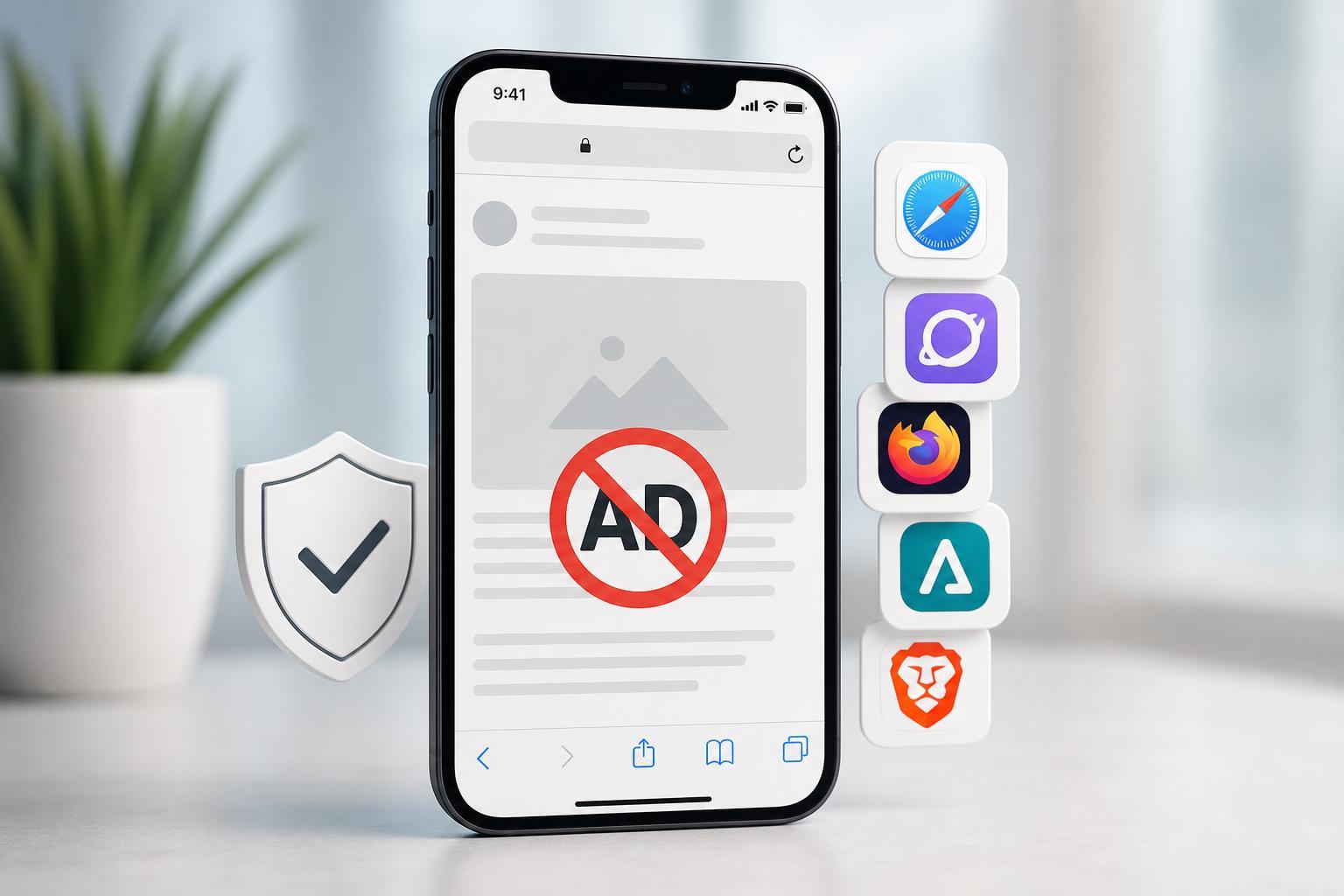
1. Brave
Brave is one of the most popular choices for iPhone users who want ad blocking without extra setup. It blocks many ads and trackers by default, which makes pages cleaner and often faster to load.
Brave also includes privacy-focused features like tracker blocking and optional protection against fingerprinting. If you want a browser that works well as soon as you install it, Brave is one of the easiest options.
2. Firefox Focus
Firefox Focus is designed for privacy and simplicity. It automatically blocks many ads and trackers, and it keeps the interface very minimal, which makes it a good choice for quick browsing sessions.
Because Firefox Focus is lightweight and stripped down, it is not meant to replace every full-featured browser. But if your main goal is to open a page, read it without distractions, and then clear your session easily, it works very well.
3. Ghostery Private Browser
Ghostery Private Browser combines ad blocking with privacy tools that help stop trackers and other hidden web elements. It is aimed at users who want a more controlled browsing experience without having to manage lots of settings.
The browser is built around blocking tracking scripts and making websites less intrusive. That can improve both page cleanliness and how comfortable a site feels to use, especially on news sites and content-heavy pages.
4. Opera Browser
Opera for iPhone includes built-in ad blocking, so you can reduce many ads without installing additional blockers. It also offers a polished browsing experience with extra convenience features that some users may prefer.
Opera can be a good middle ground if you want a browser that handles ads well but still feels closer to a traditional all-purpose browser than a privacy-only tool.
5. Aloha Browser
Aloha Browser is another iPhone browser with privacy features and ad blocking support. It is aimed at users who want a cleaner browsing experience and additional tools in the same app.
Aloha tends to appeal to people who want a more self-contained browser experience. Depending on how you browse, it can be a practical option if you want a mix of ad blocking, privacy protection, and convenience features.
What to look for in an ad-blocking iPhone browser
Before choosing a browser, it helps to know that ad blocking on iPhone can work in different ways. Some browsers block ads directly inside the app, while others rely on content-blocking rules or privacy protections that reduce ads and trackers.
- Built-in ad blocking: Usually the simplest option because it works right away.
- Tracker blocking: Helps reduce tracking scripts, which can make pages feel less cluttered.
- Compatibility: Some sites may behave differently if the browser blocks too much content.
- Battery and speed impact: Lighter browsers can feel faster and use less data.
- Cross-device sync: Useful if you browse on both iPhone and desktop.
Which browser should you choose?
If you want the strongest all-around option, Brave is often the easiest place to start. If you prefer a minimal, private browser for temporary browsing, Firefox Focus is a great fit. For users who want privacy tools plus ad blocking in one package, Ghostery Private Browser and Aloha Browser are worth trying. Opera sits somewhere in the middle if you want a more traditional browser with built-in ad blocking.
- Choose Brave for strong default ad blocking.
- Choose Firefox Focus for short private sessions.
- Choose Ghostery Private Browser for privacy-first browsing.
- Choose Opera for a feature-rich browser with ad blocking.
- Choose Aloha Browser for an all-in-one privacy and utility option.
A few limitations to keep in mind
Also, ad blocking can sometimes change how websites behave. If a page refuses to load correctly, try allowing the site temporarily or switching to a less aggressive browser setting.





