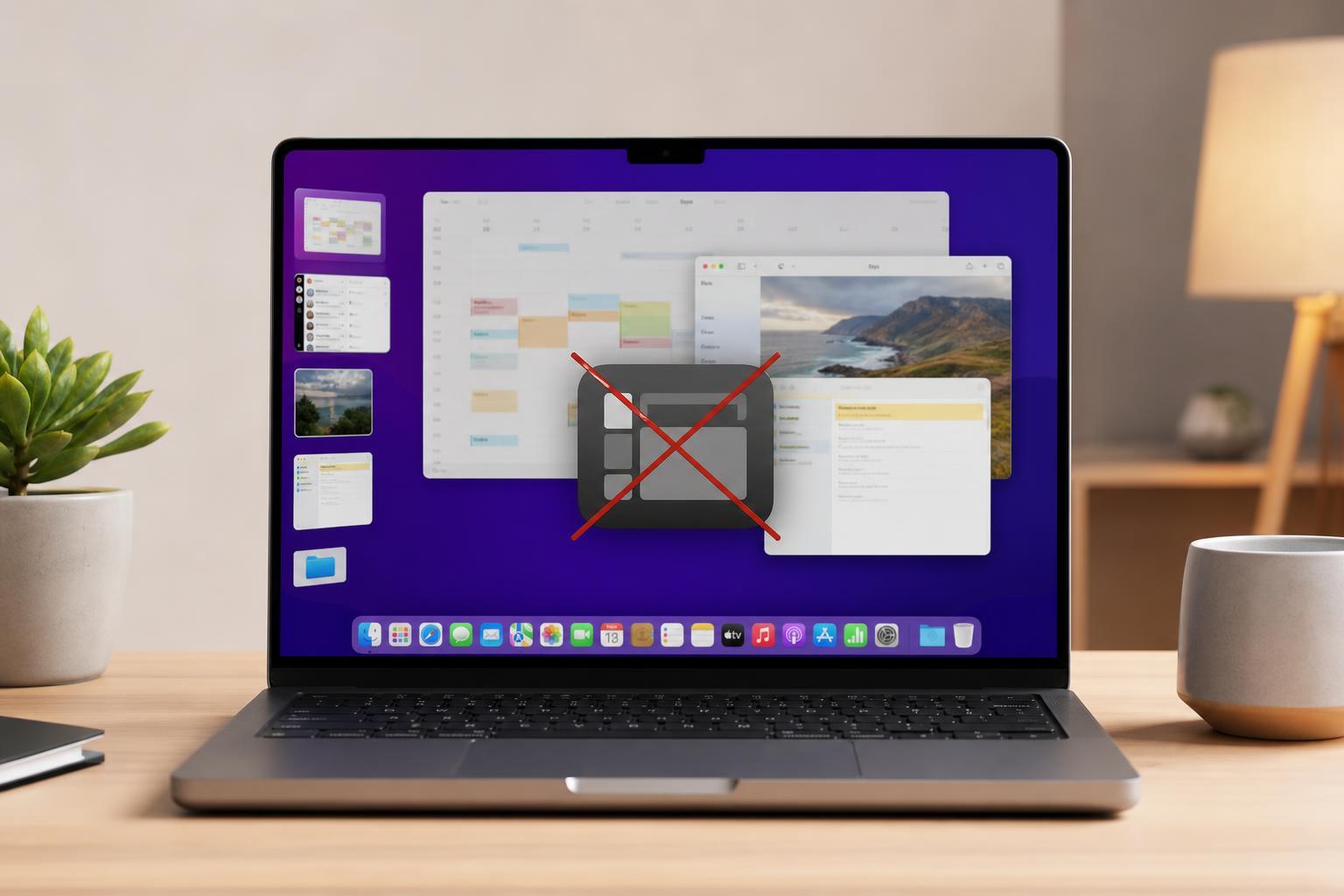
Stage Manager is meant to make window switching and multitasking easier on a Mac, but it can stop responding, disappear from Control Center, or refuse to organize windows the way it should. In many cases, the cause is a setting conflict, a display limitation, or a macOS bug rather than a serious hardware problem.
The fixes below focus on the most common reasons Stage Manager fails and walk you through the steps in a practical order, starting with the simplest checks.
1. Make Sure Stage Manager Is Actually Turned On
This sounds obvious, but Stage Manager can be disabled without it being immediately clear. If it is off, your Mac will behave normally and you will not see the side thumbnails or the centered active window layout.
- Open Control Center from the menu bar.
- Click Stage Manager to turn it on.
- If you do not see it there, open System Settings and go to Desktop & Dock.
- Find the Stage Manager section and enable it there.
2. Check for Display Settings That Can Interfere
Stage Manager does not always behave well with every display setup. If you use an external monitor, multiple displays, or a scaled resolution, the feature may seem broken when it is really being limited by your display configuration.
- Open System Settings and go to Displays.
- Check whether your Mac is using the expected resolution and scaling option.
- If you use more than one display, look for any Stage Manager option related to separate spaces or display behavior.
- Temporarily disconnect external monitors and test Stage Manager on the built-in display only.
3. Update macOS
If Stage Manager stopped working after an update, or it never worked properly on your current version, a macOS update may fix the bug. Apple frequently adjusts window management features in system updates.
- Open System Settings.
- Go to General, then Software Update.
- Install any available macOS updates.
- After the update, test Stage Manager again.
4. Turn Off Conflicting Window and Desktop Options
Stage Manager can clash with other desktop behavior settings, especially if you have recently changed Mission Control preferences or keyboard shortcuts. Some customization options can make Stage Manager appear inconsistent or hard to use.
- Open System Settings and go to Desktop & Dock.
- Review options related to Mission Control, window grouping, and desktop switching.
- If you use keyboard shortcuts or hot corners for Mission Control, test with them disabled temporarily.
- Turn Stage Manager off and back on again after changing these settings.
- Mission Control settings that alter desktop switching
- Keyboard shortcuts that overlap with Stage Manager behavior
- Third-party window management tools
- Custom hot corners that trigger other workspace actions
5. Reset the Feature by Rebuilding the Session Around It
If Stage Manager still does not respond correctly, force it to reinitialize by turning it off, logging out of your Mac account, and logging back in. This is not the same as restarting the entire Mac, but it can clear a stuck user-session state.
- Turn Stage Manager off.
- Log out of your Mac user account.
- Log back in.
- Turn Stage Manager back on and test it with a few open apps.
If that still does not help, the next step is to test whether the issue is limited to one user account. Create or use another account on the Mac and see whether Stage Manager works there. If it does, the problem is likely tied to your original account settings rather than the Mac itself.
How to Narrow Down the Cause Quickly
If you are not sure which fix to try first, use the clues below to identify the most likely cause.
- Stage Manager missing from Control Center: check whether it is enabled in System Settings.
- Works on the built-in screen but not external monitors: review display settings or test with one display only.
- Stopped after an update: install the latest macOS point release.
- Looks broken only with certain apps: check for third-party window tools or app-specific behavior.
- Fails only on one account: the issue is probably in that user profile, not the Mac hardware.
When to Look Beyond Stage Manager Itself
If none of the fixes above help, the problem may be broader than Stage Manager. A damaged user profile, a display adapter issue, or a macOS system problem could be affecting multiple features, not just this one.
At that point, compare whether Mission Control, Split View, and other window behaviors are also acting strangely. If they are, the next troubleshooting step should focus on the system configuration as a whole rather than Stage Manager alone.