
The NSIS “Error Launching Installer” message usually appears when you try to run a Windows setup file, but the installer cannot start properly. In many cases, the download is incomplete, the file name or location is causing trouble, or security software is blocking the installer.
The good news is that this error is often fixable without advanced troubleshooting. The most useful approach is to check the download first, then work through the common Windows and security-related causes.
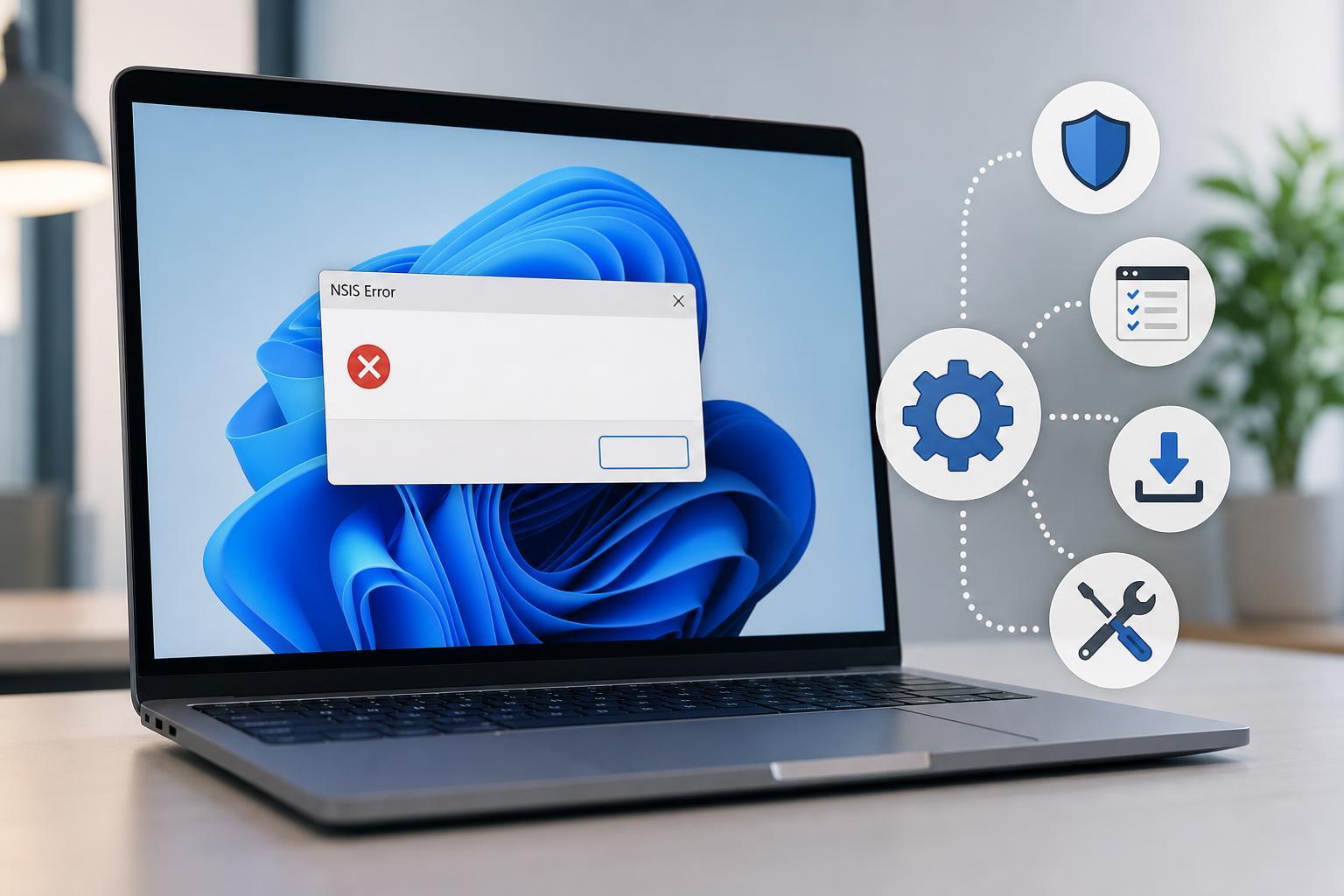
What the NSIS Error Usually Means
NSIS stands for Nullsoft Scriptable Install System, a tool many Windows installers use. When you see an “Error Launching Installer” message, it usually means the setup program cannot verify, unpack, or access the files it needs to start.
1. Re-download the Installer from the Official Source
A bad or incomplete download is one of the most common reasons for this error. If the installer file was interrupted during download, NSIS may fail as soon as you try to launch it.
- Delete the installer file you already downloaded.
- Go back to the software’s official website or trusted source.
- Download the installer again.
- If available, compare the file size with the publisher’s listed size.
- Run the new file from a simple location such as your Downloads folder.
2. Move the Installer to a Simple Folder and Shorten the File Path
NSIS installers can fail if the file is stored in a long or unusual path, especially one with many nested folders or special characters. A short, simple path helps Windows access the file more reliably.
- Create a new folder directly on the C: drive, such as C:\Installers.
- Move the installer into that folder.
- Rename the file to something simple if needed, using only letters and numbers.
- Run the installer again from that folder.
3. Temporarily Disable Antivirus or Windows Security Blocking the File
Security software may stop an installer from unpacking its files, which can trigger the NSIS error. This is more likely if the setup file was downloaded from a less common source or if the antivirus engine treats it as suspicious.
- Check whether your antivirus has quarantined or blocked the installer.
- If you trust the source, temporarily pause real-time protection.
- Run the installer again.
- Turn protection back on immediately after testing.
4. Run the File with the Right Permissions and Check for Corruption
If Windows does not have enough permission to read or extract the installer properly, the setup can fail before it even starts. File corruption can cause the same symptom, so it is worth checking both possibilities together.
- Right-click the installer and choose Run as administrator.
- If Windows shows a security prompt, confirm that you want to continue.
- If the error still appears, right-click the file and open Properties.
- Check whether Windows shows the file as blocked, and if so, unblock it if the option is available.
- If the installer still fails, download it again from the original source to rule out file corruption.
How to Narrow Down the Cause Quickly
If you want the fastest path to a solution, start with the most likely causes first. A fresh download fixes many NSIS errors, and a short file path is the next easiest thing to test.
- If the file was just downloaded once, try downloading it again first.
- If the installer is buried in several folders, move it to C:\Installers.
- If your antivirus is active, check whether it blocked the file.
- If nothing changes, try running the file as administrator.
When the Problem May Be the Installer Itself
Sometimes the issue is not your PC at all. Some installers are simply broken, poorly packaged, or built in a way that causes false NSIS errors on certain systems. If a fresh download from the official source still fails on multiple computers, contact the software publisher or look for an alternate installer format such as a web installer or Microsoft Store version.
What to Try Next if None of These Fixes Work
If the error continues after re-downloading, changing the file location, checking security software, and running as administrator, the installer may be damaged in a way that is not easy to repair locally. At that point, the best next step is to get a clean copy from the publisher or try a different release channel if one is available.





