
If Instagram won’t let you post, the problem is usually caused by an app glitch, a connection issue, a file that does not meet Instagram’s requirements, or a temporary account restriction. The good news is that most posting problems can be fixed without much troubleshooting.
This guide covers four practical fixes that address the most common reasons Instagram blocks posts, along with a few checks to help you narrow down the cause.
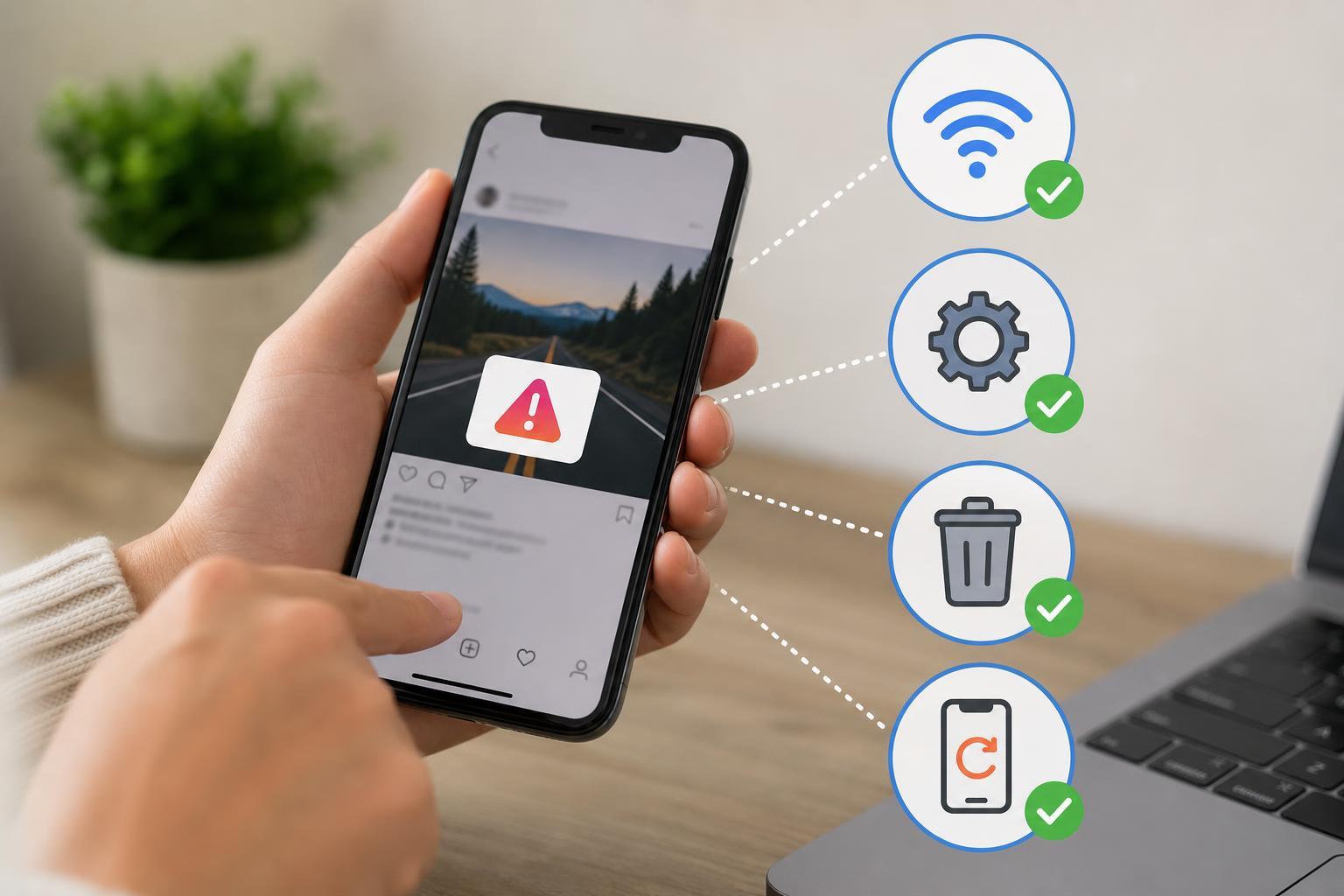
1. Check Whether the Problem Is the App, the File, or Your Connection
Before changing settings, make sure the issue is not limited to one photo, one video, or one connection type. A single broken upload attempt can make it look like Instagram is fully down when the real problem is the specific file or network you are using.
- Try posting a different photo or a much shorter video.
- Switch between Wi‑Fi and mobile data to see if the upload works on another connection.
- If you are on Wi‑Fi, test another network or move closer to the router.
- Check whether Instagram is loading other content normally, such as Stories, Reels, or your feed.
2. Make Sure Your Post Meets Instagram’s Requirements
Instagram can reject uploads that are too large, in the wrong format, or corrupted. This is especially common with videos, edited images, or files exported from third-party apps.
- Save the image or video again and try uploading the newly exported version.
- Check that the file is a supported format for the type of post you want to make.
- For videos, reduce the length or export at a lower resolution if the file is unusually large.
- Avoid using media that was downloaded from another app if it appears damaged or won’t preview correctly.
- Remove anything that may be causing a problem, such as broken captions copied from another app or unsupported stickers added in editing software.
3. Clear the Instagram App Problem Without Losing Your Account
If the app itself is stuck, clearing temporary data or refreshing the installation often helps. This can fix upload buttons that do nothing, posts that stay on ‘sending,’ or errors that appear after an update.
- Close Instagram completely and open it again.
- Install any available Instagram update from the App Store or Google Play.
- If you are on Android, clear the app cache from your device settings.
- If the issue continues, remove and reinstall the app.
- Sign back in and try posting again from a fresh session.
4. Check for Account Limits, Restrictions, or Temporary Blocks
Sometimes Instagram prevents posting because of account activity rather than a device problem. This can happen after repeated failed uploads, unusual login behavior, suspicious automation tools, or actions that Instagram flags as spam-like.
- Look for in-app notices about account restrictions or disabled features.
- Avoid posting repeatedly in a short time if earlier uploads failed.
- Disable any third-party apps or tools that connect to your Instagram account.
- Wait a few hours if you recently triggered a temporary limit, then try again.
- Check whether you can post from another device to rule out a device-specific issue.
How to Narrow Down the Cause Quickly
If you want the fastest path to a fix, start with the simplest checks first. This order usually reveals the problem without wasting time.
- Try a different photo or video.
- Switch from Wi‑Fi to mobile data, or the other way around.
- Update or reinstall Instagram.
- Check for account restrictions or suspicious login activity.
- Retry from another phone or tablet if possible.
When the Problem May Not Be on Your End
If Instagram refuses to post across different files, networks, and devices, the problem may be a temporary service issue on Instagram’s side. In that case, there may be nothing to fix locally except waiting and trying again later.
If the issue lasts more than a short time, and you have already ruled out file problems, app issues, and account restrictions, review Instagram’s help or status channels to see whether posting is affected more broadly.





