
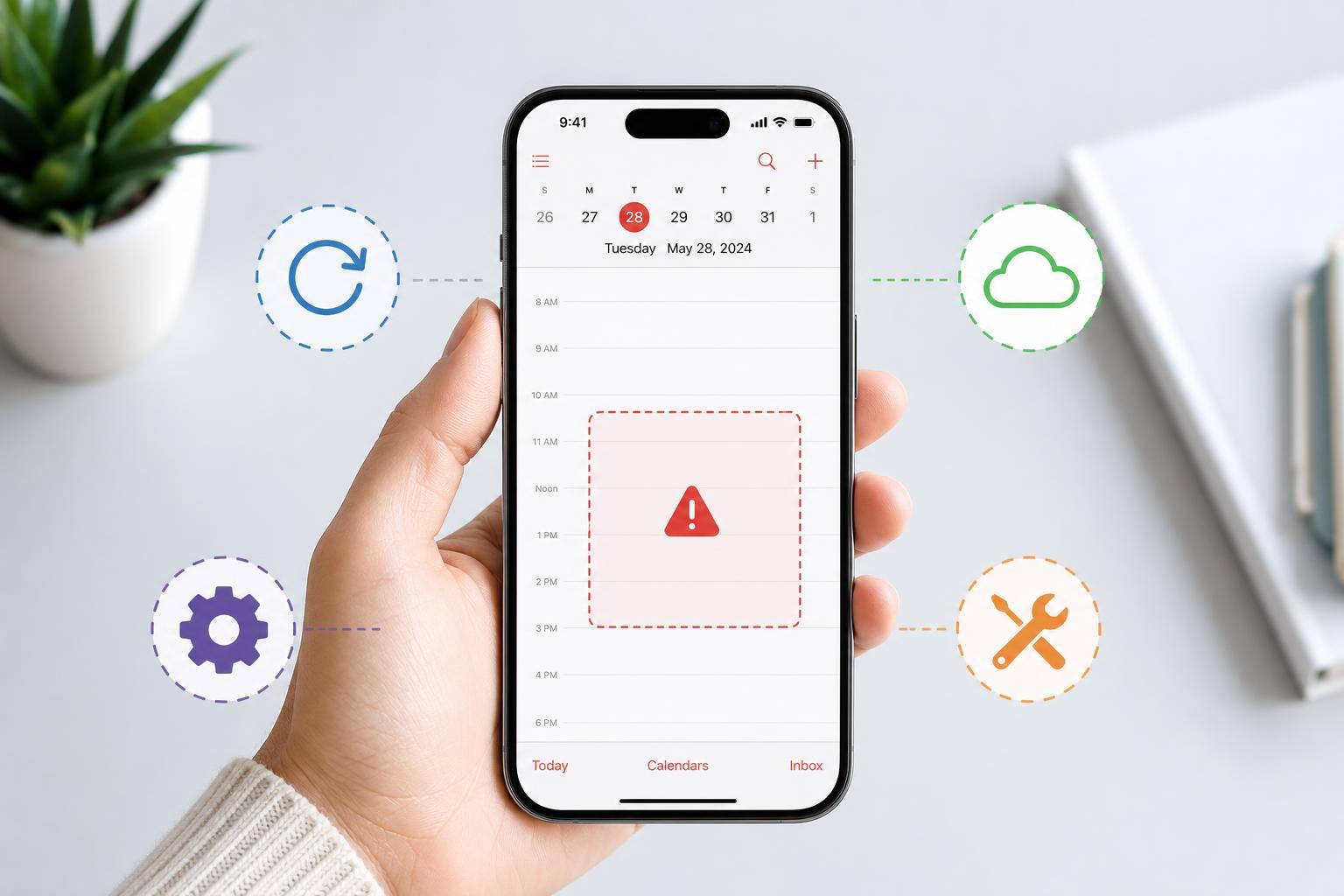
If events are disappearing from the Calendar app on your iPhone, the problem is usually tied to sync settings, account visibility, or a temporary data issue. The good news is that most cases can be fixed without losing your calendar data.
This guide walks through four practical fixes, starting with the most common causes first so you can get your events showing up again as quickly as possible.
1. Make Sure the Calendar Account Is Still Syncing
The first thing to check is whether the account that stores your events is still connected to your iPhone. If your events come from iCloud, Google, Outlook, or another service, and that account stops syncing, events may seem to vanish from the Calendar app even though they still exist online.
- Open Settings on your iPhone.
- Tap Calendar, then tap Accounts.
- Select the account that should contain the missing events.
- Make sure Calendar sync is turned on.
- If the account appears missing, add it again using Add Account.
- Open the Calendar app and give it a moment to resync.
2. Check Which Calendars Are Visible in the Calendar App
Sometimes events are not gone at all — they are just hidden. The Calendar app can show or hide individual calendars within the same account, so a calendar may still exist but be turned off in the list view.
- Open the Calendar app.
- Tap Calendars at the bottom of the screen.
- Look through the list of calendars under each account.
- Make sure the calendars that should show your events have a checkmark next to them.
- Tap Done to save the view settings.
3. Change Mail, Contacts, and Calendar Fetch Settings
If your events are added through an account that does not push changes instantly, your iPhone may be checking for updates less often than you expect. That can make new events seem to disappear temporarily or appear late.
- Open Settings.
- Tap Calendar.
- Tap Accounts, then choose Fetch New Data.
- Check whether Push is enabled for supported accounts.
- If Push is unavailable for an account, set Fetch to a more frequent interval such as Every 15 Minutes.
- Return to the Calendar app and wait for the next sync cycle.
4. Refresh the Calendar Data by Removing and Re-adding the Account
If your account settings look correct but events still do not show up, the local calendar data on the iPhone may be out of sync. Removing and re-adding the account can force the device to rebuild the calendar connection and download the data again.
- Open Settings and tap Calendar.
- Go to Accounts and select the calendar account.
- Tap Delete Account or Remove Account.
- Confirm the removal.
- Add the account again through Add Account.
- Sign in and allow time for the events to repopulate in the Calendar app.
How to Narrow Down the Cause
If none of the four fixes works, use a few quick clues to narrow down the problem:
- If events are missing from only one calendar, the issue is likely with that specific account or hidden calendar.
- If events are missing across all calendars, the problem may be broader sync failure or an iPhone software issue.
- If events appear on another device or in the web version of the service, the data is probably still intact and the iPhone is the source of the problem.
- If the same event disappears repeatedly, a third-party calendar app or account permission issue may be interfering with sync.
In most cases, missing calendar events are caused by account sync settings or hidden calendars rather than permanent data loss. Working through the fixes above should restore your event list or at least show where the problem is happening.





