
If you spot a font you like on a website, a Chrome extension can tell you what it is in seconds. These tools are especially useful for designers, developers, and anyone trying to match a typeface they saw online.
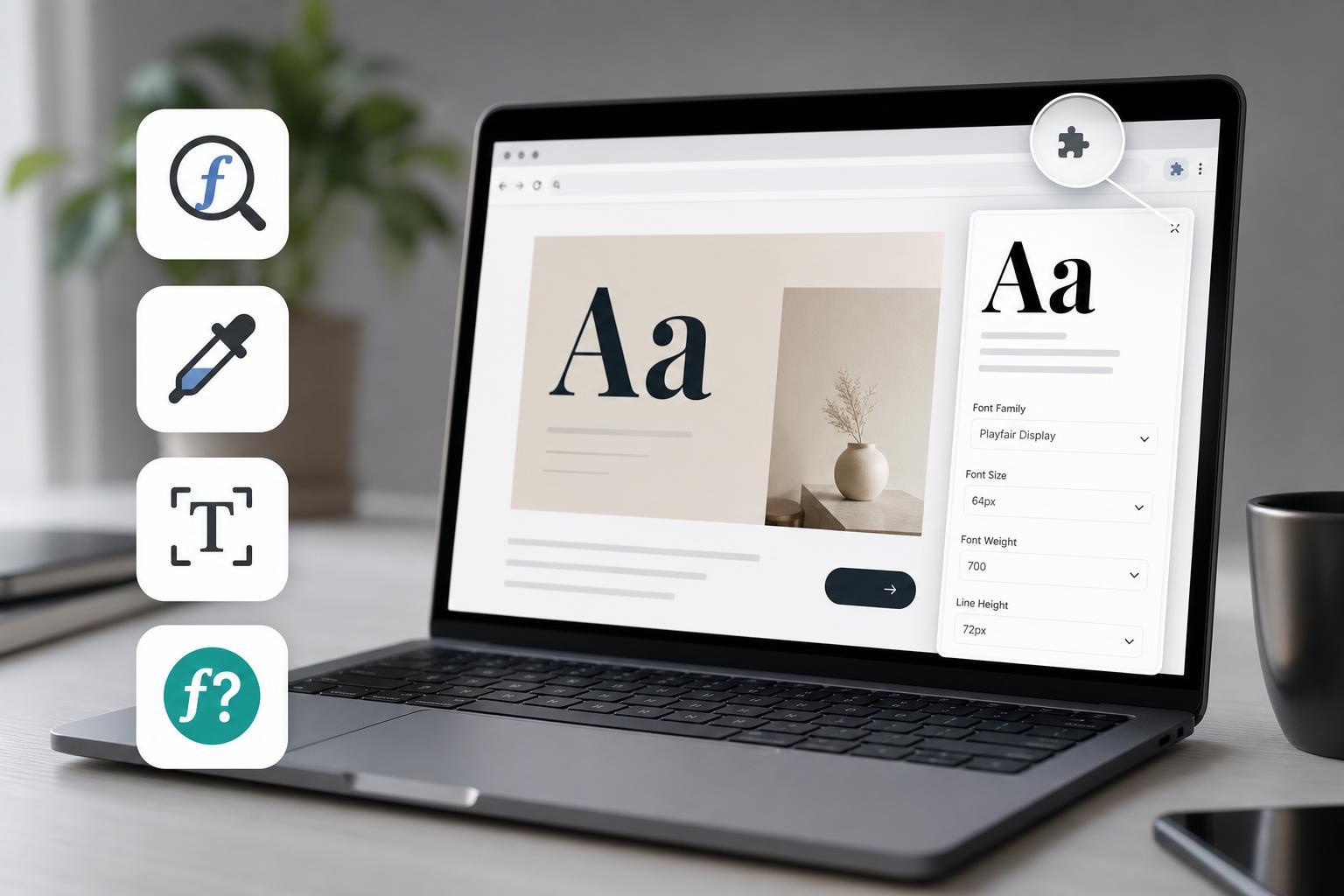
Below are four of the most useful Chrome extensions for identifying fonts on web pages, along with what each one is best for and where it may be limited.
1. WhatFont
WhatFont is one of the simplest font-identification extensions for Chrome. It is designed for quick checks, so you can hover over text and see the font name without digging through page source or developer tools.
- Easy to use on most web pages
- Shows font names with a hover or click interaction
- Good for users who do not want to open developer tools
WhatFont is a strong choice if you only need the basics. It is lightweight and straightforward, which makes it ideal for occasional use.
2. Font Ninja
Font Ninja goes beyond basic identification by helping you inspect typefaces in more detail. It can reveal font family information and often provides extra context that is helpful for design work.
- Useful for identifying fonts and related style information
- Helpful for comparing text styles across a page
- More feature-rich than very basic font checkers
This extension is a good fit if you often review websites for typography inspiration or need to compare font choices more carefully.
3. Fonts Ninja alternatives with inline inspection tools
Some Chrome extensions focus on inline inspection, letting you point at text elements and see font details immediately. These tools can be helpful when you want a faster workflow than opening developer tools or searching through CSS rules.
- Good for checking multiple text elements on the same page
- Useful when comparing headings, body text, and buttons
- Often better for repeated inspection than one-off lookups
If you regularly review typography on websites, an inline inspector can save time. It is especially useful on pages with many different text styles.
4. CSS Peeper
CSS Peeper is a broader design-inspection tool, but it can be very useful for identifying fonts as part of a larger visual audit. Instead of focusing only on typography, it helps you examine design properties across the page.
- Useful for checking typography in context
- Helps when you are reviewing a site’s overall visual style
- More suited to design analysis than casual browsing
If you want to understand more than just the font name, CSS Peeper can be a strong option. It is especially useful when font identification is part of a larger design review.
How to Choose the Right Font Identifier
The best extension depends on how you plan to use it. For quick font checks, a simple tool is usually enough. For design work, a richer inspector can be more practical.
- Choose WhatFont if you want the fastest, simplest way to identify a font.
- Choose Font Ninja if you want more detailed typography inspection.
- Choose an inline font inspector if you check many text elements on the same page.
- Choose CSS Peeper if you want font details as part of broader design analysis.
Things to Keep in Mind
- Not every font can be identified perfectly if the site uses custom rendering or image-based text.
- Some websites use multiple font families on the same page.
- Browser extensions may only show the active font and not the full fallback stack.
- A font name does not always mean you can use it freely; licensing still matters.
Which Extension Should You Start With?
For most people, WhatFont is the easiest first choice because it is simple and fast. If you need more detail or do typography work regularly, Font Ninja or a design-focused inspector may be more useful. CSS Peeper is best when font identification is only one part of a wider design review.
No single extension is perfect for every site, but these four tools cover the most common font-identification needs on the web.





