
If Windows 11 notifications appear but no sound plays, the problem is usually caused by a muted system sound, a notification setting, or the wrong audio output device. In most cases, you can fix it without reinstalling anything.
The three fixes below focus on the most likely causes first, so you can narrow down the problem quickly and get notification sounds working again.
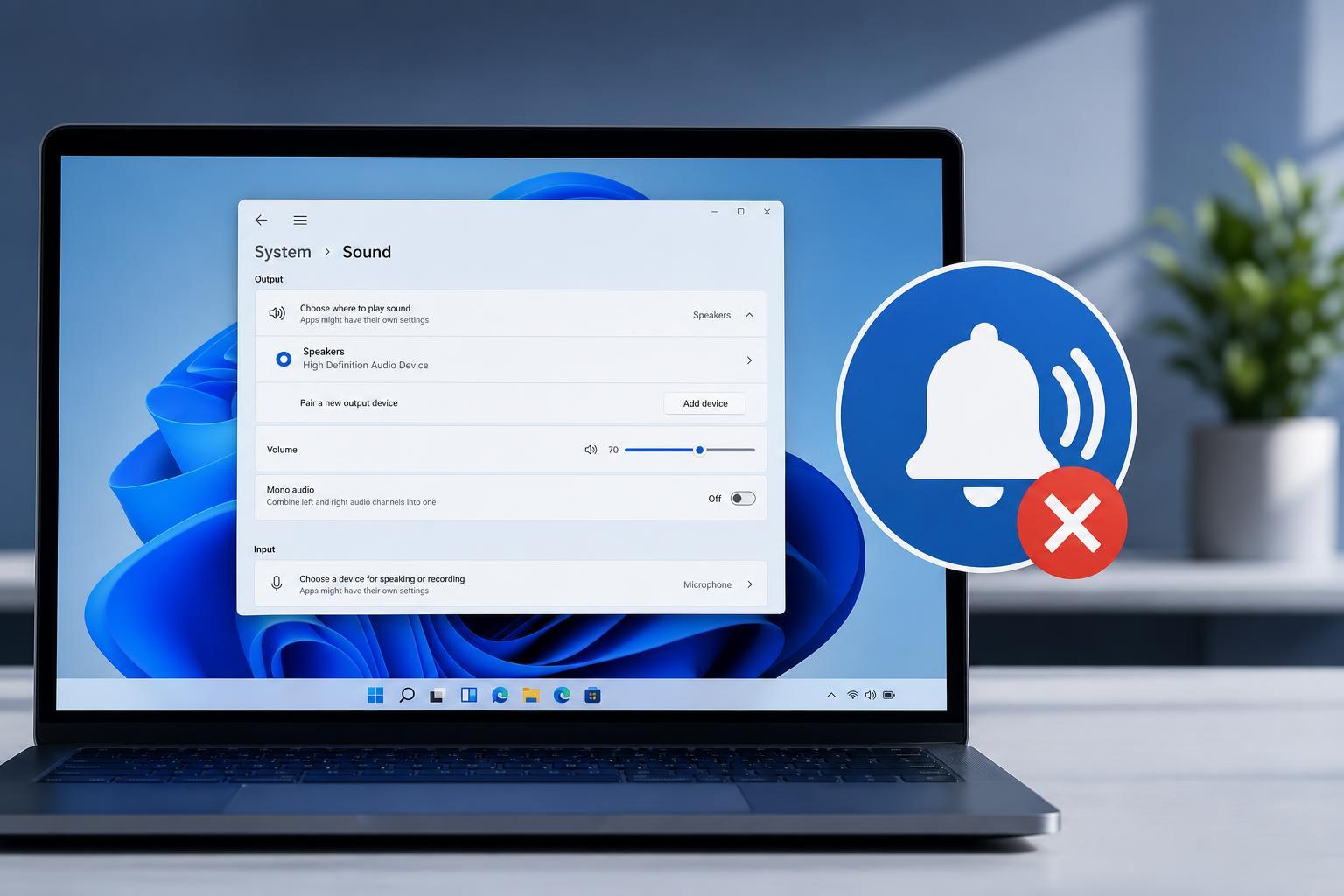
1. Check Windows 11 Sound and Notification Settings
The first thing to check is whether Windows is actually allowed to play notification sounds. A sound setting may be disabled even if the rest of the audio system is working normally.
- Press Windows + I to open Settings.
- Go to System > Sound.
- Under Volume, make sure the system volume is turned up and not muted.
- Scroll down and open Sound settings or More sound settings, depending on your Windows 11 version.
- In the Sound tab, make sure the default sound scheme is active and no critical system sounds are disabled.
- Open Settings > System > Notifications and check that notifications are turned on.
- If available, confirm that notification banners and sounds are enabled for the apps you want to hear from.
2. Make Sure the Right Output Device Is Selected
If your PC is sending audio to the wrong device, notification sounds may be playing somewhere you cannot hear them. This is especially common on laptops connected to Bluetooth headphones, monitors with speakers, or USB audio devices.
- Right-click the speaker icon on the taskbar.
- Select Sound settings.
- Under Output, confirm the correct speakers, headset, or monitor audio device is selected.
- If you see multiple devices, switch to another one and test the notification sound again.
- Check the volume mixer to make sure system sounds and the active app are not muted.
- If you use Bluetooth headphones or a dock, disconnect them temporarily and test the built-in speakers.
3. Turn On App Notifications and System Sounds for the Right Apps
Some apps manage their own notification behavior. Even if Windows notifications are enabled, an app may be set to silent notifications or may have permission to alert you only visually.
- Open Settings > System > Notifications.
- Find the app that is not making a sound and open its notification options.
- Make sure notification banners and sounds are enabled for that app.
- If the app has its own notification settings, open the app and check whether sounds are muted there too.
- Test with a built-in Windows notification, such as a calendar reminder or system alert, to see whether the issue is app-specific or system-wide.
When to Look Beyond These Three Fixes
If notification sounds still do not work after checking sound settings, audio output, and app permissions, the next likely causes are a broken audio driver, Focus assist settings, or a Windows audio service problem. Those issues are less common, but they can block alert sounds even when the settings above look correct.
For most users, though, one of the three fixes above solves the problem quickly. Start with the sound settings, then check the output device, and finally verify app notification permissions.





