
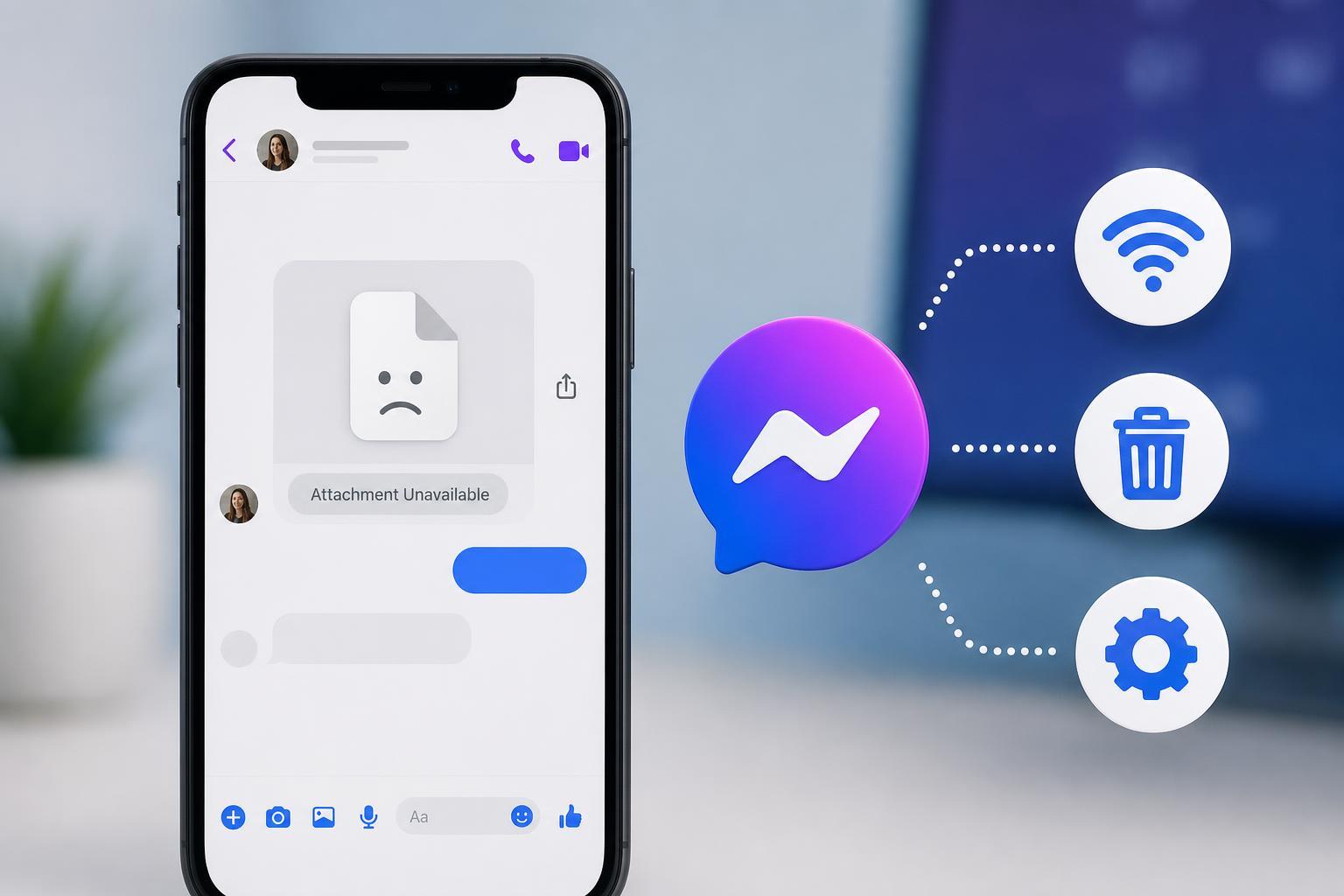
The “Attachment Unavailable” error in Facebook Messenger usually means the file, photo, or video you were trying to open can no longer be accessed normally. The problem can come from a missing upload, a bad link, app cache issues, or privacy settings on the sender’s side.
The good news is that this error is often easy to narrow down. In many cases, you can tell whether the attachment is truly gone or whether Messenger is just failing to load it properly.
1. Check Whether the Attachment Was Removed or Is No Longer Shared
Before changing app settings, make sure the attachment is actually still available. In Messenger, an attachment can show as unavailable if the sender deleted it, the original post was removed, or the file came from a source that is no longer public.
- Ask the sender to resend the file if possible.
- If the attachment came from a Facebook post, group, or page, check whether that content was deleted or made private.
- If it was a shared link, open the original source in a browser to see whether the file still exists.
- Look for signs that the conversation itself is old, since very old attachments are more likely to point to missing content.
2. Refresh Messenger and Clear App Cache
If the attachment should still exist, Messenger may simply be failing to load it correctly. A corrupted cache or a temporary app glitch can stop images and files from displaying even when the message is still there.
- Force close Messenger and open it again.
- Check whether the error happens on more than one attachment or just one specific file.
- If you use Android, clear Messenger’s cache from the app settings.
- If you use the desktop or web version, sign out and sign back in, then reload the chat.
- Try opening the same conversation on another device to see whether the error follows the account or stays on one device.
3. Update Messenger or Reinstall It if the Error Keeps Happening
Outdated app versions can cause loading problems, especially after Facebook changes how attachments are delivered. If Messenger still shows the error after checking the source and refreshing the app, updating or reinstalling can fix broken app files.
- Open your app store and check for Messenger updates.
- Install the latest version if one is available.
- If the problem continues, uninstall Messenger and install it again.
- Open the same conversation and test the attachment again.
- If you are using the browser version, try a different browser or clear the browser cache before testing again.
When the Error Is Not on Your End
Sometimes there is nothing to fix on your device. The attachment may have been deleted, restricted by privacy settings, or removed by Facebook. If the sender can still see it but you cannot, ask them to share it again in a new message or upload it to a different location and send a fresh link.





