
The Windows ‘not recognized as an internal or external command’ error usually appears in Command Prompt or PowerShell when Windows cannot find the command you typed. In many cases, the problem is not with Windows itself, but with the way the command is entered or how the program is installed.
This guide covers three reliable ways to fix the issue, from checking the command itself to repairing PATH settings and reinstalling the program if needed.
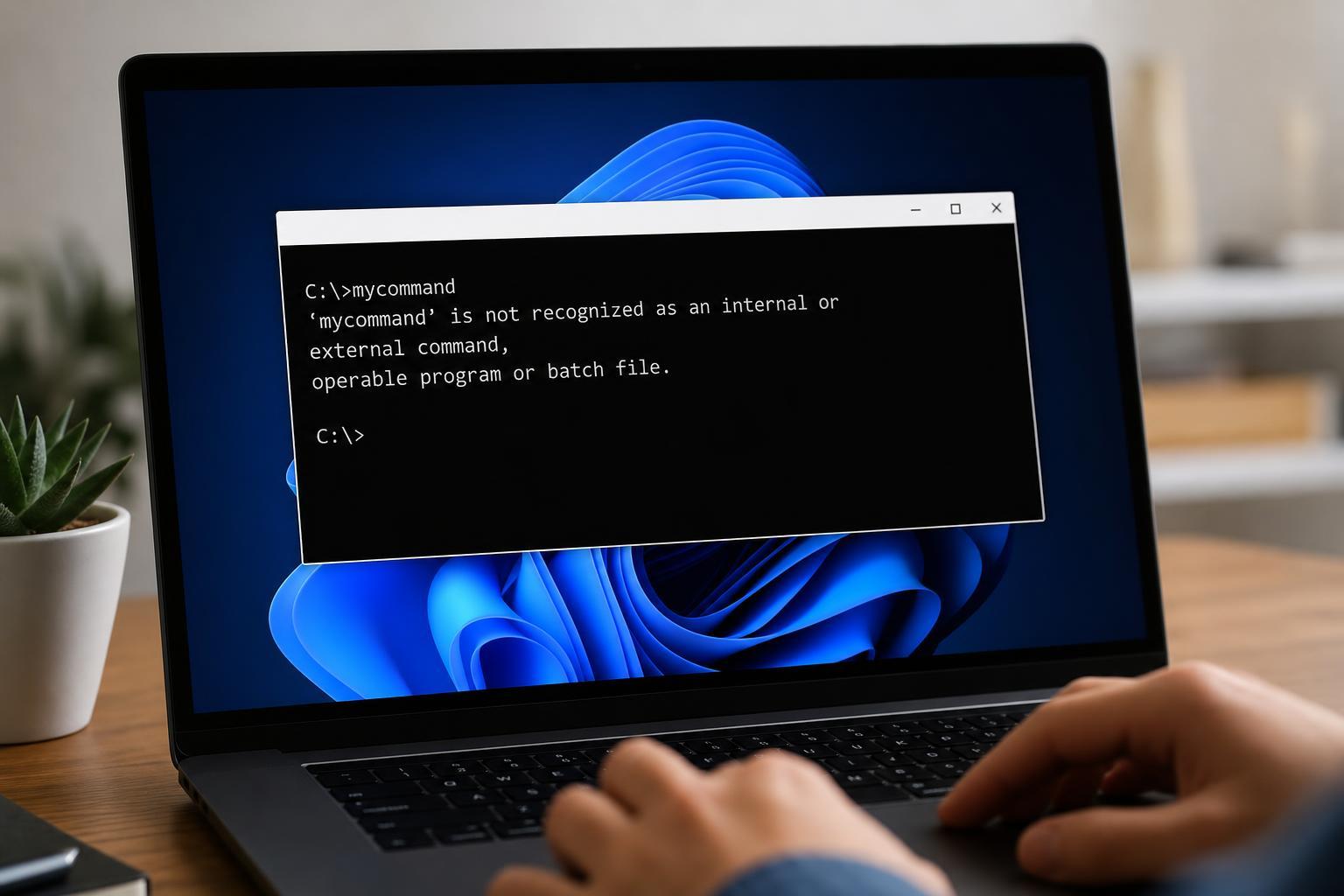
1. Check the Command for Typos and Wrong Syntax
Before changing system settings, make sure the command is actually correct. A single missing letter, wrong dash, or extra space can trigger this error even when the program is installed properly.
- Verify the spelling of the command name.
- Check whether you are using the right switches or parameters.
- Make sure you are running the command from the correct folder if it is not in PATH.
- If the command includes a full file path, confirm that the path is typed exactly as it appears in File Explorer.
For example, if a program’s executable is not in a folder that Windows searches automatically, typing only the filename will fail. In that case, you may need to run it from its installation directory or use the full path to the executable.
2. Add the Program to the PATH Environment Variable
If the command is correct but Windows still cannot find it, the program’s folder may not be included in the PATH environment variable. PATH tells Windows where to look for executable files when you type a command.
- Press Windows + S, type 'environment variables', and open 'Edit the system environment variables'.
- In the System Properties window, click 'Environment Variables'.
- Under 'User variables' or 'System variables', select 'Path' and click 'Edit'.
- Click 'New' and add the folder that contains the program’s executable file.
- Click 'OK' on each window to save the changes.
- Close Command Prompt or PowerShell and open it again before testing the command.
After updating PATH, Windows should be able to locate the command from any command-line window. If the program came with several tools, make sure you add the folder that contains the specific executable you want to run.
3. Reinstall or Repair the Program
If the command belongs to a program you installed, the executable may be missing, moved, or installed incorrectly. Reinstalling or repairing the application often fixes the problem, especially if the command worked before and suddenly stopped.
- Open Settings and go to Apps > Installed apps.
- Find the program that should provide the command.
- If available, choose 'Modify', 'Repair', or 'Change'.
- If no repair option exists, uninstall the program and reinstall it from the official source.
- After reinstalling, open a new Command Prompt window and test the command again.
This fix is especially useful for developer tools, utilities, and command-line programs that install their own executables. A broken install can leave the command unavailable even though the program still appears in Windows.
How to Narrow Down the Cause
If you are not sure which fix to try first, use these clues:
- The command works only in one folder: it is likely a PATH issue.
- The command never works and you are not sure about the spelling: check syntax first.
- The command used to work and now fails after an update or reinstall: the program may need repair or reinstalling.
- The error appears for many different commands: the problem may be with your PATH settings or command-line environment.
When the Error Is Normal
Sometimes the message is expected. Not every filename or program name can be run directly from Command Prompt. Windows only accepts commands it can find in the current folder or in folders listed in PATH.
If you are trying to run a script or executable from another location, use the full path or change to that folder first with the cd command.





