
If Gboard stops appearing, won’t type, or keeps switching back to the iPhone keyboard, the problem is usually caused by a setting, a permission issue, or a corrupted app install. The good news is that most Gboard problems on iPhone can be fixed without much troubleshooting.
This guide covers three reliable fixes, starting with the simplest checks and moving to the ones that solve deeper app issues.
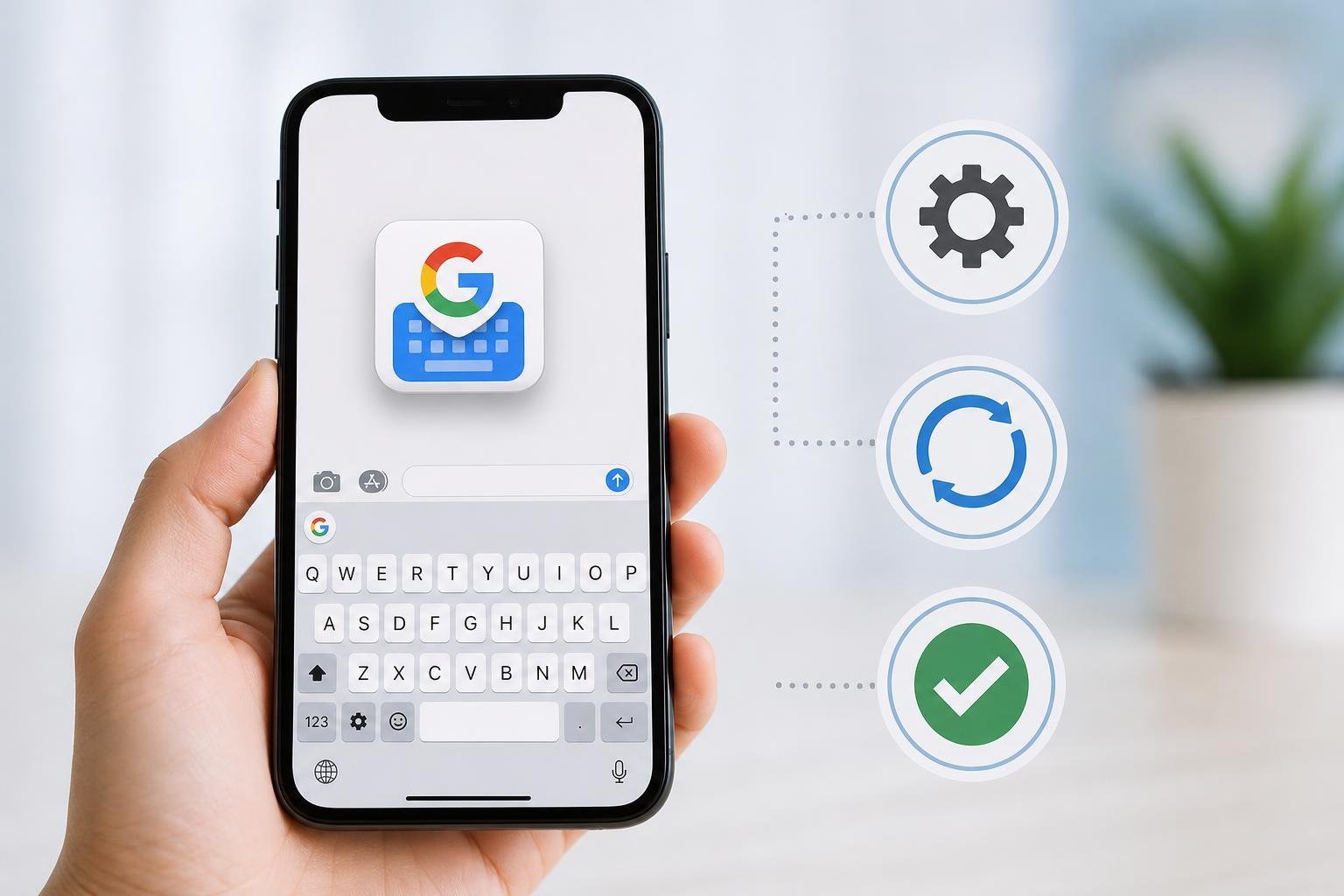
1. Make Sure Gboard Is Enabled in iPhone Settings
The most common reason Gboard seems broken is that iPhone is not actually using it. Even if the app is installed, you still need to add it as a keyboard and allow full access for some features to work properly.
- Open Settings on your iPhone.
- Tap General, then Keyboard.
- Tap Keyboards to see the list of installed keyboards.
- If Gboard is not listed, tap Add New Keyboard and choose Gboard.
- If Gboard is already listed, tap it and make sure Allow Full Access is enabled.
- Open any app that uses the keyboard, then tap and hold the globe icon to switch to Gboard.
2. Check Gboard’s Permissions and App Setup
If Gboard is installed but still acts strangely, the issue may be related to permissions, language settings, or a setup problem inside the app. A keyboard app can only work properly if iPhone allows it to function the way it needs to.
- Open the Gboard app from your Home Screen.
- Check that the keyboard language you want is enabled inside Gboard.
- Make sure the app is signed in or set up the way you expect, if it uses optional features tied to your account.
- Go back to Settings > General > Keyboard and confirm Gboard is still enabled.
- If you recently changed iPhone privacy settings, check whether any restrictions may be affecting keyboard access.
3. Delete and Reinstall Gboard
If Gboard is enabled and permissions look correct but it still freezes, disappears, or refuses to respond, reinstalling it often clears the problem. This can fix corrupted app data or a bad update that is preventing the keyboard from loading properly.
- Press and hold the Gboard app icon on your iPhone.
- Tap Remove App, then confirm deletion.
- Open the App Store and search for Gboard.
- Install Gboard again.
- Return to Settings > General > Keyboard and add Gboard back if it does not appear automatically.
- Open an app that uses the keyboard and switch to Gboard using the globe icon.
How to Tell Which Fix You Need
A few symptoms can help narrow down the cause quickly.
- Gboard does not appear at all: check keyboard settings first.
- Gboard appears but only the basic typing works: review permissions and app setup.
- Gboard worked before but now crashes or freezes: reinstall it.
- The iPhone keyboard keeps replacing Gboard: switch keyboards using the globe icon and confirm Gboard is enabled.
When to Try Apple Keyboard Settings Instead
Sometimes the problem is not Gboard itself, but iPhone’s keyboard behavior. If Gboard is installed correctly and still keeps switching away, review your keyboard list and remove any keyboards you do not use. A shorter keyboard list can make it easier to select the one you want, especially if you switch between languages often.





