
If Facebook is not sending your security code, the problem is usually with the delivery method rather than your account itself. The code may be delayed, blocked by your carrier or email provider, or sent to a recovery method you no longer use.
The fixes below focus on the most common reasons Facebook verification codes fail to arrive and the steps most likely to get you back into your account.
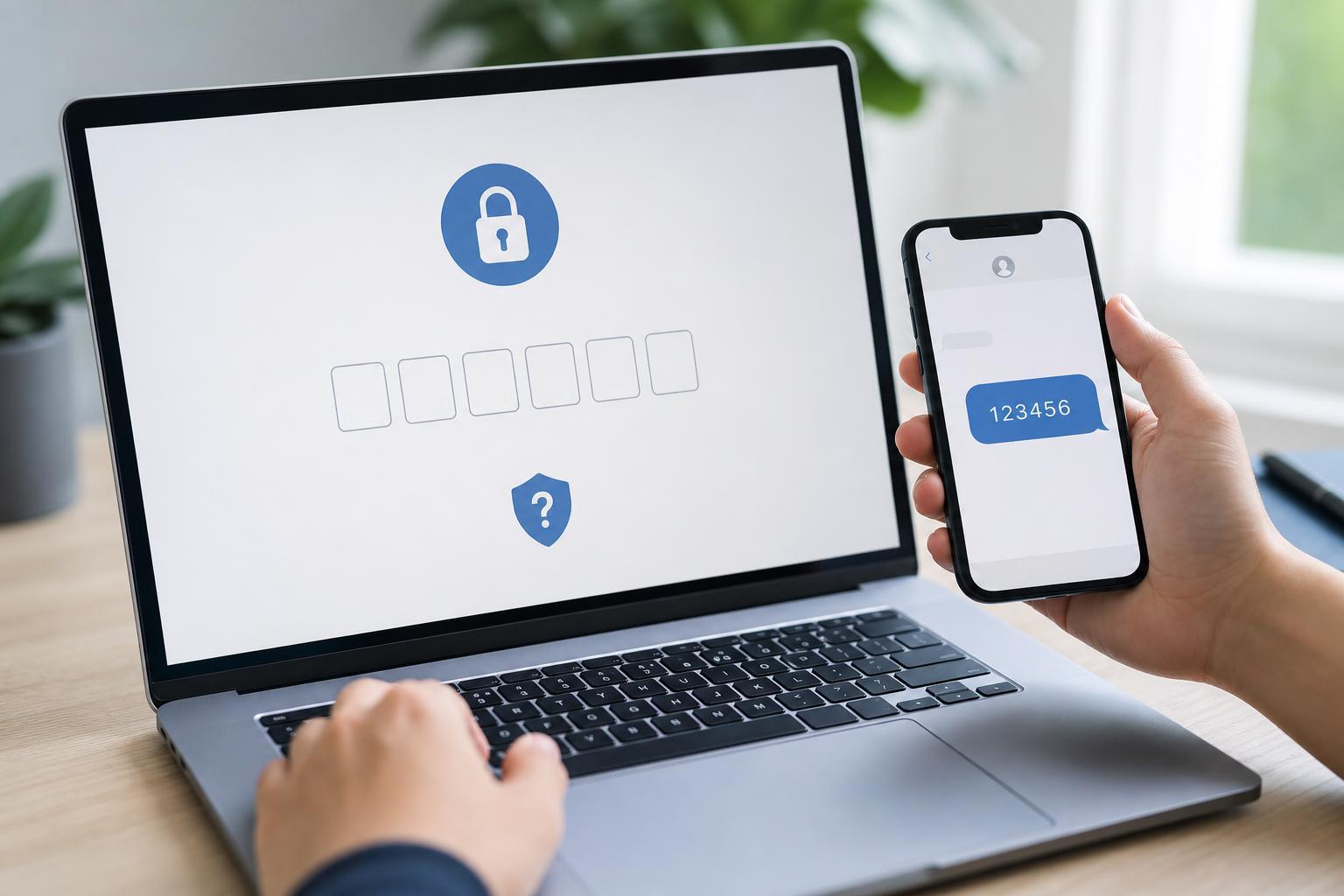
1. Check the Delivery Method Facebook Is Using
Before changing anything else, confirm where Facebook is trying to send the code. A code sent by SMS can fail for different reasons than one sent by email or a code generator app.
- Go back to the Facebook login or verification screen and look for the option that shows how the code will be delivered.
- Check whether Facebook is sending the code to a phone number, email address, or authentication app.
- If you have more than one recovery method, choose a different one if available.
- If the destination looks wrong, update your recovery information after you regain access.
If Facebook is sending the code to an old phone number or an email account you no longer use, the code may be working correctly but going to the wrong place.
2. Fix Problems With SMS or Email Delivery
If the code should arrive by text message or email, check the most common delivery issues first. These are often the real cause when Facebook says it sent the code, but nothing arrives.
- Make sure your phone has signal and can receive normal text messages.
- Check that you did not block short codes or unknown senders on your phone.
- Look in your spam, junk, promotions, or other filtered email folders.
- Confirm that your inbox is not full if you use an older email service.
- Wait a few minutes before requesting another code, since repeated requests can slow delivery or trigger temporary limits.
If you are using SMS, restart only your mobile connection if needed by toggling airplane mode on and off or checking whether your phone can receive other messages. If other texts also are not arriving, the issue is likely with your carrier or phone settings rather than Facebook.
3. Use Facebook’s Account Recovery Options
If the code still will not arrive, use Facebook’s recovery flow instead of repeatedly retrying the same screen. Facebook may offer alternate ways to prove your identity or send a code to another trusted option.
- Open Facebook’s login recovery page or use the Forgot password option from the sign-in screen.
- Enter the email address, phone number, or username linked to your account.
- Choose an available recovery option, such as another email address or phone number.
- Follow any identity checks Facebook provides and complete the verification process.
If you still have access to a logged-in device, use that device to update your security settings and add a current phone number or email address. This can make future login verification much easier.
When Facebook Still Won’t Send the Code
If none of the three fixes works, the problem may be tied to your account recovery details, a temporary Facebook restriction, or a delivery issue outside your control. At that point, the best next step is to try a different trusted device or recovery method and review your account contact information once you are back in.
What to Check Before Trying Again
- The phone number or email address linked to the account is still active
- Your phone can receive texts from other senders
- Your email inbox is not filtering Facebook messages
- You are using the most recent code you requested
- You are choosing the same recovery method Facebook is actually sending to





