
When AutoFill passwords stop working on iPhone or iPad, the problem is usually tied to a setting, a saved-password issue, or a conflict with Face ID, Touch ID, or iCloud Keychain. The good news is that most cases can be fixed without deleting apps or resetting the device.
This guide walks through three practical fixes, starting with the most common setting checks and moving to more thorough steps if AutoFill still refuses to show your saved passwords.
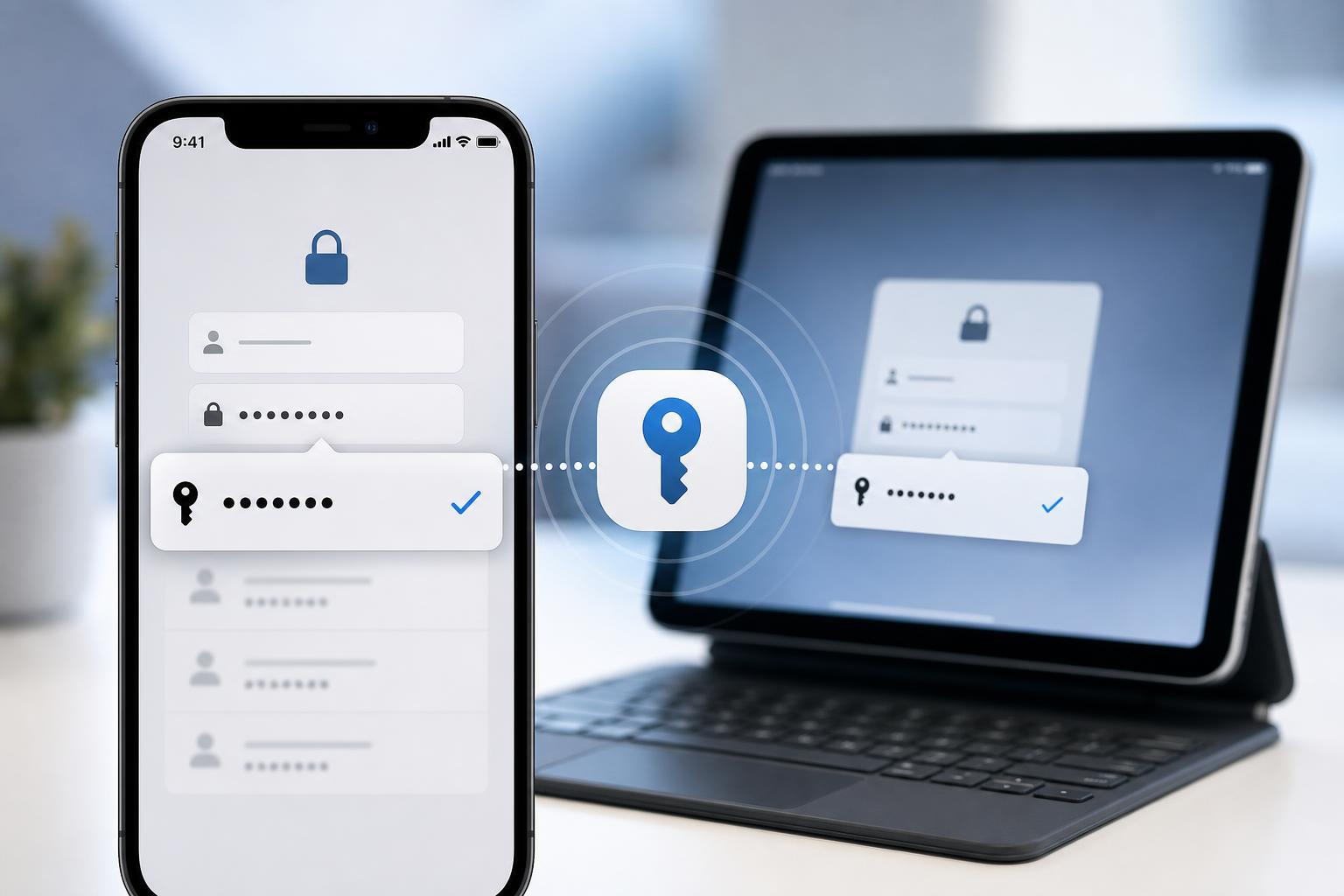
1. Make Sure AutoFill Passwords Is Turned On
The first thing to check is whether iOS or iPadOS is actually allowed to offer saved passwords. If this setting is off, the system will not suggest logins in Safari, apps, or login screens that support AutoFill.
- Open Settings on your iPhone or iPad.
- Tap Passwords.
- Authenticate with Face ID, Touch ID, or your passcode if prompted.
- Tap Password Options.
- Turn on AutoFill Passwords and Passkeys.
- If you use iCloud Keychain, make sure it is enabled as well in your Apple Account/iCloud settings.
After enabling the setting, return to a login screen and tap the username or password field. In many cases, the saved account appears above the keyboard or as a small password suggestion.
2. Check Face ID, Touch ID, and iCloud Keychain
If AutoFill is on but still does not appear, the next likely issue is a problem with the identity or sync features that support password filling. Face ID, Touch ID, and iCloud Keychain all play a role in accessing and syncing saved credentials.
- Go to Settings and open Face ID & Passcode or Touch ID & Passcode.
- Make sure Face ID or Touch ID is enabled for unlocking the device.
- In Settings, open your Apple Account settings and go to iCloud.
- Confirm that Passwords and Keychain or iCloud Keychain is turned on.
- If you recently changed your Apple Account password or signed out of iCloud, give the device a moment to resync saved data.
If you use multiple Apple devices, signing in with the same Apple Account and keeping iCloud Keychain enabled helps your saved passwords stay consistent across them. If Keychain syncing is interrupted, AutoFill may still work for some saved entries but not others.
3. Clear the Problem Entry and Save the Password Again
Sometimes the saved password itself is the issue. The entry may be outdated, duplicated, or tied to an old website address or app login format. In that case, deleting the bad entry and saving it again often fixes AutoFill immediately.
- Open Settings and go to Passwords.
- Find the website or app that is not autofilling correctly.
- Tap the saved entry and review the username, password, and linked website or app.
- If the login is wrong or outdated, delete the entry.
- Sign in to the website or app again and allow iPhone or iPad to save the new password when prompted.
If you see multiple saved entries for the same service, keep the one that matches your current account and remove the rest. Duplicate or outdated entries can confuse AutoFill and cause the wrong login to appear, or no suggestion at all.
If AutoFill Still Does Not Work
If the three fixes above do not solve the issue, the problem may be with the website, app, or a broader account sync issue rather than AutoFill itself. Some services block password filling on certain screens, and some apps do not fully support Apple’s password system.
- Make sure the app or website is updated to the latest version.
- Try the login on Safari to see whether AutoFill works there.
- Check whether the password field is a custom app login screen that may not support AutoFill properly.
- Confirm that the username and password were saved for the correct website domain.
- If you recently changed your Apple Account settings, wait a little while for iCloud Keychain to resync.
Which Fix Should You Try First?
Start with AutoFill Passwords in Settings, because it is the simplest and most common cause. If that is already enabled, move to iCloud Keychain and sign-in settings, then refresh the saved password entry if the login is still wrong. Those three checks solve most AutoFill problems on iPhone and iPad without needing deeper troubleshooting.





