
When AirDrop stops working on an iPhone, the problem is usually caused by a settings issue, a connection problem, or a nearby-device mismatch rather than a major fault. The good news is that most AirDrop problems can be fixed quickly once you know where to look.
This guide focuses on three reliable fixes that solve the most common AirDrop issues on iPhone, along with a few checks that help you narrow down the cause if AirDrop still refuses to cooperate.
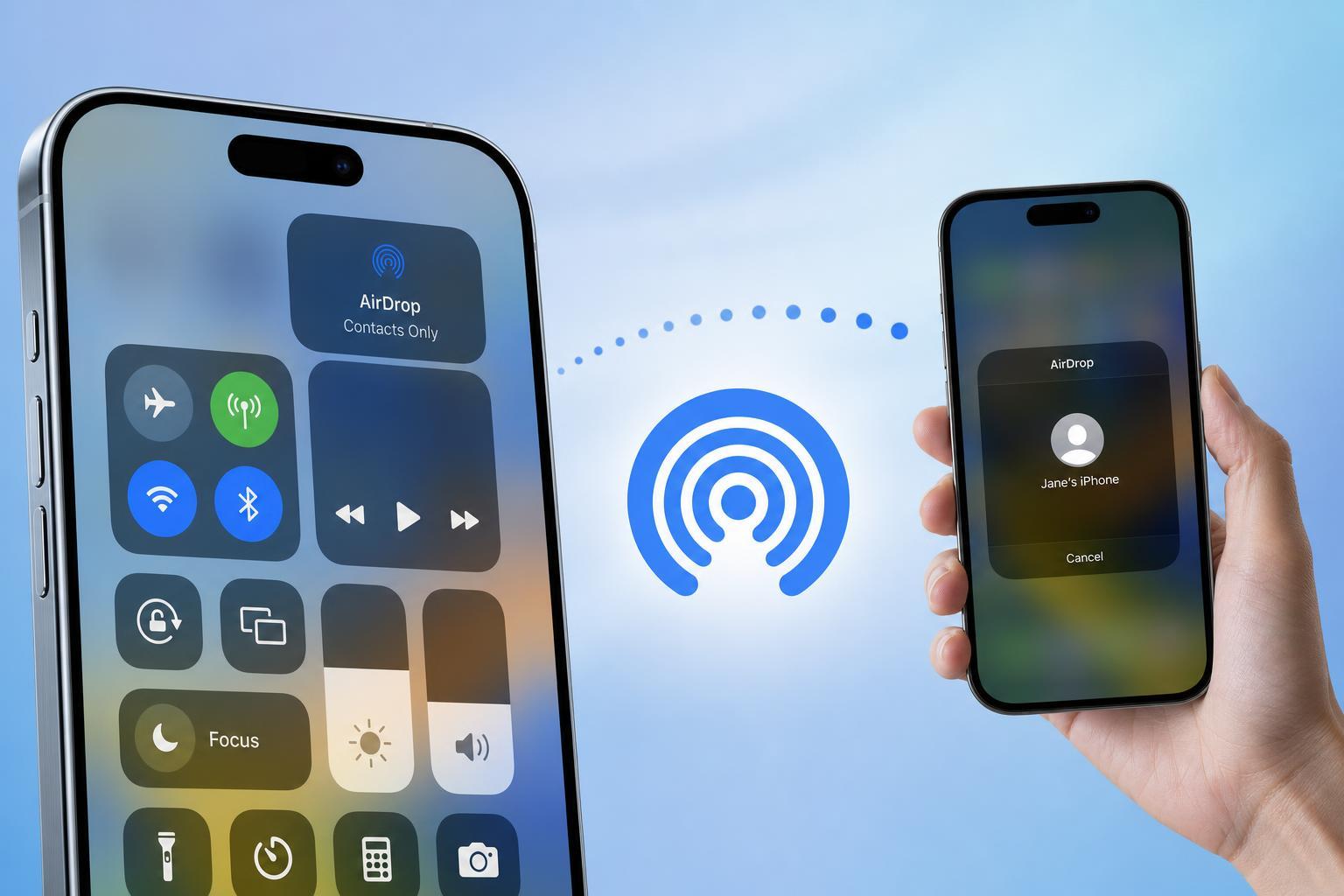
1. Make Sure AirDrop Is Actually Set Up to Receive Files
The most common AirDrop issue is that the iPhone is not discoverable to the other device. AirDrop has a few visibility options, and if they are too restrictive, sending devices may not be able to see your iPhone at all.
- Open Control Center on your iPhone.
- Press and hold the network settings card in the top-left corner.
- Tap AirDrop.
- Choose Contacts Only or Everyone for 10 Minutes.
- Try sending the file again from the other Apple device.
If you use Contacts Only, both devices usually need to be signed in to Apple ID accounts that are recognized in the contacts list. If that contact relationship is missing or outdated, AirDrop may not appear even though Bluetooth and Wi‑Fi are on.
2. Check Wi‑Fi, Bluetooth, and Personal Hotspot
AirDrop uses both Bluetooth and Wi‑Fi to discover nearby devices and complete the transfer. If either one is off, misbehaving, or being overridden by another connection, AirDrop may fail or the other device may never show up.
- Make sure both Wi‑Fi and Bluetooth are turned on from Control Center or Settings.
- Turn off Personal Hotspot if it is enabled.
- Keep both devices close together and unlock them during the transfer.
- If the sender is another iPhone, iPad, or Mac, make sure it is also awake and ready to receive.
- Try the transfer again after waiting a few seconds for the devices to rediscover each other.
Personal Hotspot can interfere because it changes how the iPhone manages wireless connections. Even if AirDrop usually works on your device, hotspot activity can sometimes get in the way.
3. Reset the Network-Related Settings That Affect AirDrop
If the first two fixes do not help, the problem may be caused by a deeper wireless configuration issue. AirDrop does not have its own separate reset button, so the most useful next step is to refresh the network settings that AirDrop depends on.
- Go to Settings > General > Transfer or Reset iPhone.
- Tap Reset.
- Choose Reset Network Settings.
- Enter your passcode if prompted.
- Test AirDrop again after the iPhone restarts.
Resetting network settings can clear problems with Bluetooth, Wi‑Fi, and other saved network data that may be preventing AirDrop from working correctly. It will also remove saved Wi‑Fi networks and passwords, so you may need to reconnect to wireless networks afterward.
Other Checks That Can Save Time
If AirDrop still will not work after the three main fixes, these quick checks can help you narrow down the problem without wasting time on random changes.
- Make sure both devices are using Apple devices that support AirDrop.
- Confirm that both devices are updated enough to support the feature properly.
- Check that the receiving iPhone is not in Airplane Mode.
- Move a little closer together and try again in a different location with less wireless interference.
- If sending from a Mac, confirm AirDrop permissions in Finder are set correctly.
Which Fix Should You Try First?
Start with AirDrop visibility, because it is the fastest and most common cause. If that does not solve it, check Bluetooth, Wi‑Fi, and Personal Hotspot next. If AirDrop still fails, resetting network settings is the most effective deeper fix for stubborn connection problems.





