
If Instagram Story videos play without sound, the cause is usually something small: your phone may be muted, the app may not have audio permissions, or Instagram may be glitching after an update. The good news is that most sound issues can be fixed quickly without losing your account or reinstalling everything right away.
1. Check Your Phone’s Volume and Silent Mode
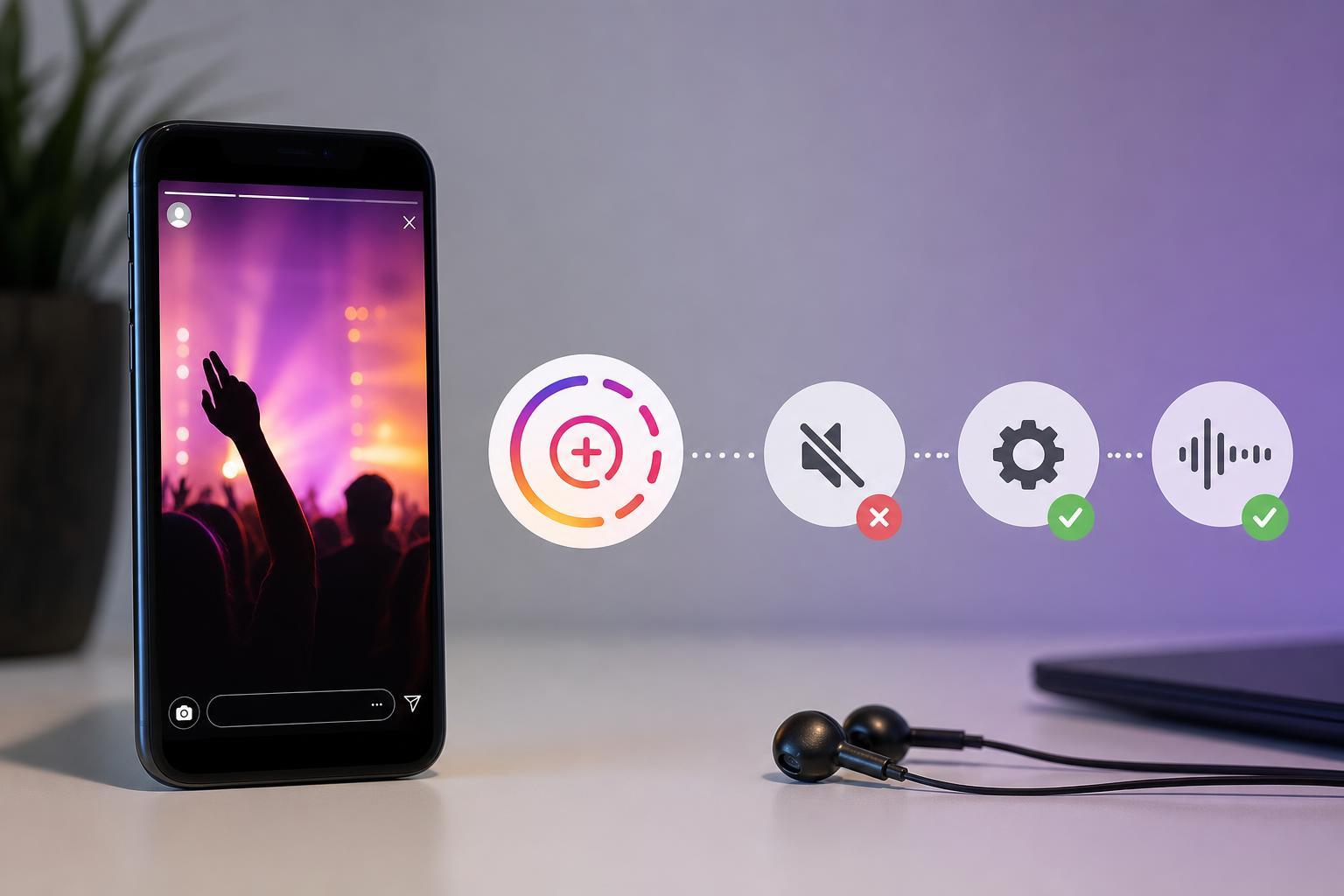
The first thing to check is your device’s own audio settings. Instagram Stories use your phone’s media volume, so if media sound is turned down, muted, or routed to another output, Stories may seem silent even when the app itself is working.
- Press your phone’s volume up button while a Story is playing.
- Make sure the media volume, not just ringtone or alarm volume, is turned up.
- Check whether Silent Mode, Do Not Disturb, or Focus mode is enabled.
- If you are using Bluetooth headphones or a speaker, disconnect them and test the Story again.
- Try another video or app to confirm whether sound works elsewhere on the device.
2. Force Close Instagram and Clear Its Temporary Glitch
Instagram can sometimes lose audio after a crash, a failed network handoff, or a bad cached session. Closing the app completely and reopening it can restore Story sound without affecting your posts or messages.
- Close Instagram from the app switcher so it is not still running in the background.
- Reopen Instagram and reload the Story.
- If the sound is still missing, sign out and sign back in only if needed.
- On Android, you can also clear the app cache from the app settings if the problem keeps returning.
- Check for an Instagram update in the App Store or Google Play Store if the issue started recently.
3. Test Instagram’s Permissions, Audio Output, and Reinstall the App if Needed
If volume settings look correct and the app still has no sound, the problem may be tied to permissions, corrupted app files, or an audio-routing issue on the phone. This is where a deeper check helps.
- Open your phone’s app settings for Instagram and confirm it has the permissions it needs.
- Make sure the phone is not sending audio to an unexpected Bluetooth device, car system, or dock.
- Test Instagram Stories on both Wi-Fi and mobile data to rule out a temporary network issue.
- If the problem only affects Instagram and persists after updates, uninstall and reinstall the app.
- After reinstalling, open a few Stories again and confirm whether the audio is restored.
When the Problem Is Not on Your Phone
Sometimes Story audio is missing because the original upload has no sound, the creator used a muted clip, or the music is unavailable in your region. In those cases, there is nothing to repair on your device. You may also notice that some Stories only lose sound on one account or one device, which is a clue that the issue is account-specific or content-specific rather than a full app failure.
- The Story was uploaded without audio
- The creator removed the audio source after posting
- Region or licensing restrictions prevent playback of music
- Instagram is having a temporary service-side issue
- Your device is connected to another audio output without you noticing
What to Try If None of These Fixes Work
If Instagram Stories still have no sound after checking volume, closing the app, updating it, and reinstalling it, the next step is to test on another account or another phone. That helps separate a device problem from an account problem. If the issue only happens on one device, the phone’s audio settings or operating system is the more likely cause. If it happens everywhere, the Story itself or Instagram’s service may be to blame.





