
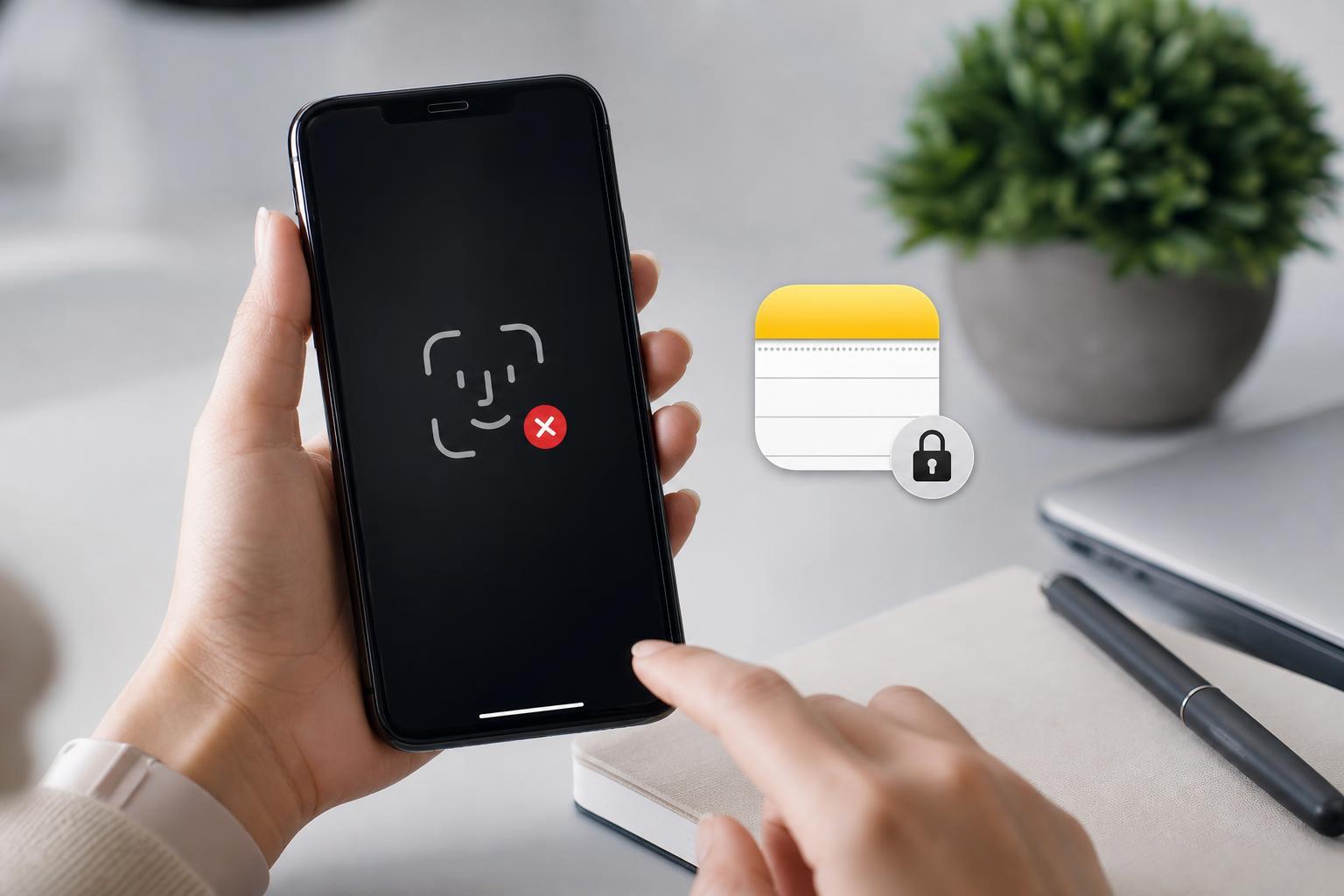
If Face ID is not working in Notes on your iPhone, the problem is usually caused by a settings issue rather than a hardware failure. Notes uses Face ID to lock and unlock protected notes, so if that permission gets turned off or the note is not set up correctly, Face ID will not appear to work.
This guide covers three practical fixes to get Face ID working with locked notes again, starting with the most common causes.
1. Make Sure Face ID Is Enabled for Notes
The first thing to check is whether Notes is allowed to use Face ID at all. If the permission was turned off, the app may ask for a passcode instead of offering Face ID.
- Open the Settings app on your iPhone.
- Scroll down and tap Face ID & Passcode.
- Enter your iPhone passcode if prompted.
- Under Use Face ID For, make sure Notes is turned on.
- If it is already on, turn it off and back on again to refresh the permission.
2. Check the Locked Note and Its Password Settings
A note can only be unlocked with Face ID if it was locked correctly in the first place. If the note was created with a different password, or if the password was changed, Notes may fall back to asking for that password instead.
- Open the Notes app and find the locked note.
- Tap the note and look for whether it is asking for a password instead of Face ID.
- If you see an option to use Face ID, choose it when prompted.
- If the note was previously locked with an older Notes password, enter that password once to update the note's access.
- If needed, go to Settings > Notes > Password to review the Notes password that is currently saved for your account.
3. Update iPhone Settings or Reset the Notes Lock Setup
If Face ID is enabled and the note is correctly locked, the issue may be caused by a temporary software problem or outdated iPhone settings. Updating iOS and resetting the note's lock credentials can often clear it up.
- Go to Settings > General > Software Update and install any available iOS update.
- After updating, reopen Notes and try unlocking the note again.
- If the note still will not use Face ID, open the note and remove its lock if possible.
- Lock the note again and turn Face ID back on when prompted.
- If the problem affects more than one note, check whether the Notes account is syncing correctly under Settings > Notes > Accounts.
When Face ID Still Will Not Work
If none of these fixes solve the issue, test whether Face ID works in other places such as unlocking the phone, password autofill, or App Store purchases. If Face ID fails everywhere, the problem may be with Face ID setup itself rather than Notes.
- Face ID works elsewhere but not in Notes: focus on Notes permissions and locked note settings.
- Face ID fails everywhere: check Face ID setup in Settings and re-scan your face if needed.
- Only one note is affected: that specific note may need to be relocked or reopened with the correct Notes password.





