
Apple’s unsend and edit tools in iMessage are useful, but they do not always appear when you expect them to. In many cases, the problem comes down to the wrong app version, a timing limit, or sending to someone who cannot use the feature.
Here are three practical fixes to try when you can’t unsend or edit iMessages, along with the most common reasons the option is missing.
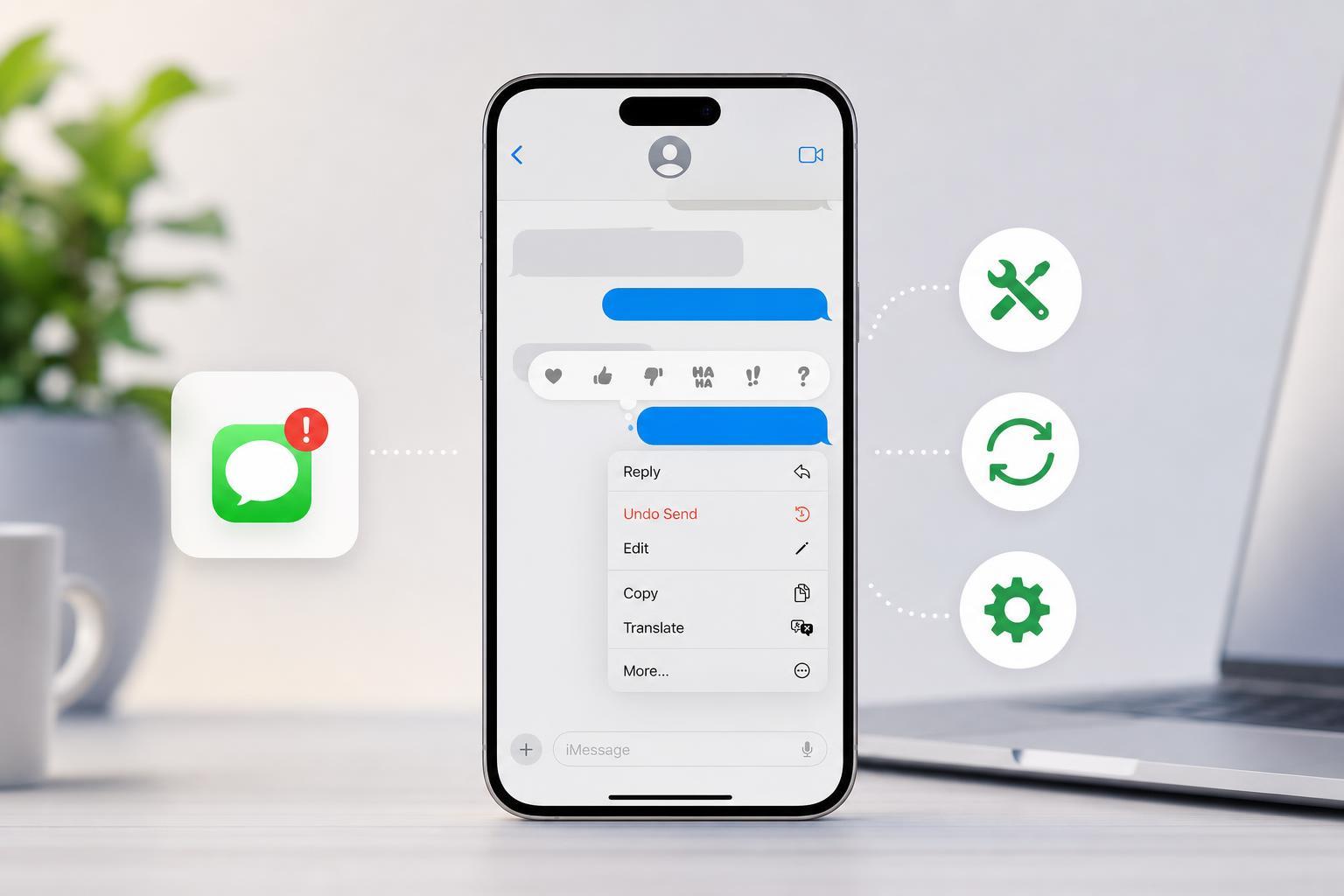
1. Make Sure You’re Using a Supported Version of iOS, iPadOS, or macOS
The most common reason the unsend or edit option is missing is that your device or the other person’s device is not on a supported Apple software version. These features were added in newer versions of Apple’s messaging apps, so older systems may not show them at all.
- On iPhone or iPad, open Settings and tap General, then Software Update.
- On Mac, open System Settings, then General, then Software Update.
- Install any available update for your device.
- After updating, open Messages again and test the message options on a recently sent iMessage.
2. Check the Time Limit for Unsend and Edit
Even when the feature is available, it does not work forever. Apple limits how long you have after sending a message before the Unsend or Edit option disappears. If too much time has passed, Messages will no longer offer those actions.
- Try long-pressing the message soon after sending it.
- If you are editing, act quickly before the edit window expires.
- If the menu only shows Copy, React, or Reply, the time limit has probably passed.
3. Confirm That You Sent an iMessage, Not a Regular Text
Unsend and edit only apply to iMessages, not standard SMS or MMS texts. If the message was sent as a green bubble instead of a blue one, those options will not be available.
- Look at the message bubble color: blue usually means iMessage, green usually means SMS or MMS.
- Check whether the contact is using Apple Messages on an Apple device.
- Make sure iMessage is enabled in Settings under Messages.
- If a message was sent by SMS because iMessage was unavailable, you will not be able to unsend or edit it.
What to Do If the Option Still Doesn’t Appear
If your device is updated, you are within the time limit, and the message is definitely an iMessage, the issue may be temporary or account-related. In that case, check whether Messages is signed in correctly on the device you are using and whether the conversation is actually sending through Apple’s service.
- Open Settings and confirm your Apple ID is signed in for Messages.
- Make sure iMessage is turned on.
- Try the same conversation from another Apple device if you have one.
- If the problem happens only with one contact, that conversation may be falling back to SMS.
When the Problem Is Normal, Not Broken
Sometimes nothing is wrong at all. The feature may be unavailable because the message is too old, the conversation is not using iMessage, or the devices involved do not meet Apple’s requirements. In those cases, the fix is not a settings change but understanding the limitation.
How to Avoid This in the Future
- Keep your Apple devices updated.
- Check that iMessage is enabled before sending important messages.
- Send test messages if you recently changed devices or Apple ID settings.
- Use edit and unsend quickly after sending if you think you may need them.





