
If Windows 11 behavior has changed after tweaking policies in the Local Group Policy Editor, resetting those settings can put things back to normal. This is useful whether you changed a few specific policies or want to clear every local policy on the PC.
Windows 11 Home does not include the Local Group Policy Editor, but these reset methods apply to editions that do. If you are using Pro, Enterprise, or Education, you can use either method below depending on how thoroughly you want to reset the system.
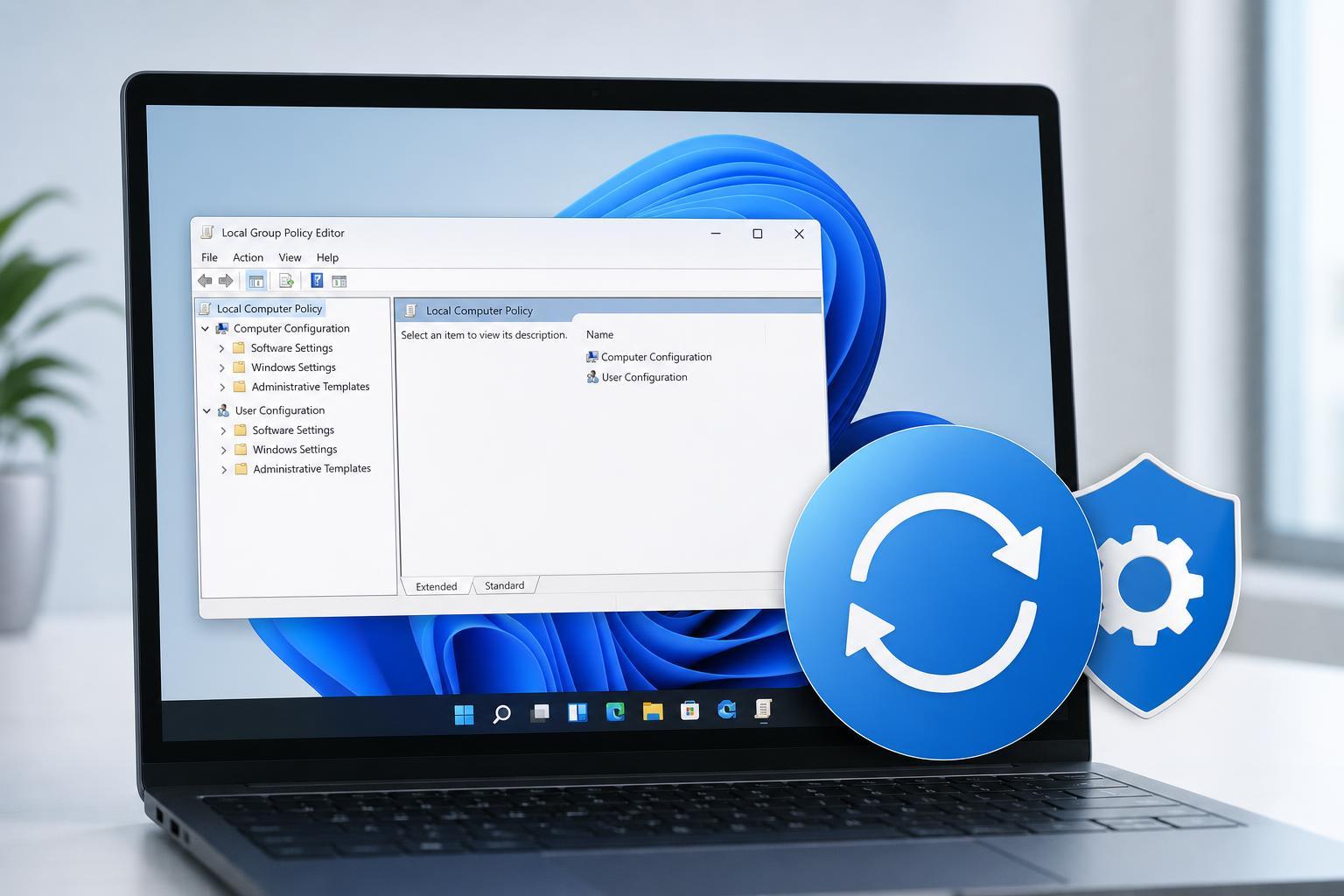
What Local Group Policy settings control
Local Group Policy settings can affect Windows features, desktop behavior, sign-in rules, update behavior, security options, and access to Control Panel tools. Because these policies can override normal settings, a change here may continue affecting the PC even after you change a related option elsewhere.
Method 1: Reset policies from the Local Group Policy Editor
This method is best when you want to return the policies you changed back to their default state without touching everything else on the computer.
- Press Windows + R to open the Run dialog.
- Type gpedit.msc and press Enter.
- In the Local Group Policy Editor, browse to the policy area you changed.
- Open the policy you want to reset.
- Set it to Not Configured.
- Click Apply, then OK.
- Repeat the process for any other policies you want to undo.
Method 2: Reset all local group policies with Command Prompt
If you want a full reset, you can remove the local policy files Windows uses to store group policy settings. When Windows rebuilds them, the policies return to their default local state.
- Open the Start menu, type cmd, then select Run as administrator.
- In Command Prompt, enter the following command and press Enter: RD /S /Q "%WinDir%\System32\GroupPolicy"
- Enter this command and press Enter: RD /S /Q "%WinDir%\System32\GroupPolicyUsers"
- Restart the computer to let Windows rebuild the policy folders.
How to confirm the reset worked
After restarting, open the Local Group Policy Editor again and check the policies you changed earlier. They should now show Not Configured unless they are being enforced by a domain or another management system.
- If a policy still appears enforced, the PC may be joined to a domain or managed by an organization.
- Some settings can also be controlled by registry changes or third-party tools, so resetting Group Policy may not undo everything.
- If you only reset one or two settings, check those exact policies rather than assuming every visible Windows setting will change immediately.
Which reset method should you use?
If you are troubleshooting a problem and you are not sure which policy caused it, the full reset is usually the cleaner option. If you are making a targeted change for testing, resetting individual policies is safer and easier to control.
Things to watch out for
- Policies from a work or school domain can come back after a reset if the device is managed.
- The Home edition of Windows 11 does not include the Local Group Policy Editor by default.
- If you use a policy backup or script, keep a copy before resetting anything you may want later.





