If Spotify history won’t clear, the problem is usually not that your account is broken. In many cases, Spotify is simply showing listening data from places you can’t fully delete, or the app is failing to sync an update you already made. The right fix depends on whether you mean your recent songs, your listening activity, or recommendations based on your playback.
This guide explains what Spotify history actually includes, what you can remove, what you can hide, and what to do when changes do not seem to stick.
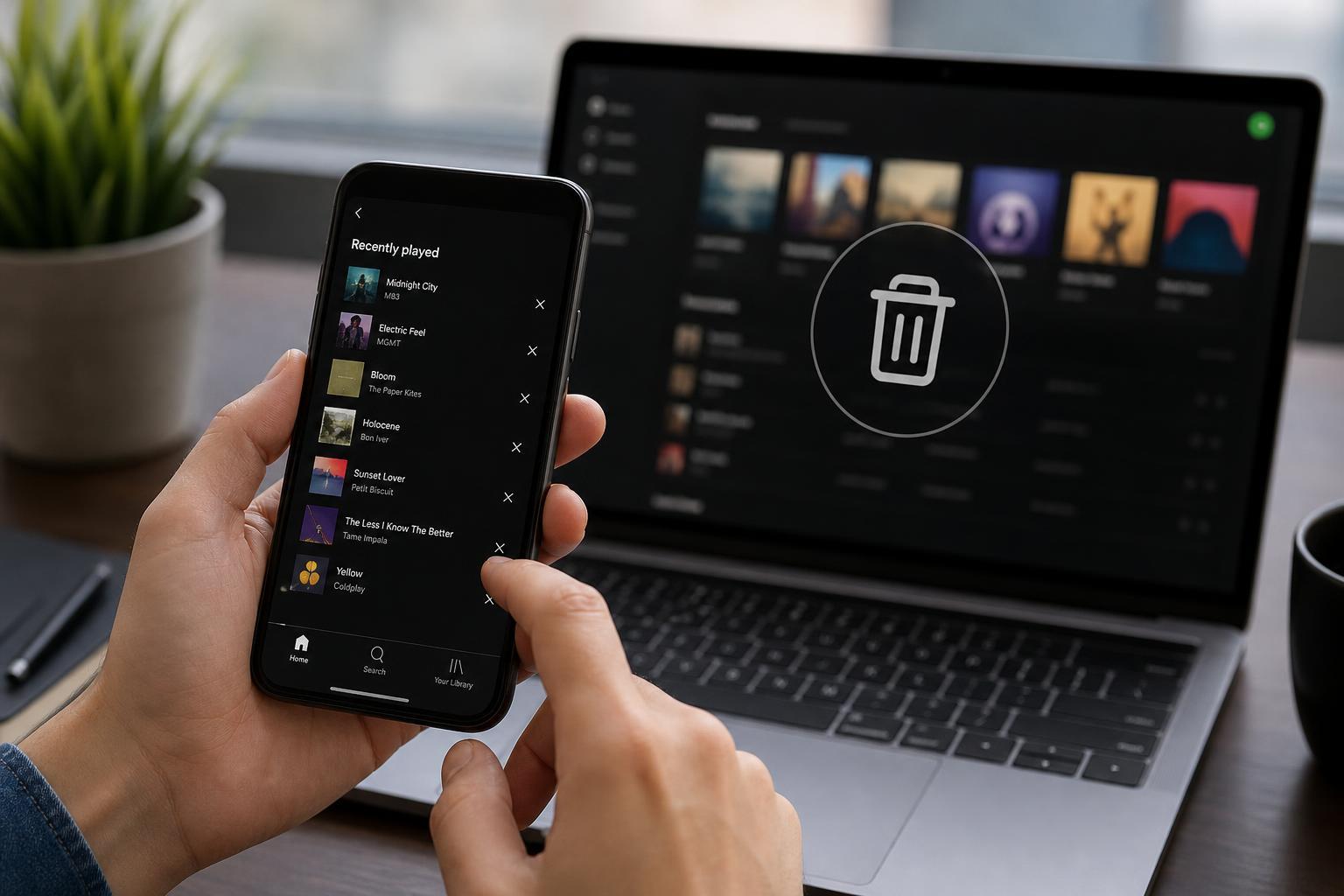
First, Know Which Spotify “History” You’re Trying to Clear
Spotify uses the word history loosely, and that is part of the confusion. You may be trying to remove one of several different things:
- Recently played albums, artists, playlists, or podcasts
- Your listening history inside Spotify Wrapped or similar summary features
- Tracks that influence recommendations like Discover Weekly and your Home feed
- Activity shown to friends or on connected social features
- Playback data cached in the app on your phone or computer
What You Can Clear and What You Usually Can’t
Spotify does not offer a single button that wipes every trace of listening history from your account. Some parts can be removed or hidden, while others are only indirectly affected.
- You can remove items from your recently played list in some cases
- You can hide or stop sharing certain activity features
- You can remove downloads and local cache data from the app
- You can change recommendation behavior by using private listening habits going forward
- You usually cannot erase all past listening data from Spotify’s internal recommendation system on demand
Check Whether the Change Was Made on the Right Device
One common reason history seems impossible to clear is that the change was made on one device, but another device is still showing the old data. Spotify sync can lag, especially if you use the app on a phone, tablet, desktop, and smart speaker.
- Open Spotify on the device where you made the change.
- Force a refresh by closing the app completely and opening it again.
- Check the same page or section on another device.
- If you use Spotify in a browser, sign out and sign back in there too.
- Wait a little longer if the app appears to be using cached data instead of the latest account state.
If the Problem Is Recently Played Items
Spotify’s mobile and desktop interfaces do not always handle recent activity the same way. Depending on the app version and platform, you may be able to remove or hide some recent items from view, but the option may not appear everywhere.
- On mobile, look for the three-dot menu next to a playlist, album, or artist entry
- Check whether the item can be removed from your recent items or listening history view
- Try the desktop app if the mobile app does not show the expected option
- Make sure you are viewing your own account, not a shared or family member’s device session
Use Private Session Going Forward
Private Session is the best option when you want to listen without affecting your recommendations or recent activity as much. It does not erase old history, but it helps prevent new plays from shaping your profile in the same way.
- Open Spotify and go to your profile or settings area.
- Find the Private Session option.
- Turn it on before you start listening to music you do not want reflected in your normal activity.
- Turn it off again when you want listening to count normally.
Clear Spotify Cache if the App Is Showing Stale History
If Spotify seems stuck showing old listening data, cache corruption or stale local files may be part of the issue. Clearing cache will not erase account history, but it can fix displays that refuse to update.
- Open Spotify settings on the affected device.
- Look for Storage or Cache settings.
- Clear cached data if that option is available.
- Fully close and reopen Spotify.
- Sign out and sign back in if the display still looks wrong.
Check for Multiple Logged-In Sessions
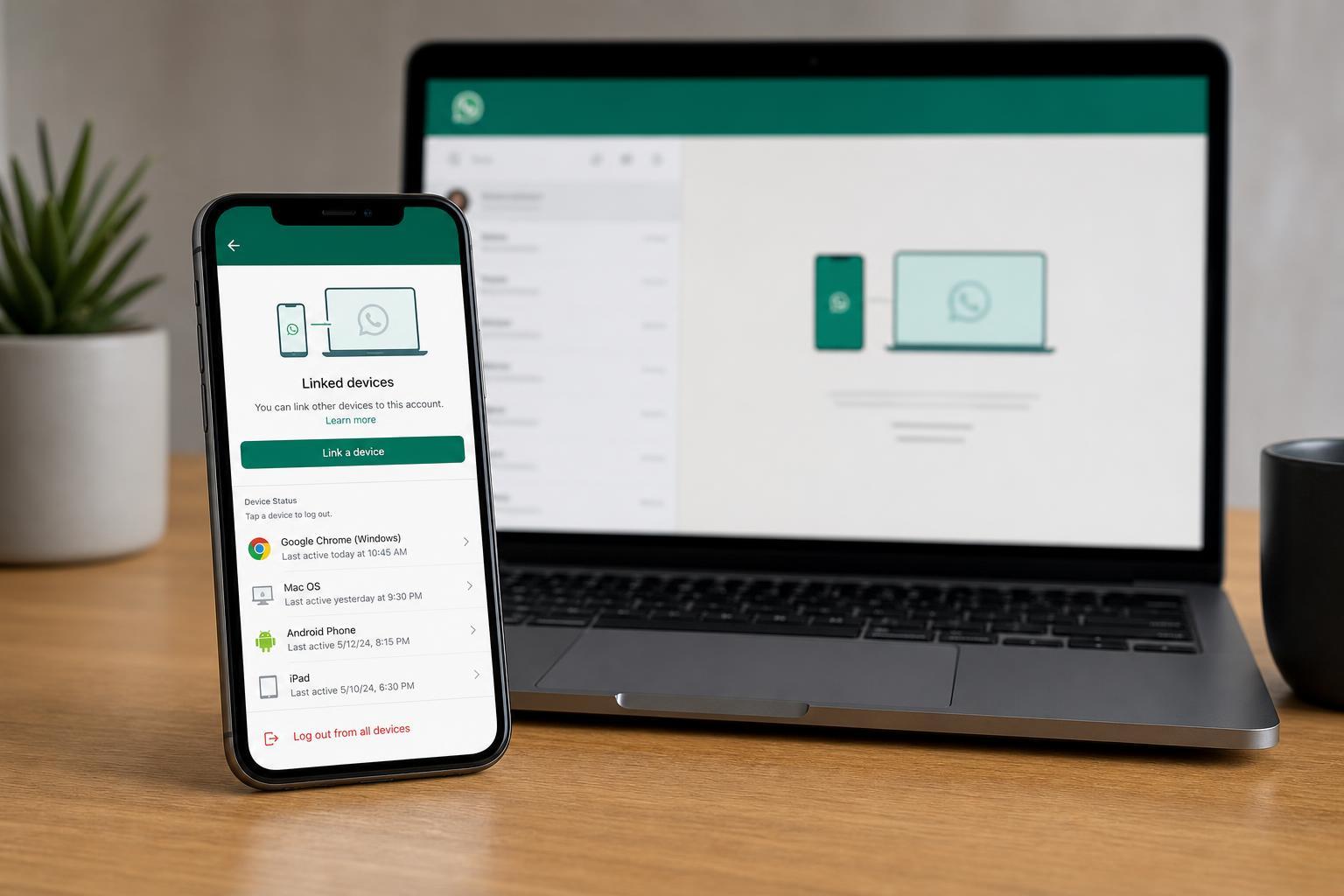
If you use Spotify on shared devices, browser tabs, game consoles, or smart speakers, one of those sessions may still be playing or updating activity in the background. That can make it look like history is not clearing when the old activity is actually being refreshed from another session.
- Review devices currently signed in to your Spotify account
- Log out of devices you do not recognize
- Remove access from older apps or browser sessions if needed
- Update your password if you suspect another person is using your account
If Spotify Recommendations Still Reflect Old Listening
Even when visible recent items are gone, recommendations may still reflect what you listened to before. That is normal. Spotify uses longer-term patterns, so it may take time for your feed to shift.
- Listen to the genres and artists you want Spotify to prioritize
- Use Private Session for content you do not want weighted heavily
- Skip or avoid tracks that you do not want shaping recommendations
- Follow artists and playlists that better match your real preferences
When Reinstalling the App Makes Sense
Reinstalling Spotify is only worth trying if the app itself seems broken, not because it will wipe your account history. It can help when the interface is glitchy, menus are missing, or cached data is causing repeated sync problems.
- Uninstall Spotify from the affected device.
- Restart the device only if needed to complete the uninstall cleanly.
- Reinstall the latest version from the official app store or Spotify website.
- Sign in again and check whether the issue is still present.
When to Contact Spotify Support
If your listening history still will not update after trying the steps above, or if the app shows activity that does not match your account, Spotify Support may need to look at the account directly.
- The same old item keeps reappearing after you remove it
- Your activity changes on one device but not another
- You see plays you did not make
- The app seems stuck on an outdated history view for days
- Your account may have been accessed by someone else
Before contacting support, note the device type, app version, and the exact place where the history problem appears. That makes it easier to explain what is not working.
The Short Version
If you can’t clear Spotify history, the most likely explanations are that you are looking at a sync issue, a cached display problem, or a type of listening data that Spotify does not fully let you erase. Start by identifying which history you mean, clear cache if the app is showing stale data, check other logged-in devices, and use Private Session going forward if you want new listening to stay separate.