
If equations in Microsoft Word won’t convert to Professional mode, the issue is usually caused by the way the equation was entered, the Word version you are using, or a format that Word cannot fully convert. In most cases, Word is still showing the equation, but it is keeping it in Linear format instead of turning it into the built-up Professional display.
This can be frustrating when you expect a neatly formatted equation with fractions, superscripts, and symbols, but Word keeps showing a plain-text style equation or refuses to change the layout. The good news is that the problem is usually tied to a specific compatibility or editing limitation, not a broken document.
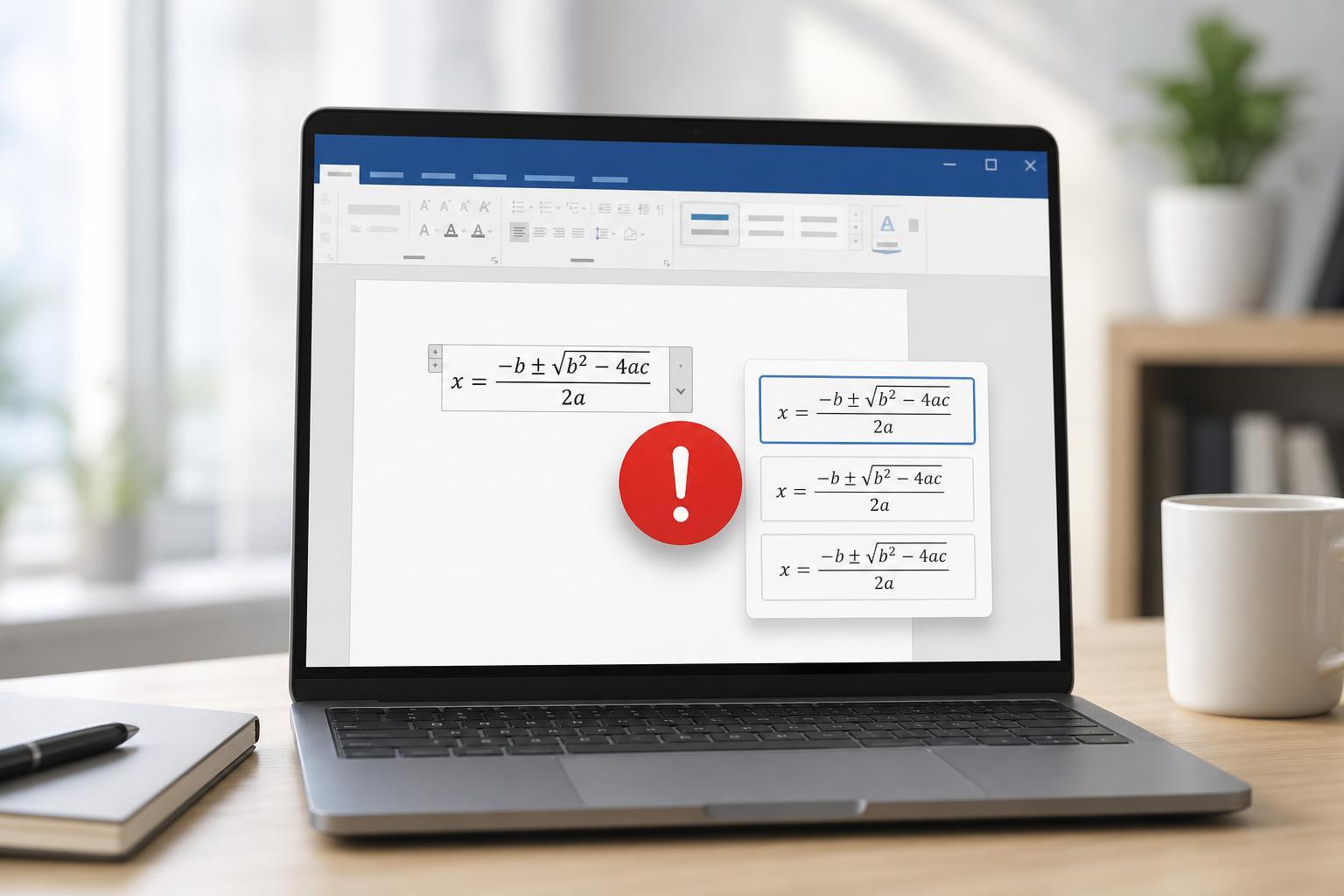
What Professional Mode Means in Word
In Microsoft Word, Professional format displays equations as properly typeset math. Fractions stack vertically, exponents appear in the correct position, and symbols are arranged in a cleaner visual style. Linear format, by contrast, keeps the equation in a typed form such as x^2 or (a+b)/(c+d).
Most Common Reasons the Conversion Fails
- The equation was pasted from another app as plain text or image-based content.
- The document is in Compatibility Mode or an older Word file format.
- The equation includes unsupported characters or formatting.
- The equation was created in a different equation editor and Word cannot fully interpret it.
- Word is set to display the equation in Linear mode and the conversion command is unavailable or ignored.
- The equation is part of a field, text box, or object that limits editing behavior.
Check Whether the Equation Was Created in Word’s Equation Editor
Word handles its own equations best when they are inserted with the built-in Equation tool. If the equation came from copy and paste, a screenshot, an image, MathType, or another editor, Word may not be able to convert it into Professional mode cleanly.
- Click inside the equation.
- Look for the Equation tab or Equation Tools options in the ribbon.
- If Word treats the content like normal text instead of an editable equation object, it was probably not created as a native Word equation.
- If needed, delete the equation and re-enter it using Insert > Equation.
Convert the Equation Manually
If the equation is editable, try switching it directly from Linear to Professional format.
- Click the equation to select it.
- Open the Equation tab if it appears.
- Look for the Professional or Normal Text/Professional conversion option.
- Choose Professional to display the equation in built-up form.
- If the result looks wrong, switch back to Linear and check whether the equation contains unsupported syntax.
Make Sure the Document Is Not in Compatibility Mode
Older .doc files and documents opened in Compatibility Mode can limit some modern equation features. Word may still let you edit equations, but the formatting behavior can be restricted.
- Click File > Info.
- Check whether the document name includes Compatibility Mode.
- If it does, choose Convert to upgrade the document to the current format.
- Save the file as a .docx document.
- Try converting the equation again.
Simplify the Equation Structure
Some equations do not convert because they contain characters or layouts Word cannot build into Professional mode. This is common with copied mathematical notation, unusual symbols, or expressions that include extra spaces and formatting.
- Remove unnecessary spaces inside the equation.
- Re-enter fractions, exponents, and subscripts using Word’s equation shortcuts.
- Replace copied symbols with Word’s built-in math symbols when possible.
- Split very complex expressions into smaller parts to test which piece causes the issue.
Check for Paste and Formatting Problems
If you pasted the equation from a website, PDF, or another document, the content may carry formatting that blocks proper conversion. In some cases, Word only sees the pasted content as plain text or as a formatted object that does not convert well.
- Paste the equation into a blank Word document using Paste Special if available.
- Try pasting as unformatted text and then rebuild the equation with Word’s equation tools.
- If the content came from a PDF, manually retype the equation instead of relying on the pasted version.
- Avoid pasting screenshots if the goal is an editable equation.
Update or Repair Word if Equation Tools Act Unpredictably
If Word should support the conversion but the command is missing, greyed out, or inconsistent across documents, the problem may be with the Office installation or version-specific behavior.
- Open File > Account.
- Check for Office updates.
- Install any available updates.
- Close and reopen Word after updating.
- If the problem continues, try starting Word in Safe Mode to see whether an add-in is interfering.
When You May Need to Recreate the Equation
If an equation refuses to convert no matter what you try, recreating it in Word is often the cleanest fix. This is especially true when the original equation was imported from another program or built from text that Word cannot fully interpret.
- The equation was copied from another equation editor.
- The layout breaks when converted to Professional mode.
- Symbols change position incorrectly after conversion.
- The equation is partly editable but still behaves like pasted text.
Recreating the equation may take a few extra minutes, but it usually saves time compared with trying to repair a badly formatted object that Word cannot convert correctly.
How to Avoid the Problem Next Time
- Insert equations with Word’s built-in Equation tool whenever possible.
- Keep documents in .docx format instead of older .doc files.
- Avoid pasting equations as images if you need editing later.
- Use standard equation syntax and supported symbols.
- Test complex equations immediately after creating them, before building the rest of the document.
Which Fix Should You Try First?
Start with the easiest checks: confirm the equation was created in Word, try the Professional conversion command, and see whether the document is in Compatibility Mode. If those do not work, simplify the equation or recreate it using Word’s equation editor. In many cases, the issue is not a Word bug at all, but a mismatch between the equation’s original format and what Word can convert.





