
The message “Your location is currently in use” in Windows means that one or more apps, services, or system features are actively accessing your device’s location data. It is usually not an error by itself. Instead, it is Windows telling you that location tracking is currently enabled and being used right now.
This can happen when Maps, weather apps, browsers, Find My Device, or other location-aware features are open. In some cases, it may also appear when a background app or Windows service is checking your location without you noticing.
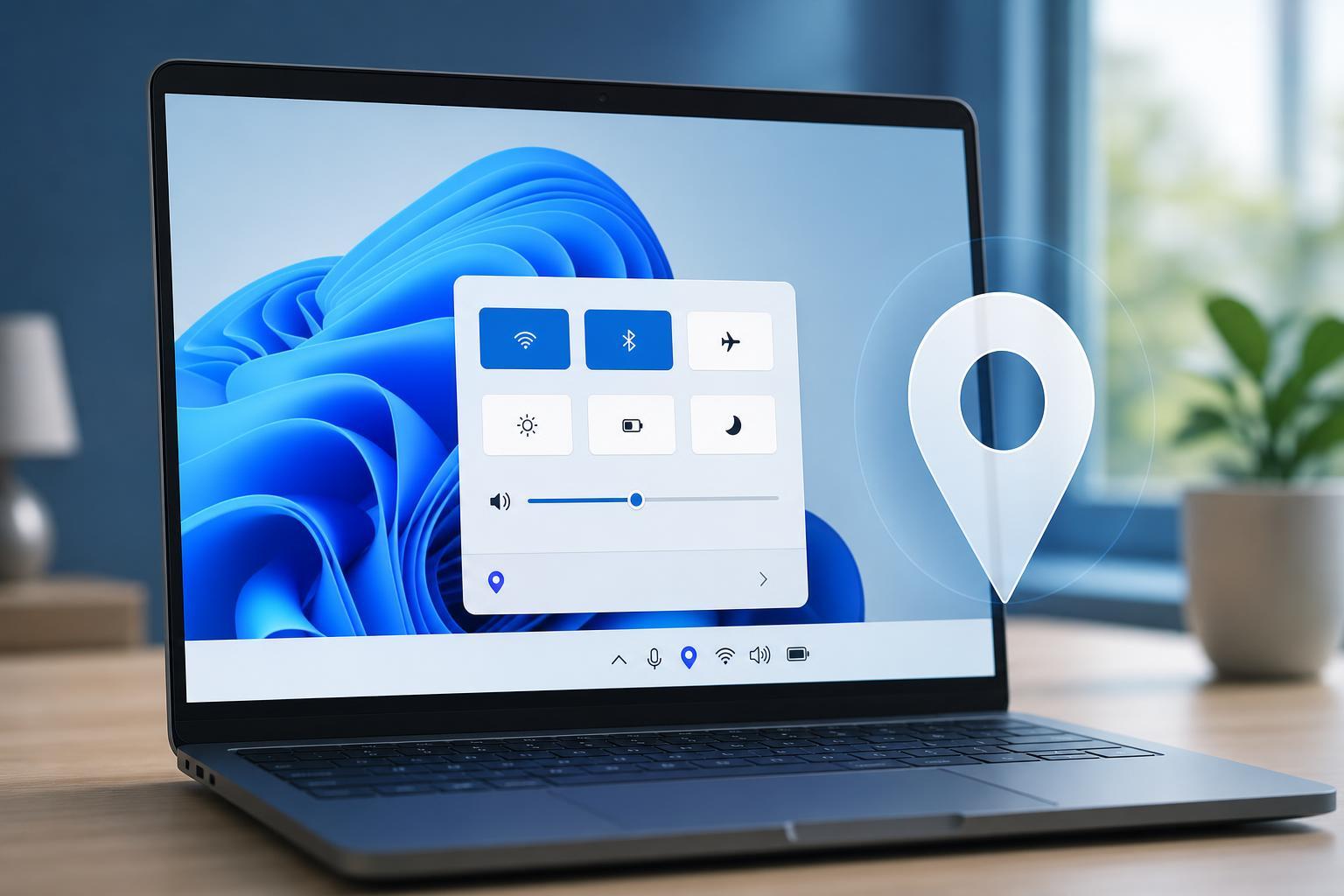
What the message actually means
Windows uses this message to indicate that location services are active. That usually means your PC is sharing location information with an app or system component that has permission to access it. If the message appears in the taskbar, Settings, or privacy indicators, it is typically a normal status message rather than a warning about a problem.
Common reasons it appears
- A maps, navigation, or weather app is open and using your location
- A browser site has requested location access
- Windows features such as Find My Device or location-based reminders are active
- A background app with location permission is running
- The system has recently checked your location for time zone, region, or nearby services
How to see which app is using your location
- Open Settings.
- Go to Privacy & security.
- Select Location.
- Look for the recent activity or app access section if it is shown on your version of Windows.
- Check which apps have permission to use location and look for anything that matches the time you noticed the message.
On some Windows versions, a location icon appears in the taskbar or system tray when location is in use. If you click or hover over it, Windows may show you which app recently accessed location or whether system services are using it.
When it is normal
In many cases, the message is completely expected. A laptop checking your location for weather updates, a browser using location to show local search results, or a navigation app tracking your position are all normal examples. If you recently opened an app that clearly needs location, the message is usually nothing to worry about.
When to be concerned
You should pay closer attention if the location indicator appears when no app should need it, or if it stays on for a long time after you close the apps you were using. That may mean a background app still has permission, or that a website in your browser is continuing to request location access.
How to stop apps from using your location
- Open Settings and go to Privacy & security > Location.
- Turn off Location services completely if you want to stop all location access.
- If you want to keep location enabled, review the app list and turn off location permission for specific apps you do not trust or do not need.
- Check your browser’s site permissions and remove location access for websites you do not recognize.
- Close any app that still appears to be using location after you revoke its permission.
If the message keeps appearing unexpectedly
If you keep seeing the message even when you are not using a location-aware app, check three places first: Windows location permissions, browser site permissions, and apps running in the background. Those are the most common reasons location stays active longer than expected.
- Review which apps are allowed to access location in Windows settings
- Check browser permissions for any sites allowed to use location
- Look for background apps that may still be running after you close their windows
- Make sure no map, weather, or delivery app is launching automatically at startup
How to decide whether to leave it on
If you use location-based features often, leaving location services enabled is usually the easiest option. If privacy is more important to you, you can keep location off most of the time and turn it on only when needed. The right choice depends on how often you use apps that depend on location and how comfortable you are with background access.
What this means for your PC
“Your location is currently in use” is usually a status indicator, not a fault. It tells you that Windows or an app is actively using location data. Once you know which app needs it, you can decide whether the behavior is expected, limit permissions, or turn location off entirely.





