
If Windows stops booting after you install a new GPU, the problem is usually caused by a connection issue, power problem, BIOS setting, or a driver conflict rather than a bad graphics card right away. The key is to narrow down whether the PC is failing before Windows loads, reaching Windows but showing no display, or crashing as soon as the new card is detected.
This guide walks through the most useful checks in the order that usually finds the problem fastest, starting with the simple hardware items and moving to firmware and software fixes only when they are needed.
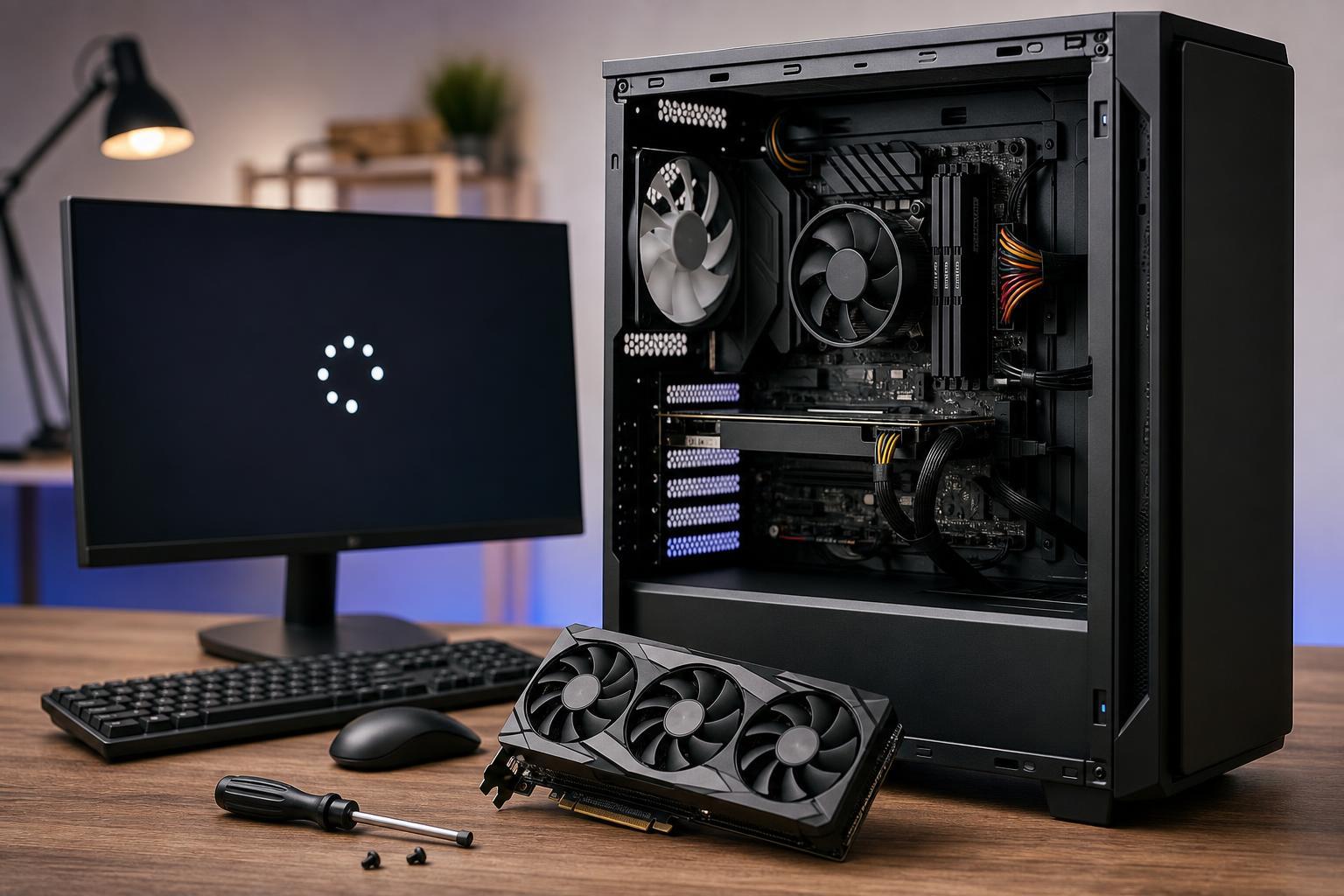
First, figure out how it is failing
The exact symptom matters because it points to different causes. A PC that powers on but shows nothing on the monitor is not the same as a PC that shows the motherboard logo and then freezes, or one that starts Windows and then crashes during the login screen.
- No display at all after installing the GPU
- PC powers on, but the monitor stays black
- You can reach the BIOS, but Windows never loads
- Windows loads partway, then restarts or shows a blue screen
- The system works with the old GPU or integrated graphics, but not with the new card
Check the basic hardware setup first
Before changing any settings, make sure the new card is physically installed correctly. A GPU can look seated even when it is not fully locked into the PCIe slot.
- Power off the PC and unplug it from the wall.
- Reseat the GPU firmly in the main PCIe x16 slot until the retention clip clicks.
- Make sure all required PCIe power connectors are attached directly from the power supply.
- Check that the monitor cable is plugged into the GPU, not the motherboard video output.
- Try a different display cable or different port on the card if available.
Make sure the power supply is adequate
A new GPU can demand more power than the previous one, especially under startup load. If the power supply is too weak, missing a connector, or using the wrong adapter setup, the system may fail before Windows can load.
- Check the GPU manufacturer’s power connector requirements
- Confirm the PSU wattage is suitable for the whole system, not just the card
- Avoid daisy-chaining power connectors if the card recommends separate cables
- If you are using adapters, verify they are the correct type and fully inserted
- Watch for signs of instability such as sudden shutdowns or repeated reboot loops
Use integrated graphics or the old GPU to get back into Windows
If your CPU or motherboard supports integrated graphics, remove the new card and boot using the motherboard video output. If Windows starts normally, the system itself is probably fine and the problem is likely tied to the new GPU, its drivers, or a BIOS setting.
If you still have the old GPU, reinstall it and check whether Windows boots with it. That simple swap is one of the fastest ways to separate a card compatibility problem from a broader Windows issue.
Check BIOS or UEFI settings
Some systems need a firmware setting changed before they will boot reliably with a newer or different GPU. This is especially common when moving between older and newer cards, or when a motherboard is still configured for an unusual graphics initialization mode.
- Enter BIOS or UEFI setup during startup.
- Look for primary display, initial display output, or graphics configuration settings.
- If the board offers it, try switching between PCIe, PEG, and integrated graphics as the primary display source.
- If your motherboard has a PCIe generation setting, try Auto first, then a lower fixed version if the new card is not initializing.
- Save changes and test booting again.
Clear CMOS if the system no longer detects the card correctly
If the motherboard seems stuck on the wrong graphics setting, a CMOS reset can restore default firmware values and remove a bad configuration that is blocking startup.
- Shut the PC down and unplug it.
- Use the motherboard clear-CMOS button, jumper, or battery removal method described in the manual.
- Wait the recommended amount of time before restoring power.
- Boot into BIOS again and recheck the graphics-related settings.
Remove old display drivers if Windows starts in Safe Mode
If the system reaches Windows with the old GPU or integrated graphics, but fails with the new one, a driver conflict may be part of the problem. This is especially likely if you changed between AMD and NVIDIA cards, or moved from one major GPU generation to another.
- Boot Windows in Safe Mode or use integrated graphics to reach the desktop.
- Download the latest driver package for the new GPU from the official manufacturer site.
- Use a driver cleanup tool only if you know you need a full removal, or remove the old driver through Apps and Features first.
- Reboot and install the correct driver for the new card.
- Test normal startup again after installation.
Check for physical clearance and slot issues
A new GPU may be larger, heavier, or deeper than the old one. That can create problems that are not obvious at first glance, such as a card not fully seating because it is hitting a case fan, cable, or drive cage.
- Make sure the card is level and fully inserted
- Check for obstruction from CPU coolers, case fans, or front-panel cables
- Confirm the PCIe slot latch is closed
- Verify the card is not sagging so much that it lifts out of the slot
- If your motherboard has another full-length PCIe slot, test it only if the manual says it supports graphics
Look for signs of an incompatible or faulty card
If the PC refuses to boot even after you have checked power, seating, display cabling, BIOS settings, and drivers, the new card itself may be faulty or incompatible with the system.
- The PC powers on but gives no video in multiple known-good systems
- The system shuts down as soon as the GPU receives load
- The card is not detected in BIOS or Device Manager
- You hear repeated startup attempts or see debug LEDs related to VGA or graphics
- The issue started immediately after installing the new card and nothing else changed
At that point, testing the GPU in another compatible PC is the best way to confirm whether the card is defective. If it fails there too, request an exchange or warranty service.
If Windows boots only after a change, finish with a clean test
Once the system starts correctly, test it under normal use before putting everything back into a fully closed case. Check that the monitor wakes properly, the correct resolution is available, and the system remains stable during a game or graphics-heavy application.
- Confirm Windows sees the correct GPU in Device Manager
- Check that the monitor is running at the expected refresh rate
- Watch for crashes, artifacting, or black screens under load
- Listen for unusual fan behavior or power-related shutdowns
When to suspect the motherboard or BIOS itself
If the system works with a known-good GPU but not with the new one, and you have already ruled out power and driver problems, the motherboard may have trouble with the card’s PCIe generation, physical slot, or firmware compatibility. This is less common, but it does happen on older boards with newer high-end cards.
In that situation, check the motherboard support page for BIOS updates that mention PCIe compatibility, stability improvements, or newer GPU support. Update only if the manufacturer provides a clear reason and you can do it safely from a working setup.
What to try first, in order
- Confirm the monitor cable is connected to the GPU, not the motherboard.
- Reseat the GPU and reconnect every PCIe power cable.
- Test with a different display cable or port.
- Boot with integrated graphics or the old GPU to see whether Windows itself is healthy.
- Check BIOS settings for primary display and PCIe compatibility.
- Clear CMOS if the firmware seems to be stuck on an incompatible configuration.
- Boot into Safe Mode and clean reinstall the correct GPU driver.
- Test the GPU in another compatible system if the problem still remains.
If you work through those steps in order, you can usually tell whether the issue is cable-related, power-related, firmware-related, driver-related, or a true hardware fault.
Final takeaway
When Windows will not boot after a new GPU install, the card is only one possible cause. In many cases the fix is as simple as a missing power connector, a monitor cable in the wrong port, or a BIOS setting that needs to be reset. Start with the hardware basics, then move to firmware and drivers once you have confirmed the card is properly seated and powered.





