
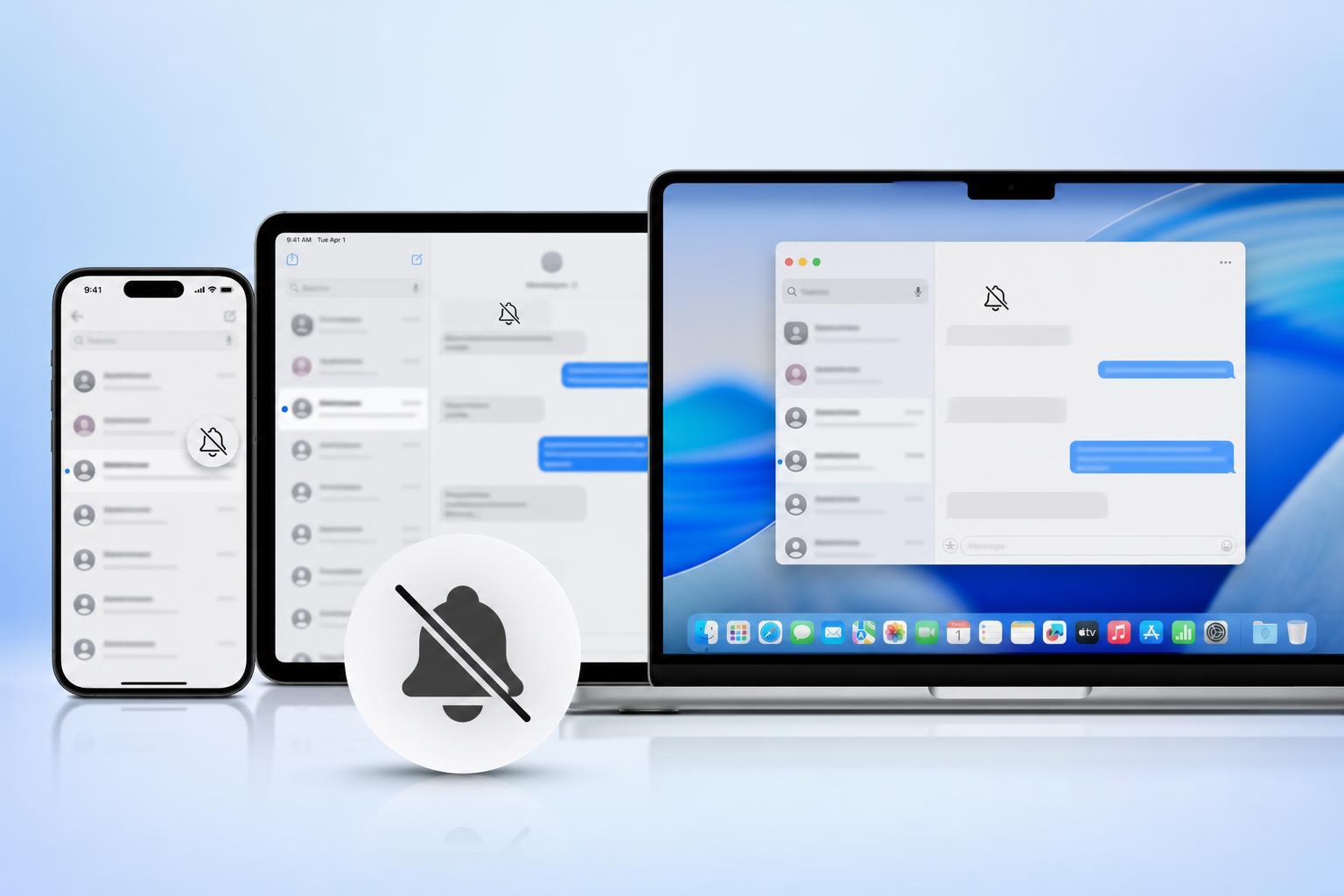
Hide Alerts is a Messages setting that silences notifications for a specific conversation without blocking the person or leaving the chat. It is useful when a thread is active but you do not want your iPhone, iPad, or Mac constantly lighting up with alerts.
If you have ever seen a crescent moon icon next to a conversation and wondered what it means, this guide explains how Hide Alerts works, where to find it, and what it does on Apple devices.
What Hide Alerts Means in Messages
When you turn on Hide Alerts for a conversation in the Messages app, Apple stops showing notification banners, sounds, and alerts for new messages in that chat on the device where the setting is enabled. The conversation still receives messages normally, and you can open it anytime to read and reply.
In many versions of iOS, iPadOS, and macOS, a muted conversation is marked with a small crescent moon icon. That icon is the easiest way to tell that alerts are turned off for that thread.
How Hide Alerts Works on iPhone and iPad
On iPhone and iPad, Hide Alerts applies to a specific conversation in the Messages app. You can mute one person, a group chat, or an iMessage thread without changing your notification settings for every other conversation.
- No banner notifications for that conversation
- No notification sounds or vibration alerts for that chat
- Messages still appear in the thread when you open Messages
- Other conversations continue to notify you normally
If you use the same Apple ID on multiple devices, the muted state may sync depending on your settings and software version, but you should still check each device if you want to be sure alerts are off everywhere.
How to Turn On Hide Alerts on iPhone or iPad
- Open Messages and find the conversation you want to mute.
- Swipe left on the conversation in the list, then tap the bell icon, or open the conversation and tap the contact or group name at the top.
- Choose Hide Alerts if the option appears.
- Look for the crescent moon icon to confirm the conversation is muted.
How to Turn On Hide Alerts on Mac
On Mac, you can mute a Messages conversation from the Messages app in a similar way. This is handy if you use your Mac for work or school and want certain chats to stay quiet while you are focused.
- Open the Messages app on your Mac.
- Right-click or Control-click the conversation you want to mute.
- Select Hide Alerts from the menu.
- Check for the muted indicator, such as a crescent moon, beside the conversation.
What Happens After You Hide Alerts
- You will still receive the messages.
- The conversation will not notify you until you check it.
- The sender is not told that you muted the chat.
- You can turn alerts back on at any time.
Hide Alerts is different from deleting a conversation or blocking a contact. The chat remains active, and you can still send and receive messages normally. It only changes how aggressively the conversation tries to get your attention.
How to Turn Off Hide Alerts
- Open the muted conversation in Messages.
- Tap the contact or group name at the top on iPhone or iPad, or right-click the thread on Mac.
- Select Show Alerts or turn off Hide Alerts, depending on the device and software version.
- Confirm that the crescent moon icon is gone.
Once alerts are turned back on, the conversation will start notifying you again like normal.
Hide Alerts vs Do Not Disturb or Focus
Hide Alerts is a conversation-level setting. Do Not Disturb and Focus are device-wide or app-wide notification controls. That difference matters when you only want one chat silenced, not your whole device.
- Hide Alerts: mutes one specific Messages conversation
- Focus: reduces notifications from people and apps based on the Focus mode you choose
- Do Not Disturb: prevents most notifications from appearing at all during that time
If you only want to silence one noisy group chat, Hide Alerts is usually the simplest option. If you want fewer interruptions from everything, Focus may be the better tool.
When Hide Alerts Is Most Useful
- Busy group chats that generate frequent notifications
- Work or school threads you want to check between tasks
- Chats that are active at night but not urgent
- Conversations you want to keep but not hear from constantly
It is also useful if you are troubleshooting notification overload. If your phone is not silent overall but one conversation keeps interrupting you, muting that thread may solve the problem without changing your broader settings.
A Quick Way to Check Whether a Conversation Is Muted
If you are unsure whether Hide Alerts is on, look for a crescent moon icon in the conversation list or thread details. You can also open the chat and check the contact or group info at the top to see whether alerts are muted.
If you still are not getting notifications from other conversations either, the issue may be broader than Hide Alerts and could involve your notification settings, Focus mode, or sound settings instead.
What to Remember
Hide Alerts is a simple way to quiet one Messages conversation on iPhone, iPad, or Mac without blocking the person or changing your whole notification setup. If you want fewer interruptions but still want to stay in the chat, it is one of the most useful settings in Apple Messages.





