
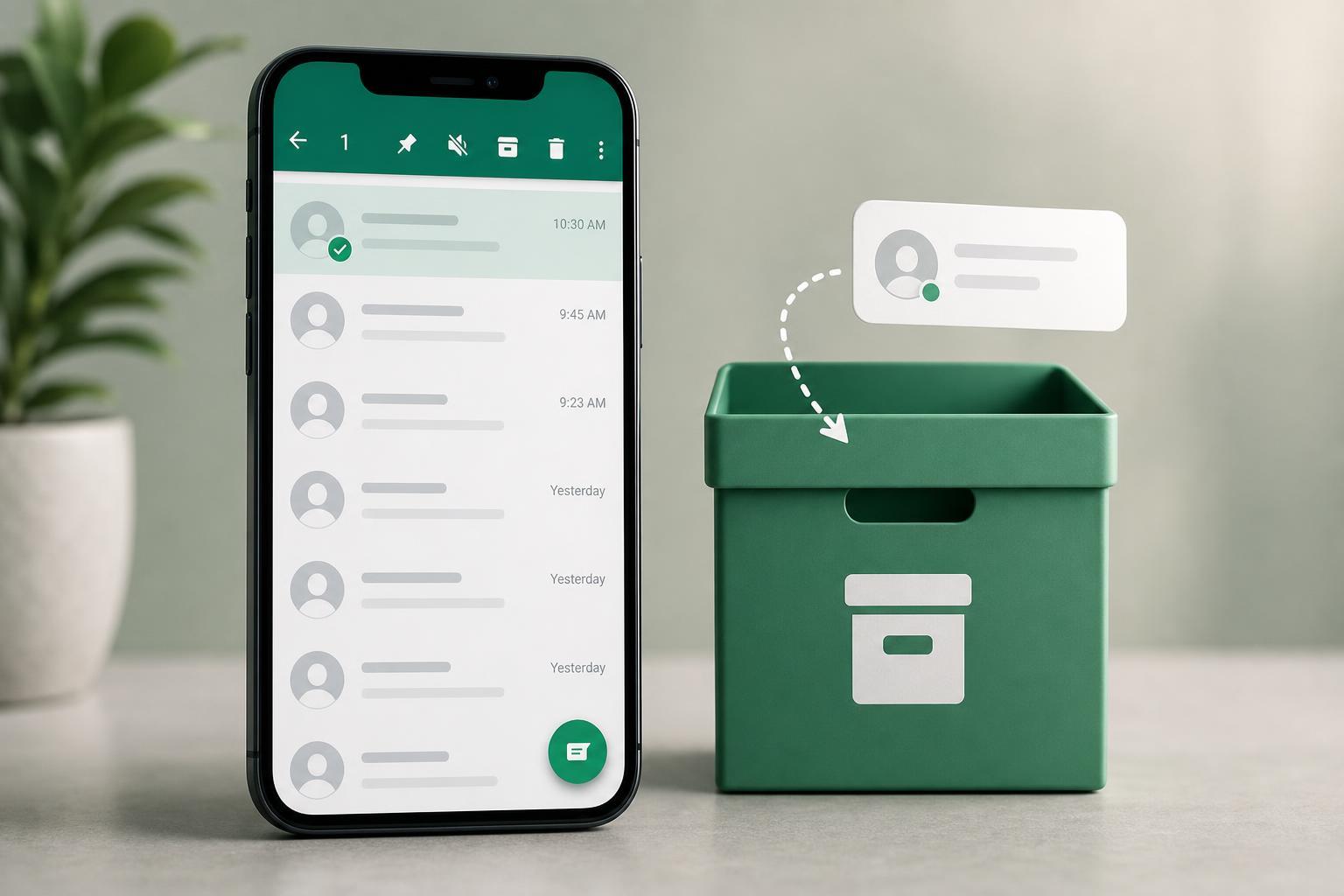
WhatsApp’s Archive feature lets you move chats out of your main chat list without deleting them. It is a simple way to clear clutter, hide conversations you do not want to see right now, and keep your inbox easier to manage.
If you have ever wondered what happens to a chat after you archive it, the short answer is that the conversation is still there. It is not deleted, and the other person is not notified. The chat is just moved to a separate archived area.
What Does Archive Mean in WhatsApp?
Archiving a chat in WhatsApp means storing that conversation away from your main Chats screen. It is a housekeeping feature, not a delete option. The chat remains on your account, and you can open it again whenever you want.
What Happens When You Archive a Chat?
- The chat disappears from your main chat list and moves to Archived Chats.
- The conversation is still accessible from the archived section.
- Messages, photos, videos, and voice notes stay in the chat unless you delete them separately.
- The other person does not get a notification that you archived the chat.
- You can unarchive the chat later and bring it back to your main list.
Does Archiving Delete the Chat?
No. Archiving and deleting are different actions. Deleting removes the chat from your device, while archiving only hides it from the main list. If you archive a chat by mistake, you can restore it without losing the conversation.
Where to Find Archived Chats in WhatsApp
- Open WhatsApp and go to the Chats tab.
- Look for Archived at the top of the chat list, or scroll to the archived section if your version shows it lower down.
- Tap Archived to view all hidden conversations.
- Open any chat you want to read or reply to.
How to Archive a Chat in WhatsApp
- On the Chats screen, press and hold the chat you want to archive.
- Tap the Archive icon or choose Archive from the menu.
- The chat will move into Archived Chats immediately.
How to Unarchive a Chat
- Open the Archived Chats section.
- Press and hold the chat you want to restore.
- Tap Unarchive or move it back to Chats.
- The chat will return to your main list.
What Happens If an Archived Chat Gets a New Message?
In many WhatsApp setups, an archived chat can stay archived even when a new message arrives. However, the behavior depends on your archived chat settings. If the chat is set to remain archived, it stays hidden until you open it or unarchive it manually.
When Archiving Is Better Than Deleting
- You want to save the chat for later but do not need it in your main inbox.
- You are no longer actively chatting with someone but want to keep the history.
- You want to hide work, group, or temporary chats without losing them.
- You are trying to organize WhatsApp without removing useful information.
Common Questions About WhatsApp Archive
- Will the other person know I archived the chat? No.
- Can archived chats still receive messages? Yes.
- Are archived chats backed up? Usually yes, if your WhatsApp backup includes them.
- Can I archive group chats? Yes, the same way as normal chats.
- Can I archive a chat permanently? Not really—archiving only hides it until you choose otherwise.
A Simple Way to Think About It
Think of Archive as a filing drawer for conversations. The chat is still there, but it is moved out of sight so your main WhatsApp list stays tidier. If you want a conversation gone completely, delete it. If you just want it out of the way, archive it.





