
Deleting the Gmail app from your phone removes the app itself, but it does not delete your Gmail account or erase your email from Google’s servers. What changes is how you access your mail on that device, along with any app-specific settings such as notifications and cached messages.
If you are thinking about removing Gmail to free up space, reduce notifications, or switch to another mail app, it helps to know exactly what is lost, what stays intact, and what to check before you uninstall it.
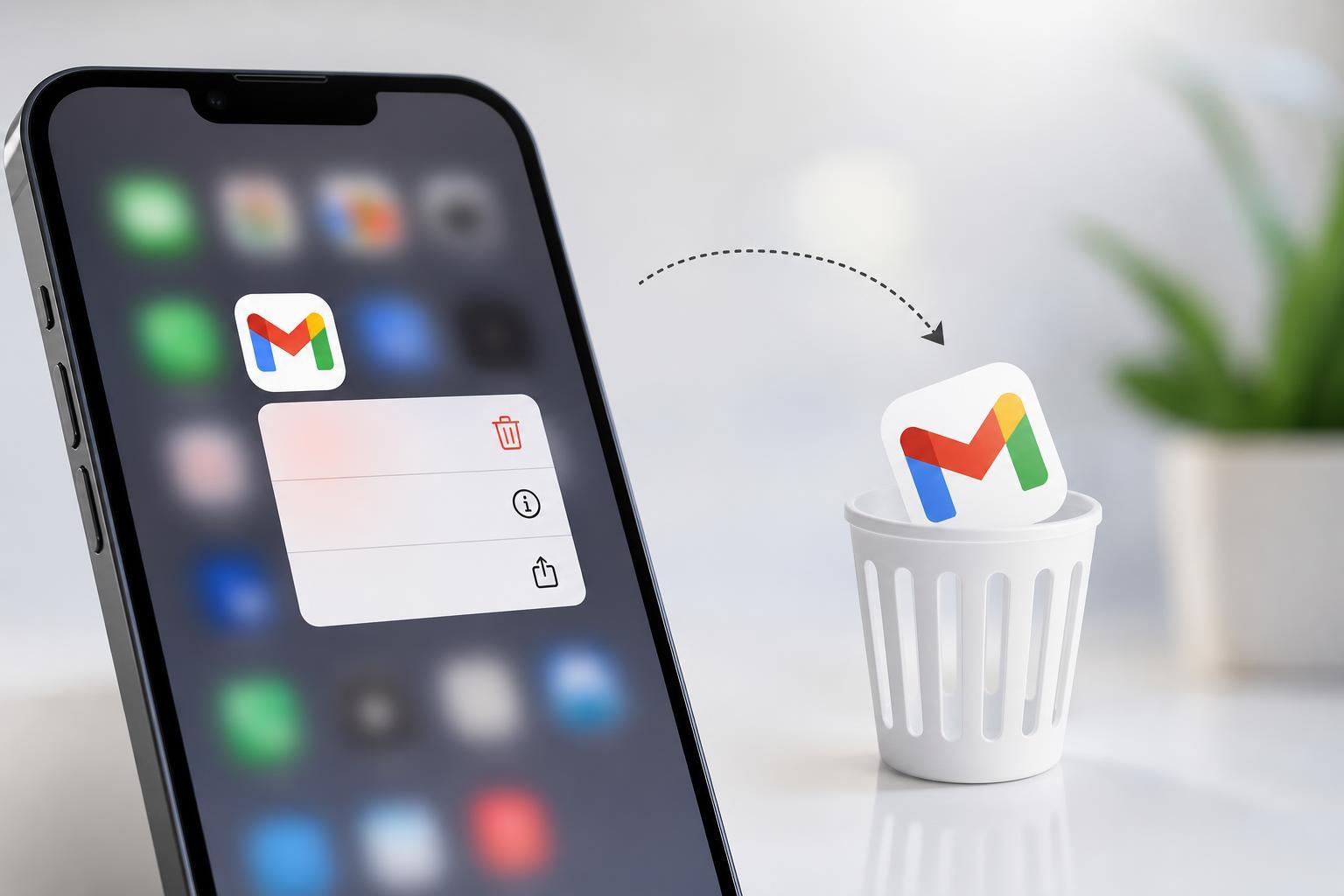
What Actually Happens When You Remove Gmail
When you delete the Gmail app, you are only uninstalling the app from your phone. Your Gmail address still exists, your emails remain in your Google account, and you can still sign in from a browser, another mail app, or a different device.
On most phones, the app removal mainly affects local access. That means you lose the Gmail app interface, push notifications from that app, and any offline mail stored on the device.
- The Gmail app icon disappears from your phone
- You stop receiving Gmail app notifications on that device
- Any offline email saved in the app is removed from the phone
- Your Gmail messages remain available through Google’s servers
- You can still access mail through gmail.com or another email app
What Does Not Get Deleted
It is easy to confuse the app with the account. The app is just a tool for reading mail, while the account is where your messages are stored. Removing the app does not erase the account or the mailbox behind it.
- Your inbox and sent mail remain in Gmail
- Emails synced to other devices stay there
- Contacts linked to your Google account are not removed
- Google Drive, Calendar, and other Google services are not deleted
- Messages sent to your address will still arrive
Will You Still Get Emails?
You will still receive emails in your Gmail account, but not as app notifications on that phone if Gmail is the app you removed. New messages will continue to arrive in your mailbox, where they can be read later through a browser or another mail app.
If you use another email app that is connected to the same Gmail account, you may still see those emails there. The key difference is that Gmail itself is no longer handling the notifications and syncing on that device.
What Happens to Cached Data and Offline Mail
Gmail stores some data locally so it can load faster and let you view recent messages offline. When you uninstall the app, that local data is removed from the phone along with the app.
- Downloaded message previews may be cleared
- Offline access to recent mail is lost
- Search history and local app data are removed
- Storage used by the app is usually freed up
If Gmail Is Your Main Email App
If Gmail is the only app you use for that account, deleting it means you will need another way to check your mail. The easiest options are signing in through a web browser or installing a different mail app such as Outlook or the built-in Mail app on your phone.
- Open a browser and go to gmail.com to keep using the same inbox.
- Install another mail app if you want app-based access again.
- Sign in with your Google account if the app supports Gmail login.
- Check that mail sync and notifications are enabled in the new app.
When Deleting the App Is a Good Idea
Removing Gmail can make sense if you no longer use that phone for email, want less clutter, or prefer a different mail app. It can also help if the app is causing problems on the device and you want to reinstall it later.
- You want to free a small amount of storage
- You prefer using email in a browser
- You are switching to another email client
- You want fewer notifications
- You are troubleshooting Gmail app issues
When You Should Be Careful
Also check whether the phone is using Gmail as part of a larger Google sign-in setup. Deleting the app does not remove the account from the device, but removing the wrong account or changing sync settings can affect other Google services.
How to Remove Gmail Safely
If you simply want to uninstall the app, the process is straightforward. Just make sure you understand which account you are signed into and whether you need access to any saved mail first.
- Open the app drawer or home screen on your phone.
- Press and hold the Gmail app icon.
- Choose Uninstall or Remove App.
- Confirm the action if prompted.
- Open a browser or another mail app if you still need access to your inbox.
How to Keep Your Mail Without the Gmail App
If you do not want the Gmail app but still want your messages, you have a few options. You can use Gmail in a browser, forward mail to another account, or connect the same Google account to a different email app.
- Use gmail.com in Chrome, Safari, or another browser
- Turn on forwarding to another inbox if that fits your setup
- Add the Gmail account to another email app
- Leave the account signed in on a tablet or computer instead
What This Means in Practice
In most cases, deleting the Gmail app is low risk. Your mail stays safe with Google, and you can get it back by reinstalling the app later. The main thing you lose is quick access from that specific phone and the convenience of Gmail notifications.
If you are unsure, think of the app as a window into your email, not the email itself. Closing the window does not destroy the mailbox.





