
Google Docs keeps a running version history of your document, so you can see who changed what, when they changed it, and restore an earlier draft if needed. This is useful whether you are working alone or collaborating with other people.
In this guide, you’ll learn how to open version history, rename important versions, compare edits, and recover a previous version without losing your current work.
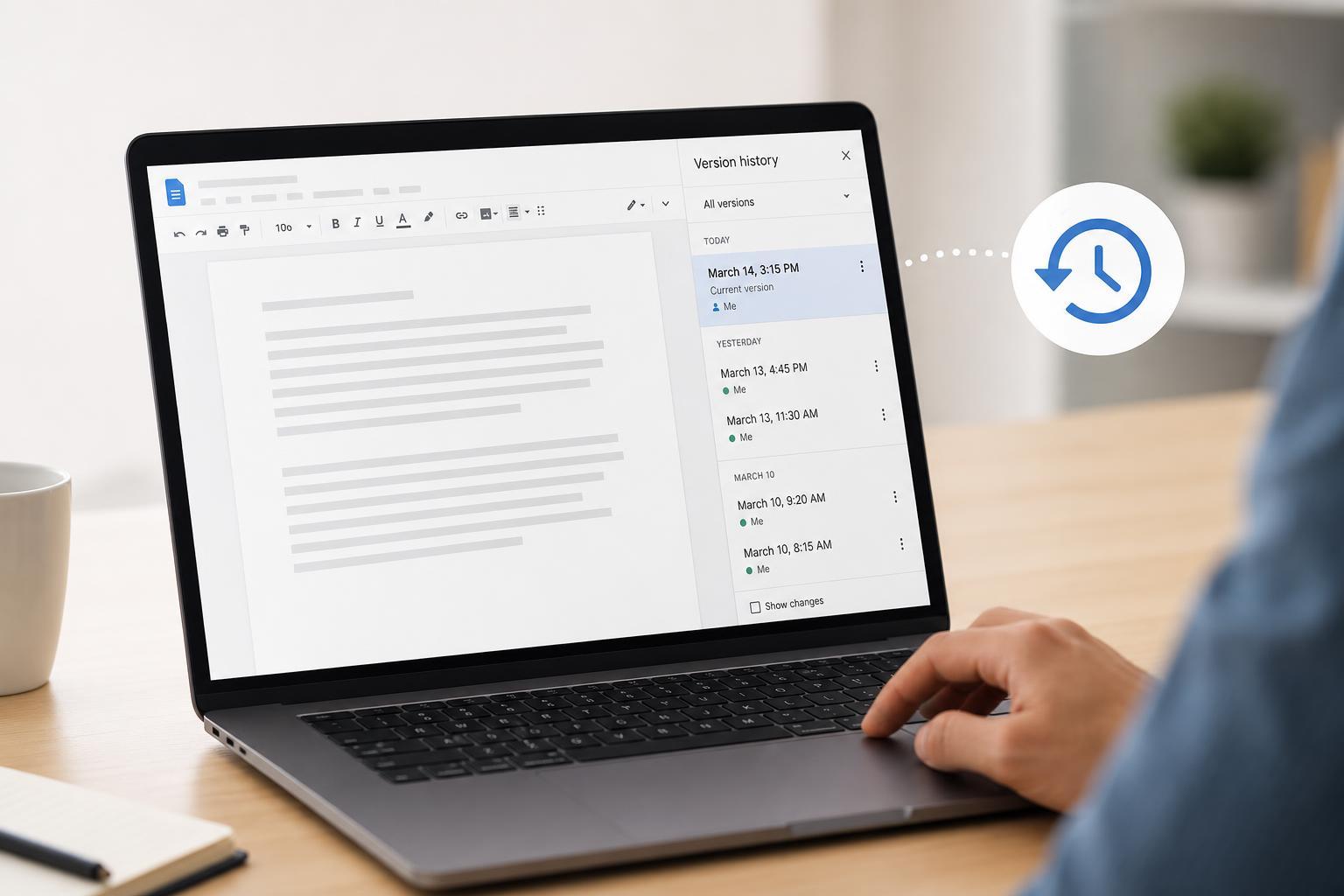
How to Open Version History in Google Docs
- Open the document in Google Docs.
- Click File in the top menu.
- Select Version history, then click See version history.
- Alternatively, use the keyboard shortcut Ctrl + Alt + Shift + H on Windows or Cmd + Option + Shift + H on Mac.
- The version history panel will open on the right side of the document.
What You Can See in Version History
Version history shows a timeline of saved edits. Each version may include the date and time it was saved, the people who made changes, and color-coded highlights showing which edits were made by which collaborator.
- Date and time of each saved version
- Names of collaborators who edited the document
- Color highlights for different editors
- Older drafts you can preview or restore
- Named versions you create yourself
How to Name Important Versions
Naming a version makes it easier to find a milestone later, such as a draft you want to keep before major edits or a final copy you may need to return to.
- Open Version history.
- Click the version you want to name.
- At the top of the version panel, click the three-dot menu if available, or use the version name area.
- Choose Name this version.
- Type a clear name such as First draft, Client review, or Final approved version.
How to Restore an Older Version
If you want the document to go back to an earlier state, Google Docs lets you restore a previous version. This does not delete newer history, so you can still return to a later version if needed.
- Open Version history.
- Click the version you want to restore so you can review it first.
- Check the document preview to make sure it is the correct copy.
- Click Restore this version at the top of the page.
- Confirm the restore when prompted.
How to Compare Changes Between Versions
If you need to understand exactly what changed, use the version history panel to switch between revisions and inspect the highlighted edits. This is useful for reviewing collaboration work or identifying where a mistake entered the document.
- Click different versions in the history panel to view them one by one.
- Look for color-coded edits tied to specific collaborators.
- Use comments and suggestions alongside version history if you need more context.
- Check the timestamps to match edits with a specific time period.
Managing Version History in Shared Documents
In shared files, version history can help you track contributions, settle questions about edits, and recover content if someone accidentally overwrites a section. Editors and owners can usually access history, while some viewers may not have permission to do so.
- Use named versions at major checkpoints.
- Restore only after checking the full document preview.
- Keep comments if you need to preserve discussion around changes.
- Share editing access carefully if version control matters.
If You Cannot Find Version History
If the version history option is missing or unavailable, the most likely reason is that you do not have editing permission. In some cases, the file may also be in a format that limits Google Docs features until it is converted to a Google Docs file.
- Check whether you are signed in to the correct Google account.
- Make sure the file is a Google Docs document, not a read-only export.
- Confirm that you have edit access, not view-only access.
- Ask the owner to change sharing permissions if needed.
Good Habits for Using Version History
Version history works best when you use it as part of a simple document workflow. Naming key milestones and checking history before major changes can save time later if you need to recover a draft.
- Name versions before major rewrites.
- Keep a final approved version before sharing externally.
- Use history to recover deleted text instead of rewriting it from memory.
- Review older versions before making major structural changes.





